Prompts
In DIAL, prompts created by users—via the DIAL Core API or UI—are stored in each user's private folder. To share them with other users, prompt owners can publish them, or administrators can manually add them to the Public folder.
Note
Prompts are a protected resource. Refer to Access Control to learn how protected resources are handled in DIAL. Refer to Chat User Guide for how end users can publish prompts. Refer to DIAL Core API Publications for managing publication requests via API.
Main screen
The main screen displays all prompts located in the Public folder.
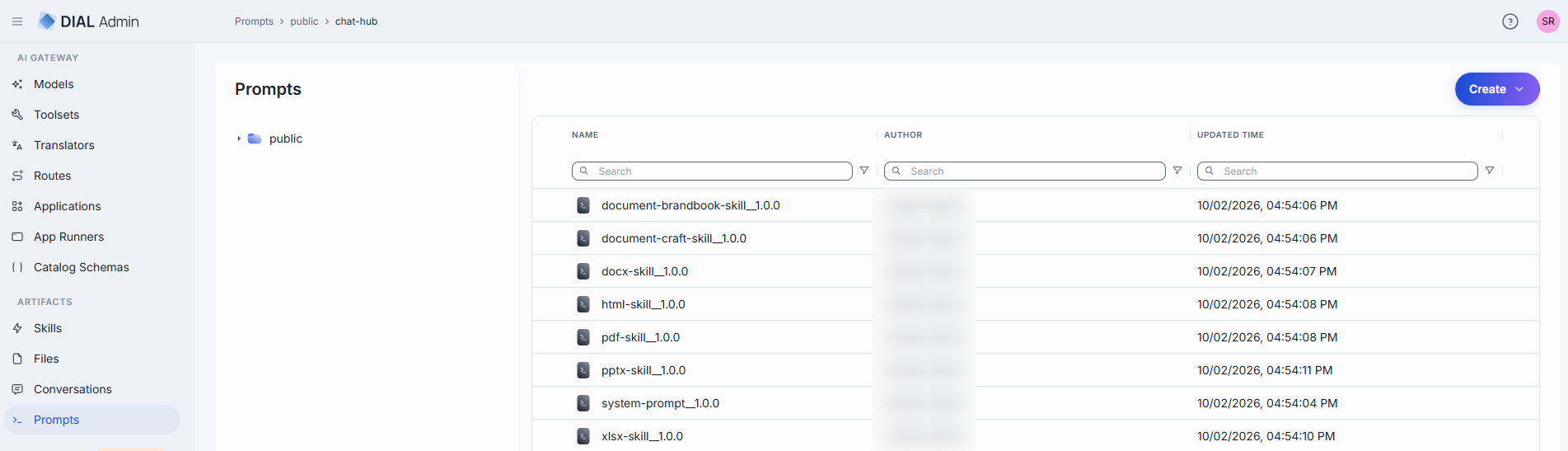
Click any folder to display its contents in the prompts grid. Prompts have no versions: each stored prompt is a separate row, and a double underscore (__) in a name is an ordinary part of the name.
| Column | Description |
|---|---|
| Name | Prompt name displayed on the UI. |
| Author | Username or system ID of the user who created or last updated this prompt. |
| Updated Time | Timestamp of the last modification. |
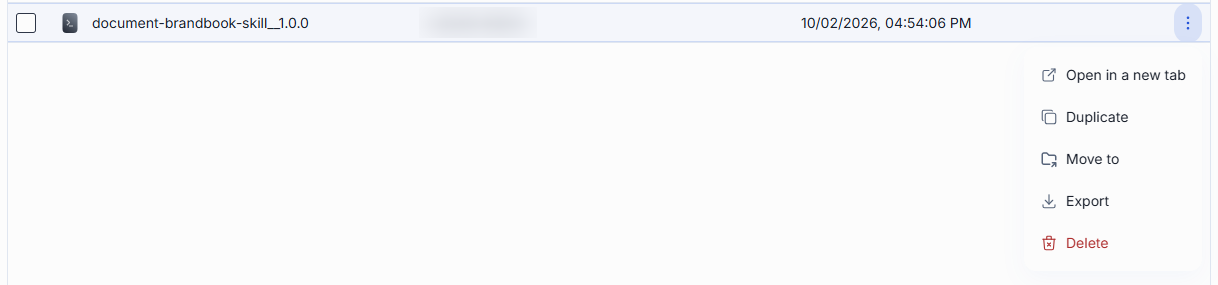
| Actions | Duplicate: Create a copy of the prompt. See Duplicate a prompt. Move to: Move to another folder (or select multiple prompts and use Move to in the toolbar). Export: Download the prompt. Open in a new tab: Open the prompt's properties in a new tab. Delete: Remove the prompt. |
Folder actions
Open the context menu of a folder in the tree to work with it:
| Action | What it does |
|---|---|
| Add sibling | Creates a new folder next to this one (same parent). |
| Add child | Creates a new folder inside this one. |
| Move to | Moves the folder and its contents to another folder. |
| Export | Downloads the folder and everything in it. |
| Manage permissions | Opens the folder in Folders Storage in a new browser tab, where you set who can access it. |
| Rename | Renames the folder. |
| Delete | Deletes the folder and its contents. |
Create a prompt
-
Select the target folder.
-
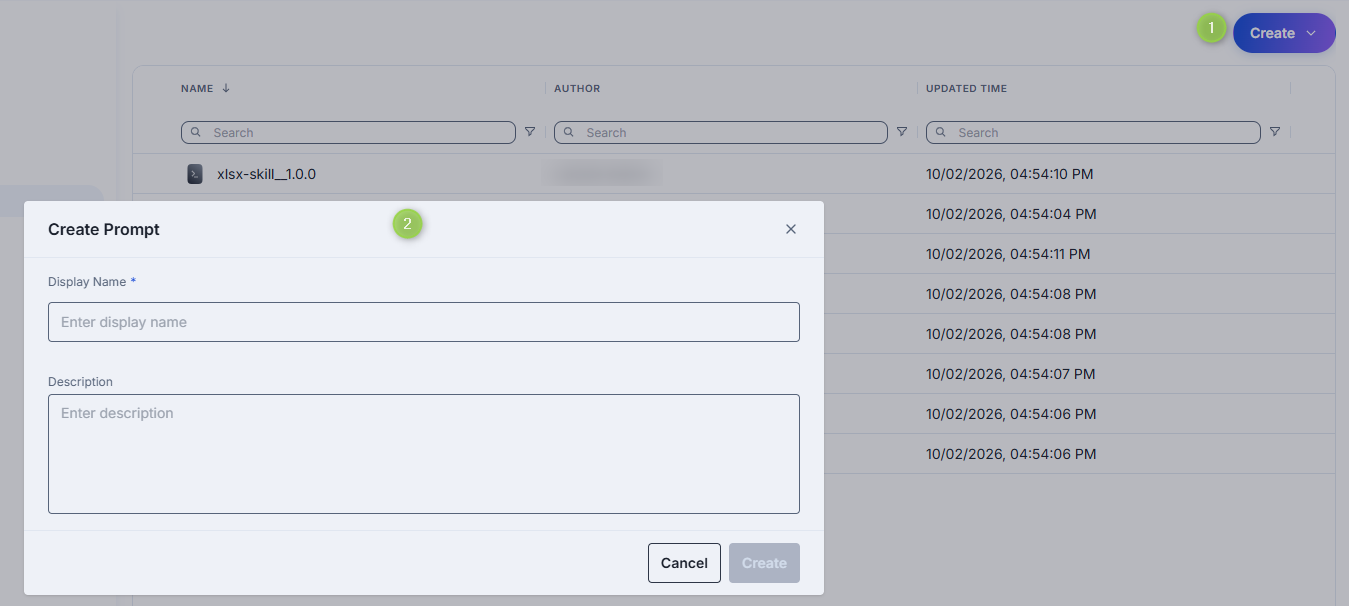
Click Create in the toolbar and select Prompt to open the Create Prompt modal.
-
Define prompt parameters:
Field Required Description Display Name Yes Prompt name displayed on the UI. Description No Free-form description of the prompt. -
Click Create. The dialog closes and the new prompt's Properties screen opens. The entry appears immediately in the listing.
Duplicate a prompt
Use Duplicate to create a copy of a prompt.
-
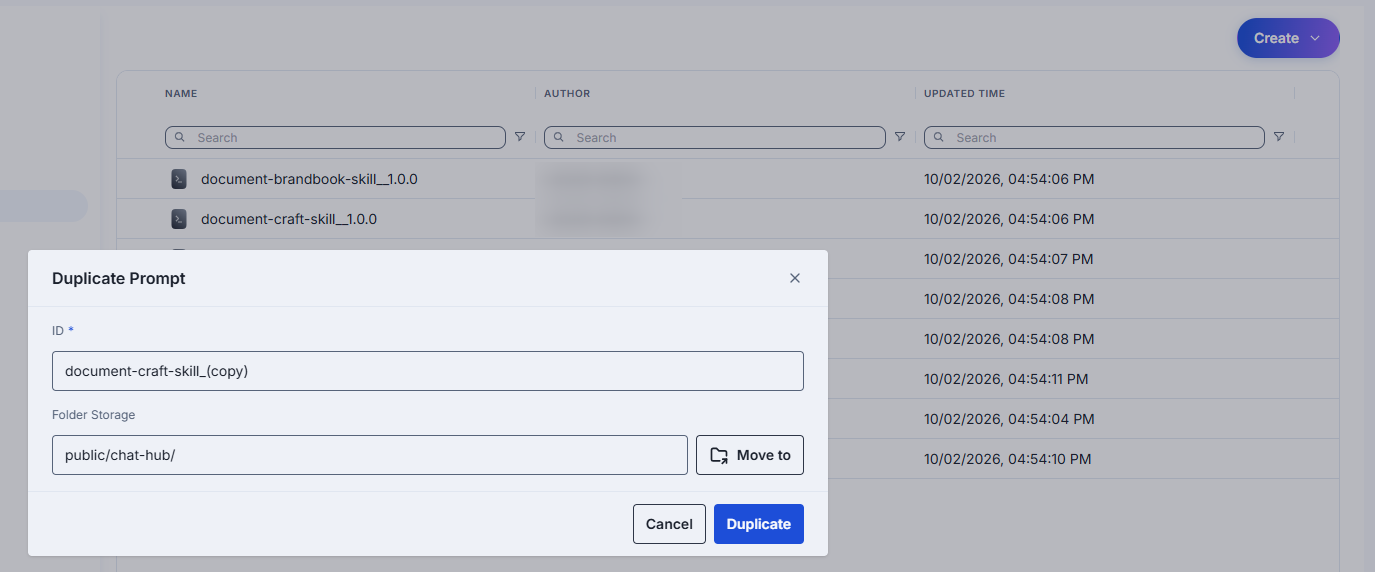
Open the prompt's actions menu (⋮) in the grid and select Duplicate.
-
In the Duplicate Prompt dialog, set the copy:
Field Required Description ID Yes Name of the copy. Pre-filled with the source name and a _(copy)suffix.Folder Storage No The folder for the copy. Pre-filled with the folder of the source prompt. Click Move to to choose another folder. -
Click Duplicate.
Export prompts
You can export individual prompts or folders with prompts (including nested folders). Export as ZIP archive or raw JSON.
- To export a folder, click Export in the folder's actions menu.
- To export a specific prompt, select it and click Export in its actions menu.
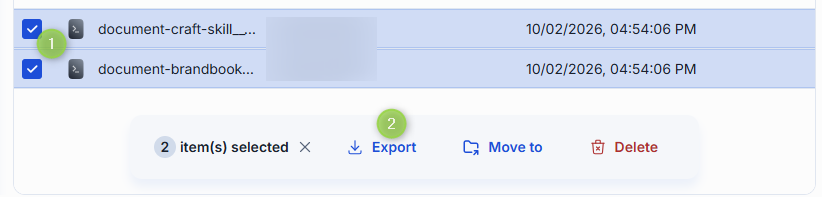
- To export several prompts, select them and click Export in the top toolbar.
Import prompts
You can upload ZIP archives or raw JSON files with prompts. This is essential for migrating, restoring, or sharing prompt assets between DIAL users.
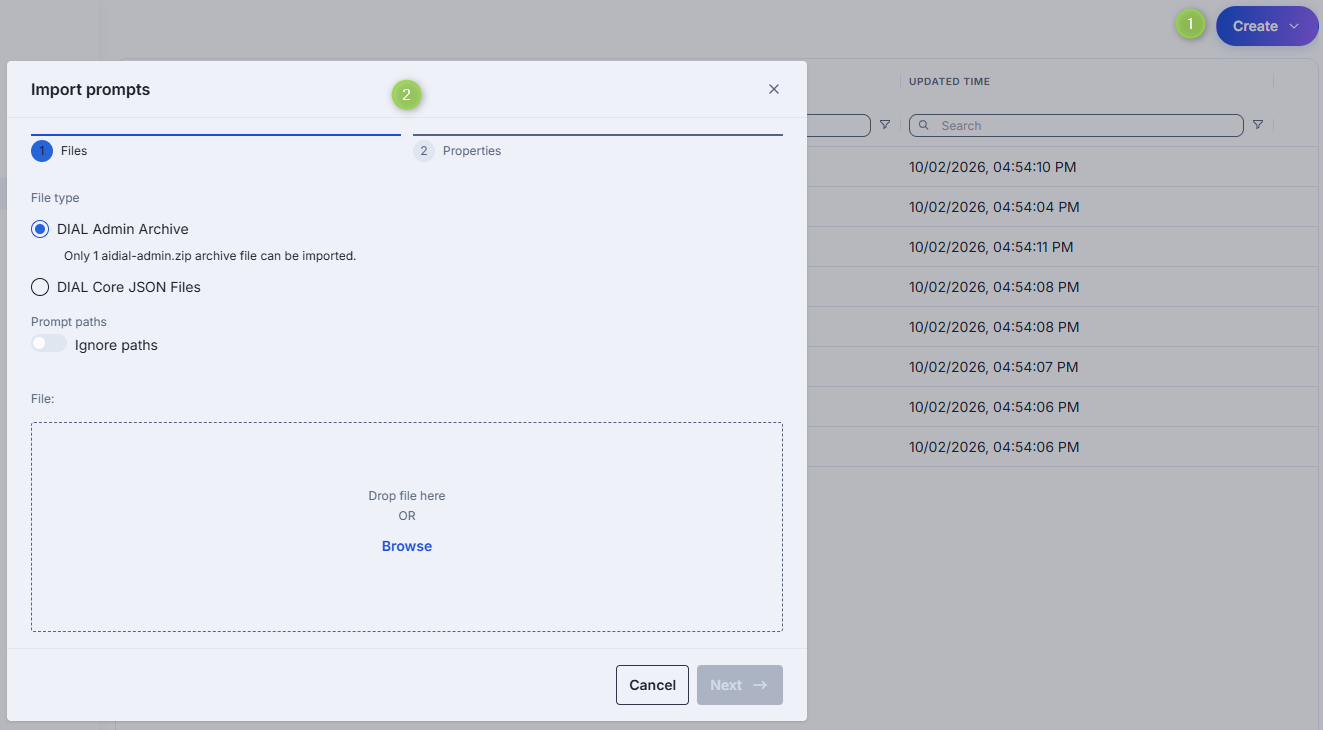
- Click Create in the toolbar and select Import.
- Select the type of files to import. Drag and drop or click Browse.
- Archive: Import a single ZIP or tarball. Only 1 archive at a time.
- JSON: Import JSON files. Up to 30 files at once.
- Select a Conflict resolution strategy: Skip, Override, or Edit manually.
- Enable Ignore paths to import all prompts directly into the root folder.
- Click Finish.
Delete a prompt
There are several ways to delete a prompt:
Warning
Any applications that reference a deleted prompt will stop working until a valid prompt is reattached.
- Click Delete in the toolbar on the Properties screen.
- Use the Delete option in the prompt's context menu.
- Delete the folder in which the prompt is located.
- Use Bulk Actions on the main screen to delete multiple prompts at once.
Properties
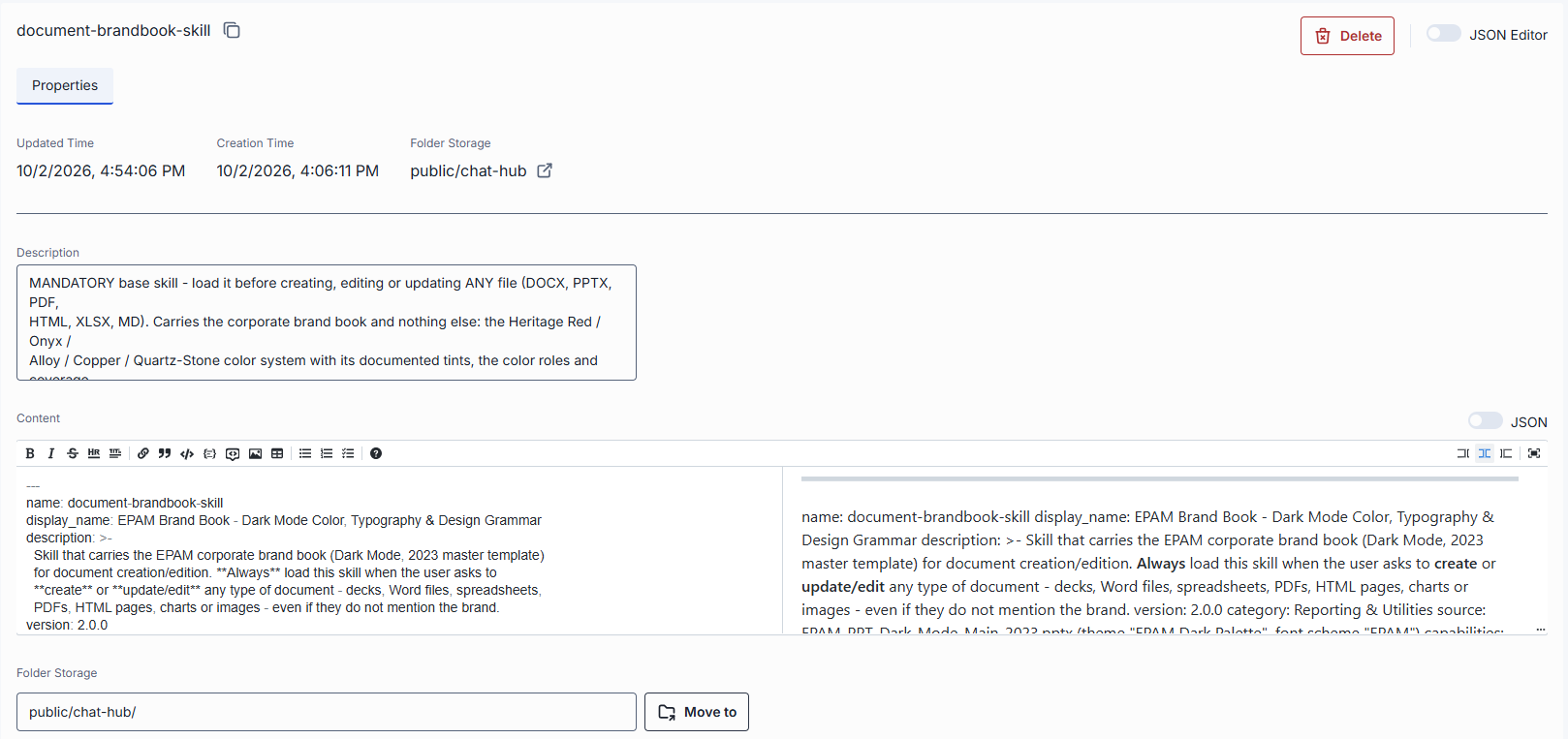
Click any prompt to open the Properties screen.
| Field | Description |
|---|---|
| Display Name | Name of the prompt (e.g. customer_base_growth). It can't be edited after the prompt is created. Click it to copy it. |
| Updated Time | Read-only timestamp of the last update. |
| Creation Time | Creation timestamp. |
| Storage Folder | Path to the prompt's location in the folder hierarchy. Click to navigate to Folders Storage. Use Move to to change the folder. |
| Description | Description of the prompt. |
| Content | Markdown editor supporting plain text with Markdown formatting, Mustache-style variables {{variableName}} for dynamic substitution, and a JSON editor. Refer to Chat User Guide to learn more about variables in prompts. |
Edit prompt
In the Properties tab, edit the selected information. Once edits are made, the top bar allows:
- Discard: Revert changes since the last save.
- Save: Save changes.
Advanced users can work with the prompt's raw JSON. Useful for bulk updates, copying configuration between environments, or editing settings not exposed in the form UI.
Tip
Switching modes is disabled when there are unsaved changes.
- Navigate to Artifacts > Prompts and select the prompt you want to edit.
- Click the JSON Editor toggle (top-right). The raw JSON is revealed.
Further reading
- DIAL Admin: Skills — manage reusable agent instructions
- Files — manage shared files
- DIAL Admin: Conversations — review published conversations
- Chat User Guide: Prompts — save and reuse prompts
- Sharing and publishing — share with colleagues or request organization-wide publication
- Access control reference — access patterns and ACLs for resources and Core APIs