Sharing and publishing
Everything you create in DIAL Chat — a conversation, a prompt, an agent, a toolset, a skill — is stored in your own private space and is visible only to you. Every user has a dedicated space in DIAL file storage, and only the owner can open what is in it. Sharing and publishing are the two ways to let other people in.
They solve different problems. Sharing hands a link to the people you choose, takes effect at once, and can grant editing rights. Publishing puts the item in front of your whole organization, or the part of it that matches rules you set, and an administrator reviews the request before anything becomes visible.
| Sharing | Publishing | |
|---|---|---|
| Who gets access | Anyone you send the link to, inside your organization | Everyone in the organization who matches the folder's access rules |
| Takes effect | Immediately | Only after an administrator approves the request |
| Access granted | View, or edit for most item types | Use — the published copy can't be edited |
| What the other person gets | A live view of your item, updates included | A separate published copy |
| Lifetime | The link expires after a while, and you can revoke access sooner | Stays until it's unpublished |
Publishing has to be enabled in your deployment. If you don't see Publish anywhere, ask your administrator — see Enable publications.
Sharing
What you can share
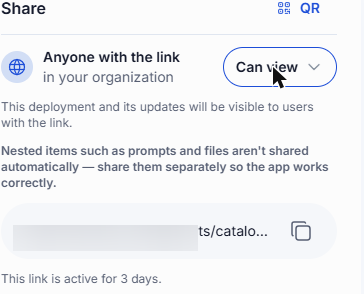
You can share conversations, prompts, and agents, toolsets, and skills. Files can't be shared on their own: they travel with the conversation they're attached to.
Share an item
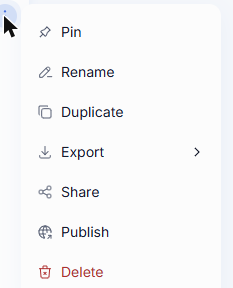
Open an item's menu — in the Chats and tasks list, or in its details panel in the Catalog — and click Share.
The panel gives you a link and a QR code for the same item; click QR and Link in the top right to switch between them. Send either one to the people you want to reach. Under the QR code, Copy puts the QR code on your clipboard as an image, and Download saves it as a PNG file named share-qr-code.png. Anyone in your organization who opens it gets access — the link doesn't pick out named individuals, so treat it as something to pass to specific people rather than post somewhere open.
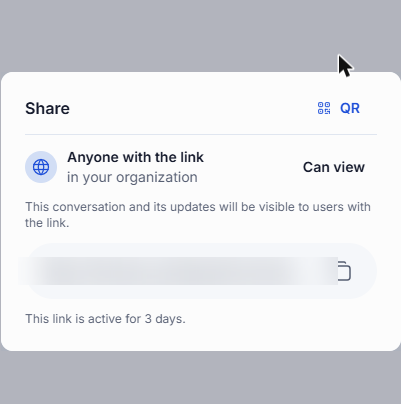
The panel also states the two things people most often get wrong about sharing:
- The link is temporary. It stays active for a limited time — the panel shows how many days. Share the item again to hand out a fresh link.
- What you share stays live. Recipients see the item as it is now, including later changes you make — a shared conversation shows messages you add after sharing. You aren't sending a snapshot.
By default, applications (agents), toolsets, credentials, skills, and projects can each be shared with up to 10 users. This limit applies to the resource across all its share links; creating a new link does not reset it. Conversations, files, and prompts are effectively unlimited by default. A system administrator can configure these limits in DIAL Core.
The limit counts users who gain access, not how many times a link is opened. Once a sharing limit is reached, further people see "This share link is invalid or has expired."
View or edit access
For a prompt, agent, toolset, or skill, a Can view / Can edit dropdown sits next to the link.
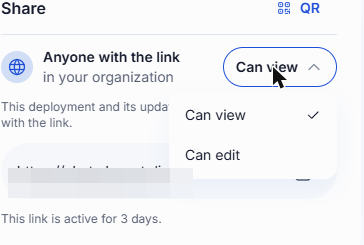
Can edit is the real difference between sharing and publishing: it lets someone change the item itself, not merely use it. That makes it the tool for collaborating on something still being built — a colleague can fix your agent's instructions rather than describing the fix to you.
Two consequences are worth knowing before you grant it. Edits apply to the one shared item, and DIAL doesn't lock it, so concurrent edits can overwrite each other. And a conversation is the exception to all of this — it has no permission dropdown and is always shared view-only, so recipients can read it and duplicate it, but never alter your original.
What is shared along with an item
- Conversation: its attachments are shared along with it — files from messages, stages, and citations — and they appear in the recipient's Files. A file stored in another user's bucket is not shared. Conversations are always shared view-only.
- Agent: the agent is shared together with the prompts its skills use, and appears under Shared with me. Source files, context files, and toolsets are not shared. Edit access applies to the agent and those prompts only, so the recipient cannot change or delete the agent's files.
- Folder: sharing a folder is not available. Share conversations one at a time.
Where shared items appear
Opening a share link grants access immediately — there's no invitation to accept or decline. DIAL Chat takes the recipient straight to the item, where it then sits alongside their own work:
- Conversations appear under the Shared tab in the Chats list.
- Agents, toolsets, skills, and prompts appear in the Catalog. Under the item's name, a shared item says Shared with me where one of your own says Personal.
- Files, including attachments that came along with a shared conversation, appear under Shared in the File Manager.
A conversation shared with you is read-only. To build on it, use Duplicate to make a copy of your own — see Conversations.
Remove a shared item from your list
If someone shared an item with you and you no longer need it, click Remove from My List in its menu. In the Chats list it's in the conversation's menu:

In the Catalog it's a button on the item:
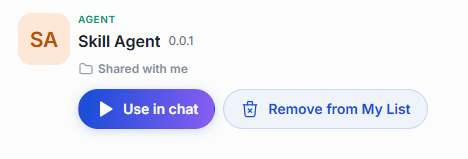
DIAL Chat asks you to confirm. The dialog lists what happens: you lose access to the item, other people keep theirs, and you need a new invitation to get it back. The owner's item is untouched.
Revoke access
If you shared an item and want to take it back, use Revoke access in the item's menu. The number next to it is how many people have access.
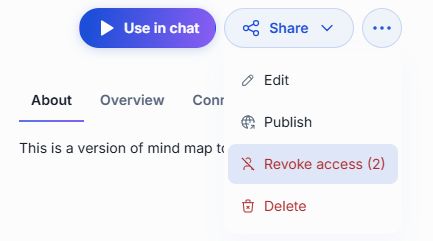
Confirm when prompted. Everyone you shared it with loses access, the link stops working, and your own item is kept.
The action stays hidden until somebody actually opens the link. A link you've issued but nobody has used yet grants access to no one, so there's nothing to revoke.
Publishing
Publishing moves beyond the people you can hand a link to. It places a copy of your item in a folder under Organization, where anyone whose attributes match that folder's access rules can find it. Because that potentially means everyone you work with, every request is reviewed by an administrator, who can approve it, decline it, or adjust it — including its access rules — before it goes live.
What you can publish
You can publish your own conversations, prompts, agents, toolsets, and skills. Models can't be published.
Publish an item
To publish, open the item's menu (or the ··· menu in its details panel) and click Publish.
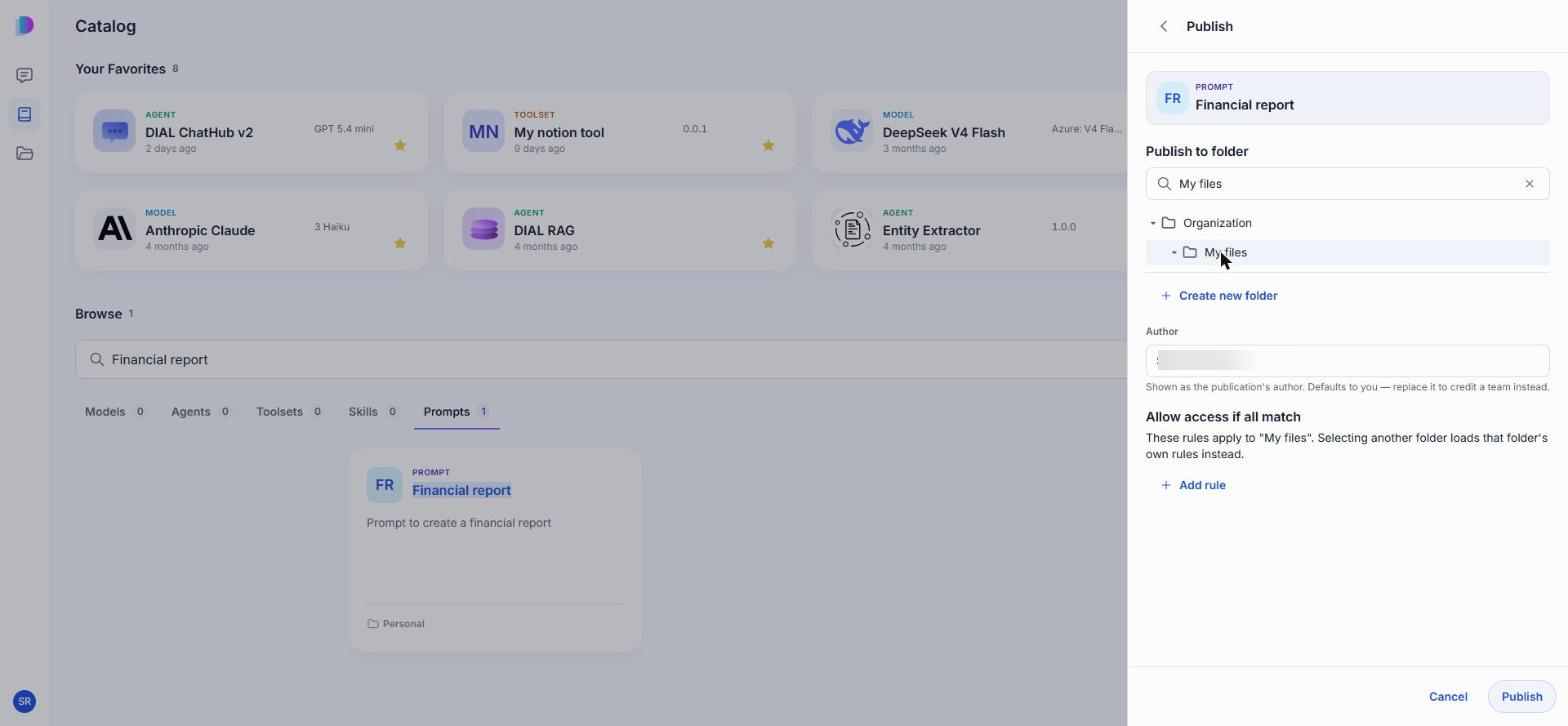
The form has three parts, plus one option for toolsets:
| Field | What it does |
|---|---|
| Publish to folder | Picks the destination folder under Organization. Search the tree, or use Create new folder. The folder does double duty: it organizes published items and it carries the access rules that decide who can see them. |
| Author | Who the publication is credited to. It defaults to your name; replace it to credit a team instead. |
| Allow access if all match | The access rules attached to the folder you picked; see Access rules. Choosing a different folder replaces them with that folder's own rules. |
| Publish with my credentials | Toolsets only. It appears when the toolset needs sign-in and you are signed in to it. When you tick it, people who use the published toolset do not sign in themselves, and your credential is never shown to them. |
Access rules
An access rule decides who can open what's published into a folder. Add one with Add rule. Each rule checks one fact about the person and compares it to the values you list, and a person reaches the folder only if they pass every rule on it.
A rule has three parts:
| Part | What you set |
|---|---|
| Source | Which claim about the person to check — for example title, role, or dial_roles. These claims come from your identity provider, so ask your administrator which ones your organization fills in. |
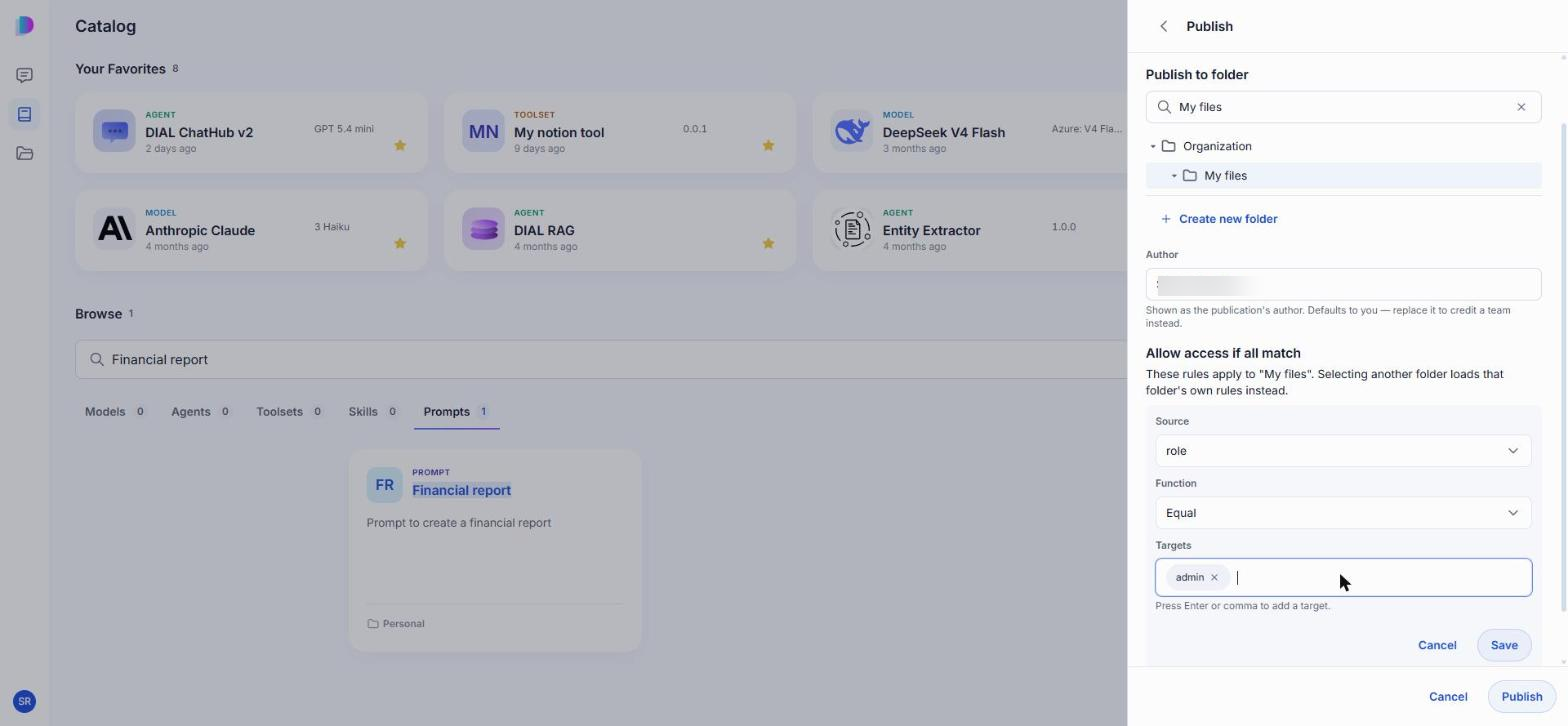
| Function | How to compare that fact with your values: Equal matches one of them exactly, Contain matches when the fact includes one of them, and Regex matches a pattern. |
| Targets | The values to accept. Press Enter or comma after each one to add it. |
For example, to open a folder only to administrators, set Source to role, Function to Equal, and add admin to Targets:
Keep in mind:
- Rules belong to the folder, not to the individual item, so everything published into the same folder shares one audience. To publish two items to different audiences, publish them into different folders.
- A folder with no rules is open to every authorized user in the organization.
- Restrictions add up down the tree: a folder also inherits the rules of every folder above it. See Effective rules.
Publish sends the request as soon as you click it — there's no confirmation step. Check the author and access rules first.
DIAL Chat confirms the request and names the folder it's headed for. Nothing changes for anyone else yet: your item stays private until an administrator approves the request.
What is published along with an item
- Conversation: only the conversation is published. Attachments are not published, and you cannot choose attachments to include. Other people may open the conversation and find files they cannot reach. This differs from sharing, which does include a conversation's attachments. If people need the files, publish them separately.
- Agent: only the agent is published. Its files and prompts are not published. Once approved, it appears under Organization.
After you publish
Approval creates a separate published copy. Your original stays in your private space, still yours to edit — and editing it does not change what other people see. To put newer work in front of the organization, unpublish the current copy and publish again; an item can't be published twice at the same time.
Where the published copy turns up depends on what it is:
- Agents, toolsets, skills, and prompts appear in the Catalog, labelled Organization rather than Personal.
- Conversations appear under the Organization tab in the Chats list, read-only.
Unpublish
Unpublishing withdraws a published copy so the organization can no longer reach it. Open the published copy — the one shown under Organization — and click Unpublish.
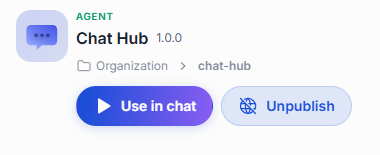
Unpublish acts on the published copy, not on your private original, so it appears on the copy whoever published it: administrators see it on any copy, and so does anyone with write access to the folder the copy sits in. DIAL Chat asks you to confirm and names the folder. Like publishing, it's a request an administrator reviews before the copy is removed. When you confirm, everyone loses access to the published copy once the request is approved. Your own copy stays untouched, and you can publish again later.
Published conversations work differently: only the person who published a conversation sees Unpublish on it, in the Organization tab of the Chats list.
Further reading
- Collaboration and sharing — how sharing and publication fit into DIAL's access model
- Publications and review — what administrators do with your request
- Enable publications in DIAL Chat — turn on publishing in Chat and configure the access rules
- Publications API — publish private resources to the Public space and review them
- File Manager — the Shared and Organization tabs
- Chat User Guide: Conversations — duplicating a conversation someone shared with you