Conversations
Conversations in DIAL represent chat sessions between users and AI models or applications. Conversations stored in the Public folder can be viewed by administrators. This asset type provides visibility into published conversations and their associated metadata.
Main screen
The main screen displays all conversations located in the Public folder.
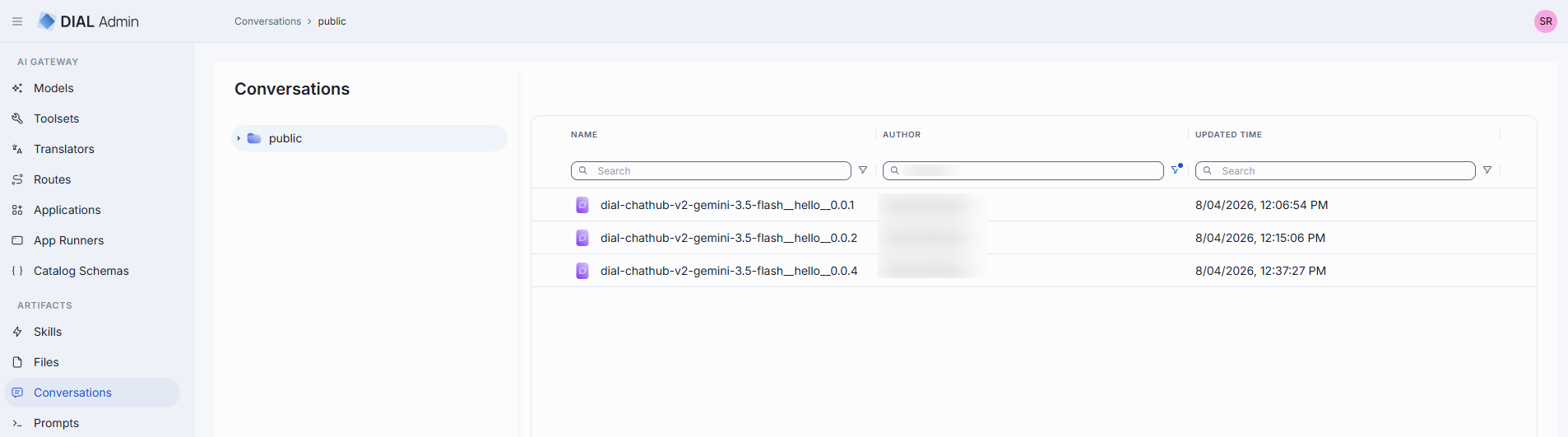
Click any folder to display its contents in the conversations grid.
| Column | Description |
|---|---|
| Display Name | Name of the conversation displayed on the UI. |
| Author | Username or system ID of the user who created or last updated this conversation. |
| Updated Time | Timestamp of the last modification. |
| Actions | Open in a new tab: Open the conversation's properties in a new tab. Delete: Remove the conversation. |
Folder actions: the context menu of a folder in the tree has one action, Delete, which deletes the folder and its contents. To set who can access a folder, use Folders Storage.
Details
Click any conversation to open its detail view.
Properties
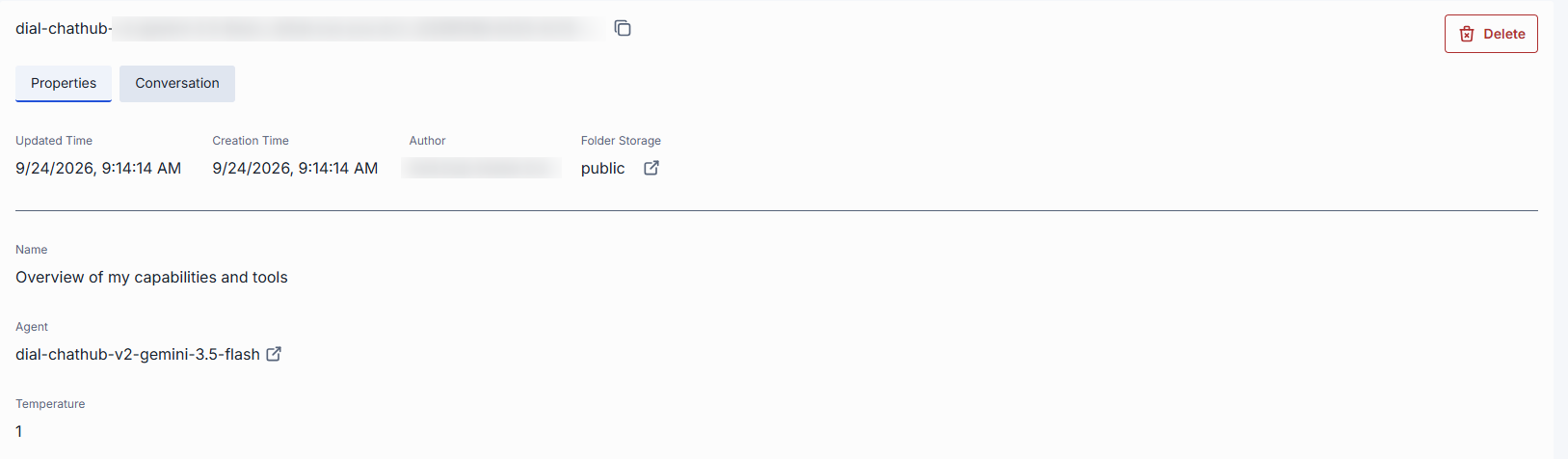
In Properties you can view metadata of the selected conversation.
| Field | Description |
|---|---|
| Author | Username or system ID of the user who created or last updated this conversation. |
| Folder Storage | Path to the conversation's location in the folder hierarchy. Click to navigate to Folders Storage. |
| Name | Display name of the conversation. |
| Agent | ID of the model or application used in this conversation. Includes a link to open the deployment's configuration in a new tab. |
| Temperature | Sampling temperature used in this conversation. Shown only if set. |
Conversation
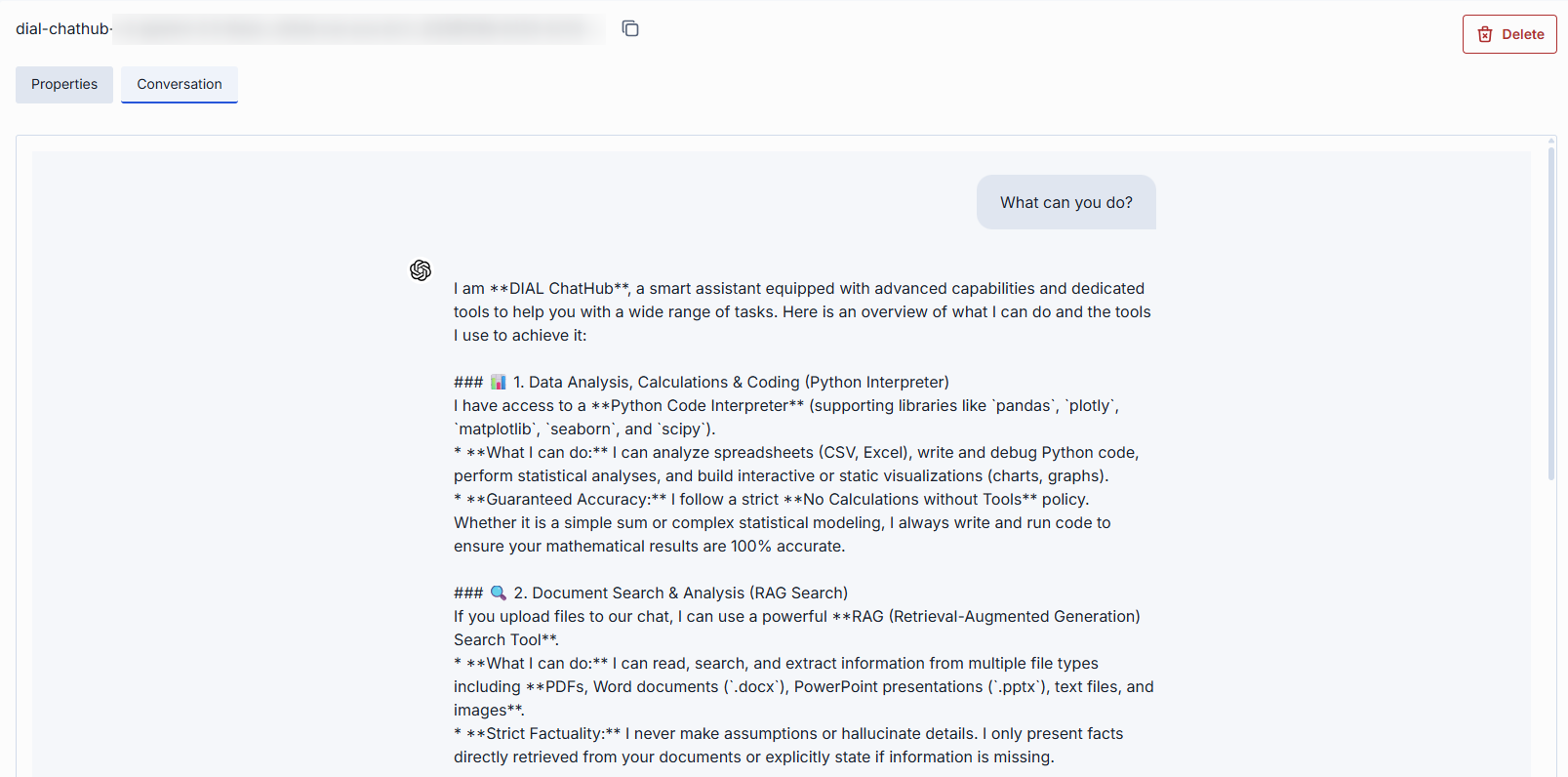
Conversation tab displays the conversation's messages in a chat-style layout. User messages appear right-aligned; assistant responses appear left-aligned with an icon. This tab provides a read-only view of the conversation's full message history.
Delete
There are several ways to delete a conversation:
- Use the Delete button in the detail view header.
- Use the Delete option in the conversation's context menu on the main screen.
- Delete the folder in which the conversation is located.
- Use Bulk Actions on the main screen to delete multiple conversations at once.
Further reading
- DIAL Admin: Skills — manage reusable agent instructions
- DIAL Admin: Prompts — manage shared prompt templates
- Files — manage shared files
- Folder Permissions — how the Public folder tree controls who sees shared items