Prompts
A prompt is an instruction, a question, or a message you send to an agent. When you find yourself typing the same one repeatedly — a request to summarize a document a particular way, the framing you always use for market research — save it as a prompt and reuse it instead of retyping it.
The Prompts tab of the Catalog lists the prompts published across your organization and the ones you saved yourself. Prompts are stored in DIAL, so they follow you to any device you sign in from.
Use a prompt
There are two ways to reach a saved prompt:
- From the Catalog — open the prompt's card and click Use in chat. DIAL Chat opens a new conversation and places the prompt text in the composer.
- In a conversation — click the + icon in the message box and choose Prompts. See Conversations.
A prompt contributes text only — it does not change which agent or model you are talking to. If the prompt contains variables, a form opens first so you can fill in each value before the resolved text is placed in the composer. You can review and edit the text before sending.
Details panel
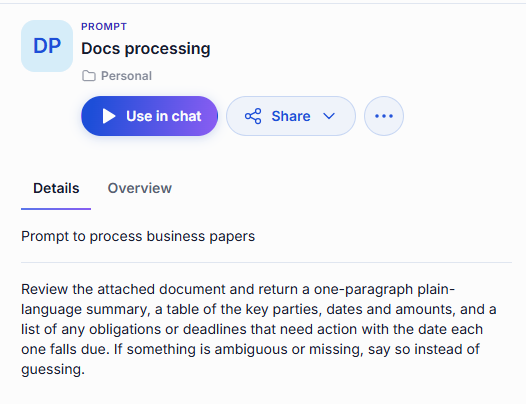
Click a prompt's card to open its details panel.
-
Details — the prompt's description, followed by the prompt text itself, so you can check what you are about to send.
-
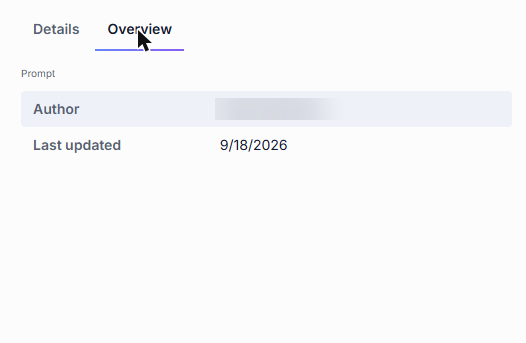
Overview — who wrote the prompt and when it was last updated.
What you can do with a prompt
What actions are available depends on how the prompt reached your Catalog.
Published prompts
Published prompts are made available to the organization by any user or administrator. Their location shows a folder within the organization.
- Use in chat — place the prompt text in the composer and start a conversation.
- Download — save the prompt file to your device.
- Unpublish — withdraw the prompt from the organization. An unpublish request goes to an administrator for review.
Prompts shared with you
When another user shares a prompt directly with you, it appears in the Catalog under Shared with me.
- Use in chat — place the prompt text in the composer and start a conversation.
- Download — save the prompt file to your device.
- Remove from My List — remove the prompt from your catalog. This does not delete the original prompt.
Your own prompts
Prompts you created stay in your personal folder until you share or publish them. You have full control over your own prompts.
- Use in chat — place the prompt text in the composer and start a conversation.
- Share — let specific people access your prompt. See Sharing and publishing.
- Edit — reopen the editor with your content in place. See Edit a prompt.
- Download — save the prompt file to your device.
- Publish — offer the prompt to your organization. A publication request goes to an administrator for review. See Sharing and publishing.
- Revoke access — remove access you previously shared with specific people.
- Delete — remove the prompt permanently. See Delete a prompt.
Create a prompt
Click Create in the Catalog and choose Prompt.
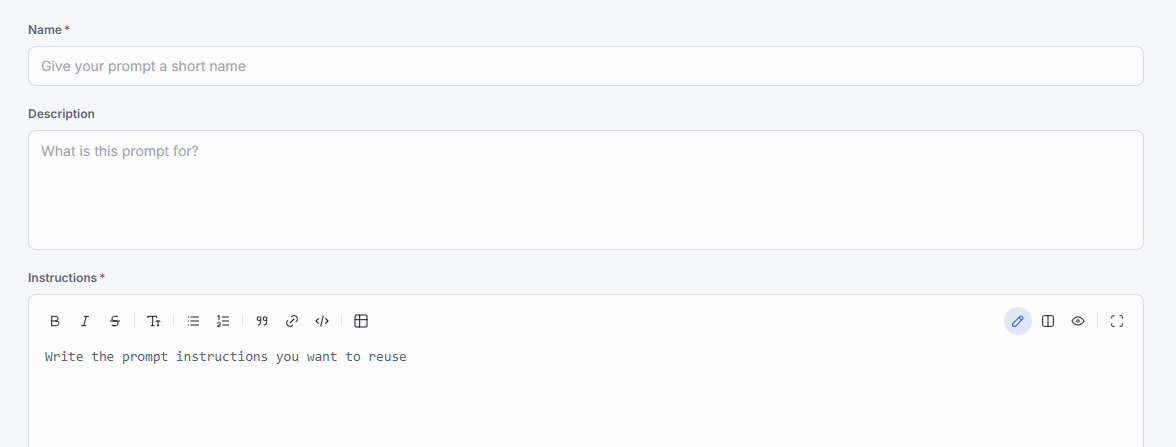
| Field | Required | Description |
|---|---|---|
| Name | Yes | A short name you will recognize in the Catalog. |
| Description | No | What this prompt is for. You can use Refine with AI. |
| Instructions | Yes | The prompt text to reuse. The editor supports Markdown formatting. You can use Refine with AI. |
Click Save. The prompt stays in your private folder, visible only to you, until you share or publish it.
Variables
Use a prompt as a template by adding variables to its instructions: {{variableName}}, or {{variableName|Default Value}} to give it a default — for example, Who played {{character}} in {{movie|Inception}}?
When you use a prompt that has variables, DIAL Chat opens a form asking for a value for each one before it places the text in the composer. Variables inside code blocks are not treated as live placeholders.
Edit a prompt
Open the prompt's ... menu and click Edit. The editor reopens with your content in place; change what you need and click Save.
You can edit prompts in two cases:
- Your own prompts — found in your personal folder.
- Prompts shared with you with editing rights — found in the Catalog under Shared with me.
Delete a prompt
Open the prompt's ... menu and click Delete, then confirm. Deleting is permanent and cannot be undone. The dialog names the prompt and warns that all shared configurations will be lost and that people who rely on it will lose access.
Only the prompt's creator can delete it — editing rights do not grant delete access. To delete a published prompt, unpublish it first.
Further reading
- Chat User Guide: Conversations — put a saved prompt to work
- Chat User Guide: Skills — for instructions an agent should apply on its own, rather than a message you send
- Sharing and publishing — let other people use your prompts
- DIAL Admin: Prompts — how prompts are stored and published for sharing