Skills
A skill is a set of instructions an agent picks up only when it needs them. Instead of writing everything an agent might ever need to know into one long system prompt, you write each procedure once — how your company processes an insurance claim, how a business email should be worded, how to put together a proposal for an RFP — and save it as a skill. The agent loads the skill when the conversation calls for it, and ignores it the rest of the time.
You can share a skill across multiple agents: attach it once and every agent that uses it follows the same procedure. When you update the skill, every agent picks up the change automatically.
The Skills tab of the Catalog lists skills published across your organization and the ones you wrote yourself.
Use a skill
There are two ways to use a skill.
Attach it to an agent. When you build a Quick App, the Skills row in Add-ons is where you pick the skills the agent may draw on. The agent then decides for itself when a task matches one — which is why a skill's description matters as much as its instructions: it is what the agent reads to recognize the moment to use it.
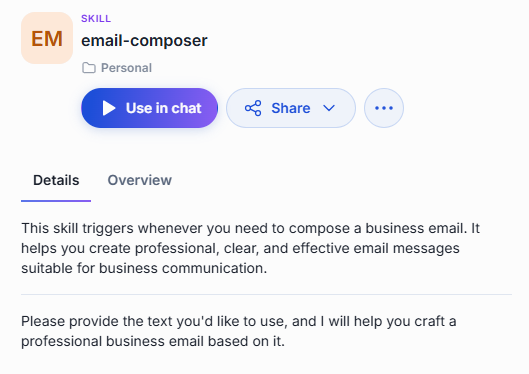
Use it directly in chat. Click Use in chat on the skill's card in the Catalog. DIAL Chat opens a new conversation and adds the skill to the composer, so the agent applies the skill's instructions when you send your message. You can also add a skill from the chat input area: click + and choose Skills, or type / and pick the one you need. See Use a skill in a message.
The selected agent must support skills. If it does not, the skill appears in red and you cannot send the message until you remove it or select another agent.
Details panel
Click a skill's card to open its details panel.

-
Details — the skill's description, followed by its full instructions, so you can read exactly what an agent will follow before you attach it. If the skill includes supporting files, they are listed on the card and can be previewed.
-
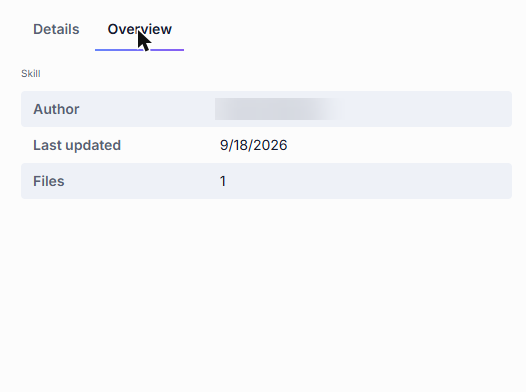
Overview — who wrote the skill, when it was last updated, and how many files it contains.
What you can do with a skill
What actions are available depends on how the skill reached your Catalog.
Published skills
Published skills are made available to the organization by any user or administrator. Their location shows a folder within the organization.
- Use in chat — add the skill to the composer and start a conversation.
- Download — save the skill's files to your device.
- Unpublish — withdraw the skill from the organization. An unpublish request goes to an administrator for review.
Skills shared with you
When another user shares a skill directly with you, it appears in the Catalog under Shared with me.
- Use in chat — add the skill to the composer and start a conversation.
- Download — save the skill's files to your device.
- Remove from My List — remove the skill from your catalog. This does not delete the original skill.
Your own skills
Skills you created stay in your personal folder until you share or publish them. You have full control over your own skills.
- Use in chat — add the skill to the composer and start a conversation.
- Share — let specific people access your skill. See Sharing and publishing.
- Edit — reopen the editor with your content in place. See Edit a skill.
- Download — save the skill's files to your device.
- Publish — offer the skill to your organization. A publication request goes to an administrator for review. See Sharing and publishing.
- Delete — remove the skill permanently. See Delete a skill.
Create a skill
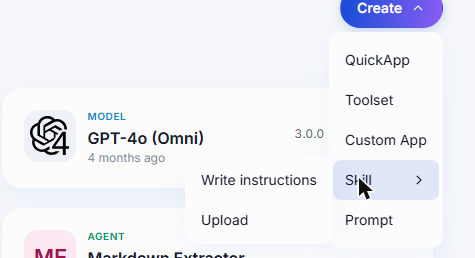
Click Create in the Catalog, point at Skill, and choose how you want to start.
-
Write instructions — compose the skill in the editor.
-
Upload — bring in files you already have. The primary file must be a
SKILL.mdwith YAML frontmatter —nameanddescriptionfields between---fences — followed by the instructions in Markdown:---
name: email-composer
description: This skill triggers whenever you need to compose a business email.
---
Your instructions in Markdown…You can include supporting files alongside
SKILL.md— they travel with the skill.
| Field | Required | Description |
|---|---|---|
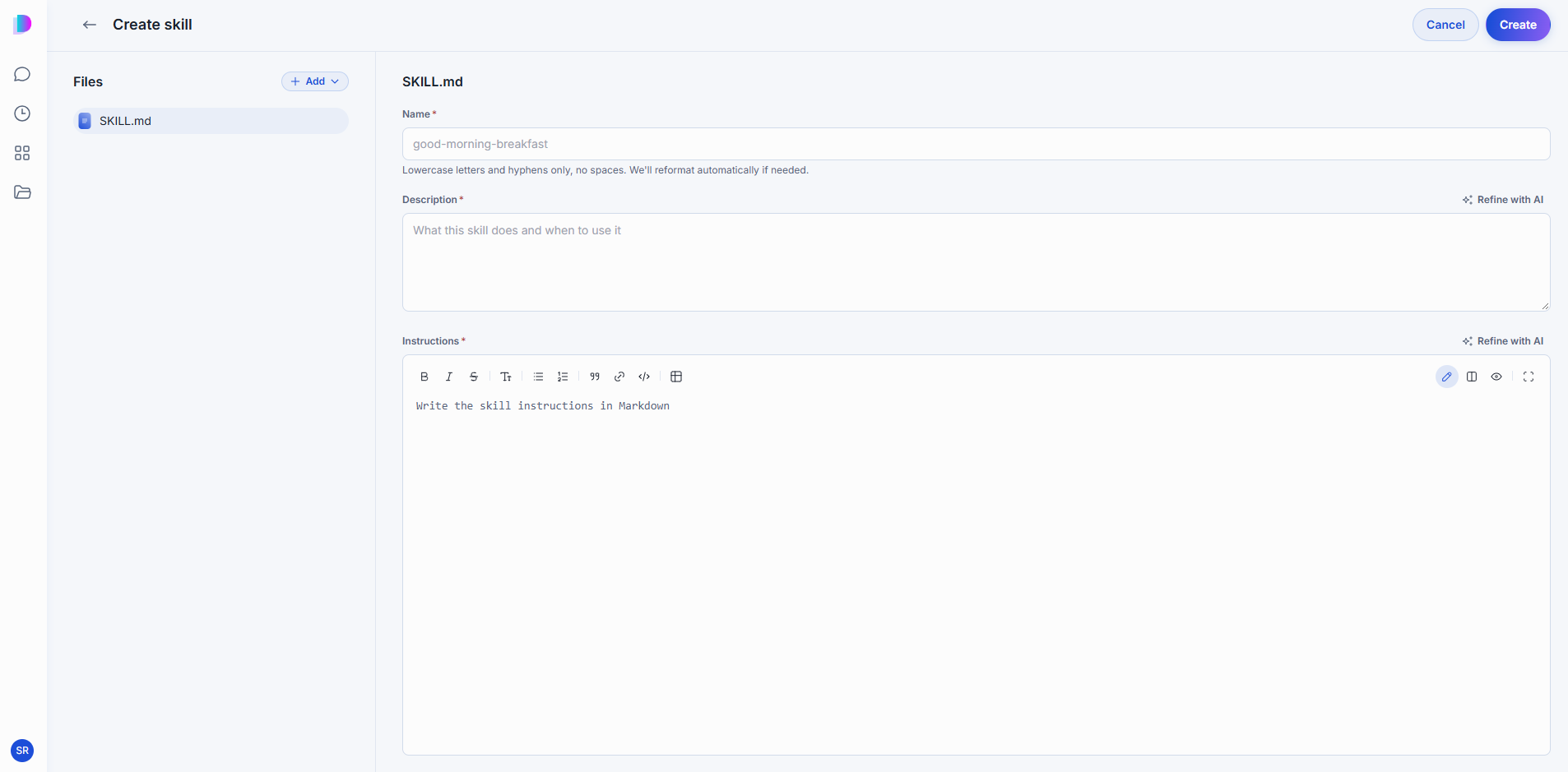
| Name | Yes | Lowercase letters and hyphens, no spaces — for example claims-processor. DIAL reformats the name if needed. |
| Description | Yes | What this skill does and when to use it. The agent reads this to decide whether a task matches. |
| Instructions | Yes | The procedure itself, in Markdown. |
The editor can refine your description and instructions with AI. See Refine text with AI.
Click Create to save. The skill stays in your private folder, visible only to you, until you share or publish it.
Edit a skill
Open the skill's ... menu and click Edit. The editor reopens with your content in place; change what you need and click Save.
You can edit skills in two cases:
- Your own skills — found in your personal folder.
- Skills shared with you with editing rights — found in the Catalog under Shared with me.
Delete a skill
Open the skill's ... menu and click Delete, then confirm. Deleting is permanent and cannot be undone. The dialog names the skill and warns that all shared configurations will be lost and that people who rely on it will lose access.
Only the skill's creator can delete it — editing rights do not grant delete access. To delete a published skill, unpublish it first.
Further reading
- Agents — attach your skills to an agent
- Chat User Guide: Toolsets — give the agent the tools a skill tells it how to use
- Sharing and publishing — let other people use your skill
- Chat User Guide: Conversations — start, organize, and manage conversations
- Quick Apps capabilities: Skills — where skills come from and how the agent uses them