Catalog
The Catalog is the single place where you find everything you can work with in DIAL Chat: AI models, agents, toolsets, skills, and prompts. It combines items configured by your organization for this DIAL deployment with items published by other users and items you created yourself. What you see depends on your role — your own items are always visible, and everything else is governed by the permissions your administrator assigned to you.
Click Catalog in the sidebar on the left.
From the Catalog you can:
- Start a conversation with any model or agent.
- Keep the items you use most as favorites so they appear at the top of the Catalog and in the agent selector when you start a conversation.
- View an item's description, pricing, and your usage.
- Copy an endpoint URL and a ready-made cURL command to call an item from your own code.
- Apply a skill directly to a message — not only through an agent — as long as the selected agent supports working with skills.
- Build your own agents, toolsets, skills, and prompts, without writing code.
Access to every item except those you created yourself is governed by your role. See Authentication and access control.
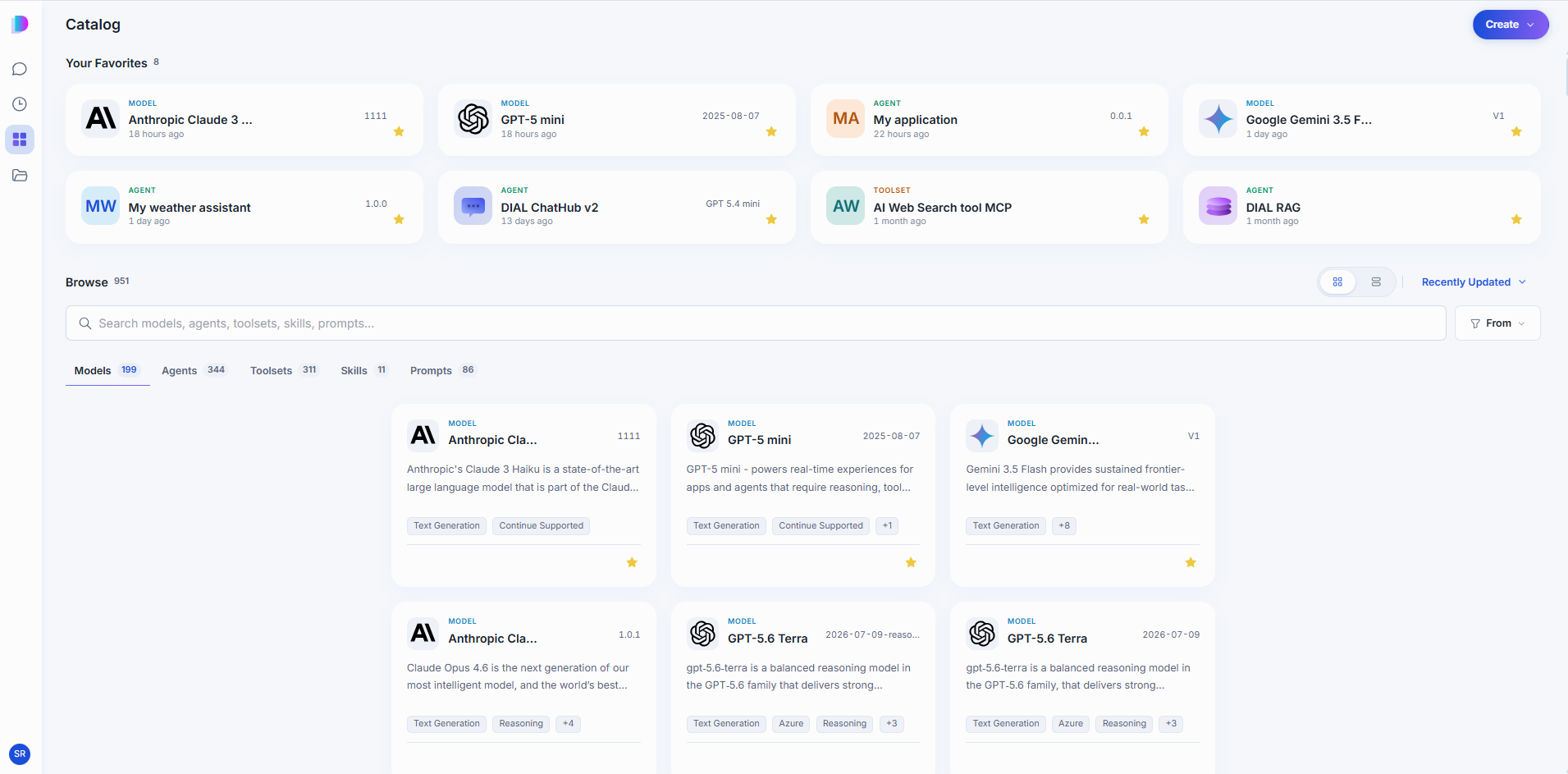
Your Favorites
Your Favorites sits at the top of the Catalog and holds the items you starred, of any type. Click the star on a card, or the star in an item's details panel, to add it; click the star again to remove it. Favorites are personal — starring an item changes nothing for anyone else.
Browse
Below your favorites, Browse lists everything available to you, split into five tabs. Each tab shows how many items it holds. Click any card to open that item's details panel — what the panel contains differs by type, so see the page for the type you are interested in.
| Tab | What it holds |
|---|---|
| Models | The AI models available in your DIAL environment. |
| Agents | All AI agents you can use — your own and those published organization-wide. |
| Toolsets | Connections to MCP servers that let agents reach external systems. |
| Skills | Reusable instructions an agent picks up when a task calls for them. Users can also apply a skill directly to a message. |
| Prompts | Prompts saved for reuse in conversations. |
A tab with nothing to show says so. For example, with My switched on and nothing created yet, the tab shows an empty message with a Create button for that kind of item.
Use the controls above the list to narrow it down:
-
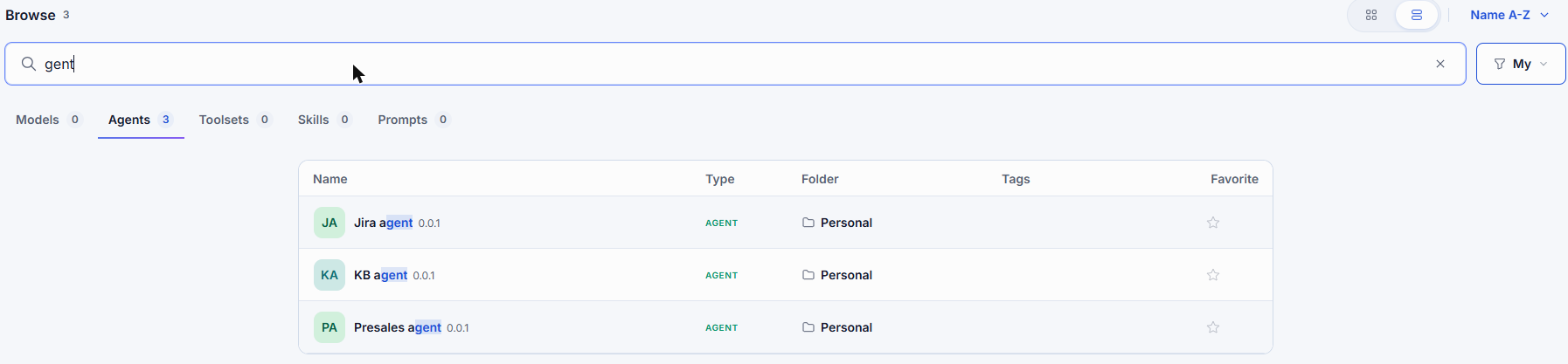
Search — type part of a name to filter the current tab.
-
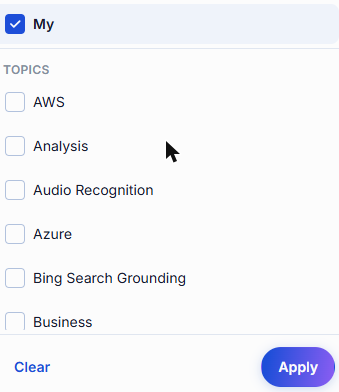
Filter — My limits the list to items you created yourself, so your own work is not buried among everything published across the organization. Topics limits it to a subject area, such as Analysis or Business. Clear both to see everything again.
-
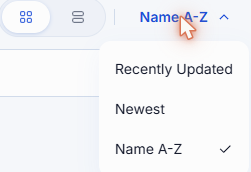
Sort — order by Recently Updated, Newest, or Name A-Z.
-
View — switch between cards and a compact list that shows type, folder, tags, and favorite state in columns.

Create your own
Click Create to build something of your own. The menu has a search box and two parts.
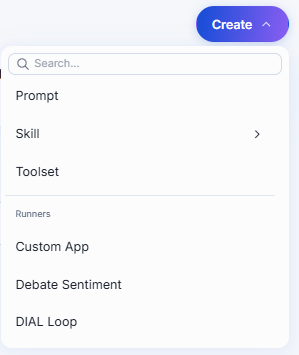
The upper part creates the building blocks that agents use:
| Option | What you get |
|---|---|
| Prompt | A prompt you want to reuse. See Prompts. |
| Skill | A set of instructions agents can load on demand. Choose Write instructions to write it in the editor, or Upload to add a skill you already have. See Skills. |
| Toolset | A connection to an MCP server. See Toolsets. |
The lower part, under Runners, creates agents. A runner is a ready-made way to build one kind of agent. You pick a runner, fill in its settings, and DIAL runs the agent for you. Each runner is built for a different kind of agent. For example, Quick App assembles an agent from a model, toolsets, skills, and files without code and Custom App registers an application you host yourself.
Which runners you see depends on what your administrator has made available in your DIAL environment and on your permissions. Your administrator can add runners of their own, such as Debate Sentiment in the screenshot. The list can be long and the screenshot shows only part of it. Scroll it, or type in the search box at the top of the menu. For how runners and the agents they create work, see DIAL Apps overview and Agent Builder in the glossary. For the steps to build each kind of agent, see Agents.
If you leave an editor with unsaved changes, DIAL Chat asks "Discard unsaved changes?" Click Keep editing to stay, or Discard changes to leave without saving.
Refine text with AI
The editors for prompts, skills, toolsets, and agents, and the scheduled task form, offer Refine with AI next to some text fields. It rewrites your draft to be clearer. The fields are:
- Prompts and skills: description and instructions.
- Toolsets and agents: description.
- Scheduled tasks: description and instructions.
- Write a draft in the field.
- Click Refine with AI. The button reads Refining while it works, and you cannot edit the field until it finishes.
- Read the result. Click Regenerate to get another version, or Restore original to get your draft back.
If the text did not need changes, DIAL Chat says so and leaves it as it is. If the request fails, the field shows "Could not refine this text. Please try again." and your draft stays as it was.
Refine with AI appears only when your administrator has set up a model for it. If you do not see it, it is not available in your deployment.
What you can change
Two rules apply to every item type in the Catalog:
- You can edit and delete only the items you created yourself. Everything else is read-only for you, however it reached your Catalog.
- A published item cannot be deleted. Unpublish it first, then delete it. See Sharing and publishing.
Anything you create stays in your private folder, visible only to you, until you share or publish it.