Models
A model is an AI model available in your DIAL environment — GPT-4o, Claude, DeepSeek, and others. Models are set up centrally: administrators decide which models are available and who can use them, so the Models tab of the Catalog shows exactly the models your role gives you access to. You cannot create, edit, or delete a model, and there is nothing to share — everyone who has access to a model sees the same one.
For the full list of model providers DIAL supports, see Supported providers.
Talk to a model
Click a model's card to open its details panel, then click Use in chat. DIAL Chat opens with that model selected, ready for your first message. You can also pick a model from the agent selector next to the message box — see Conversations.
Beyond conversations, you can select a model as the orchestrator when you build a Quick App.
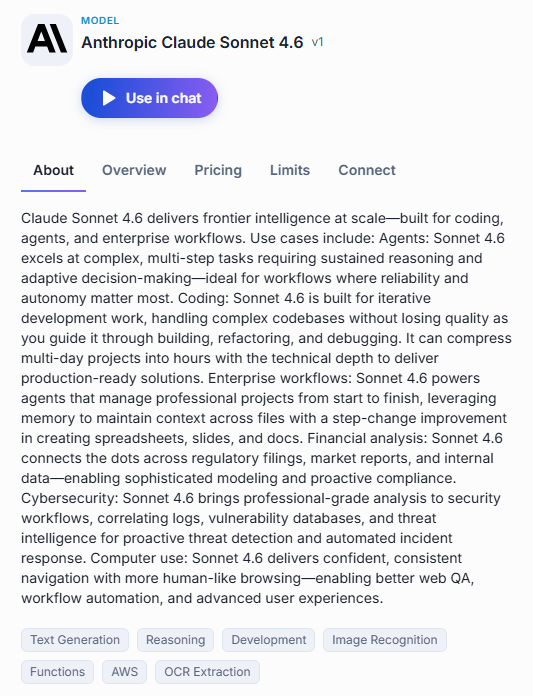
Details panel
A model's panel has five tabs.
| Tab | What you find there |
|---|---|
| About | The model's description, and the topic labels it is tagged with. |
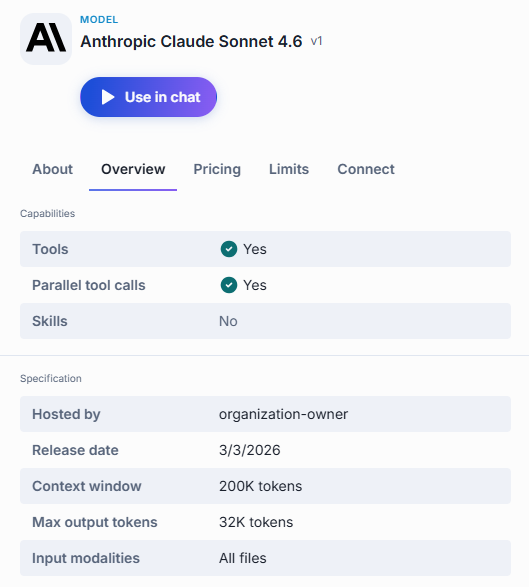
| Overview | Capabilities the model supports, and its technical specification. |
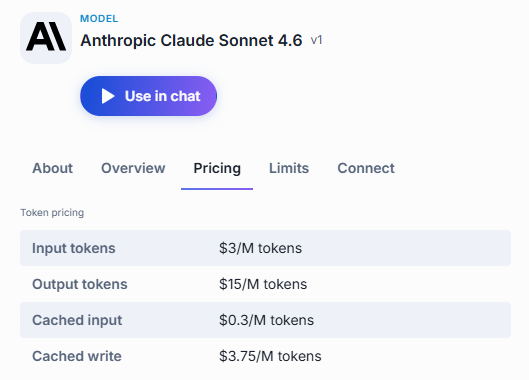
| Pricing | Token pricing: cost per million tokens for input, output, cached input, and cached write. |
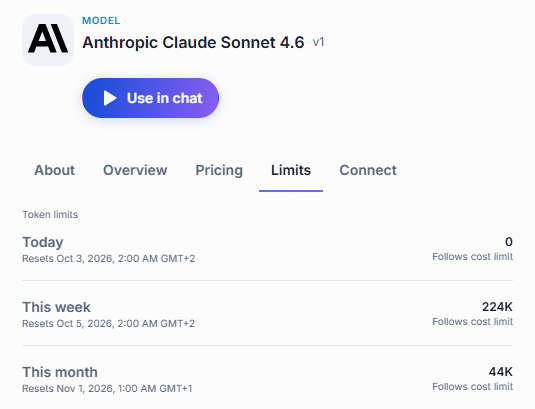
| Limits | Your token usage for today, this week, and this month, with reset dates and cost-limit status. |
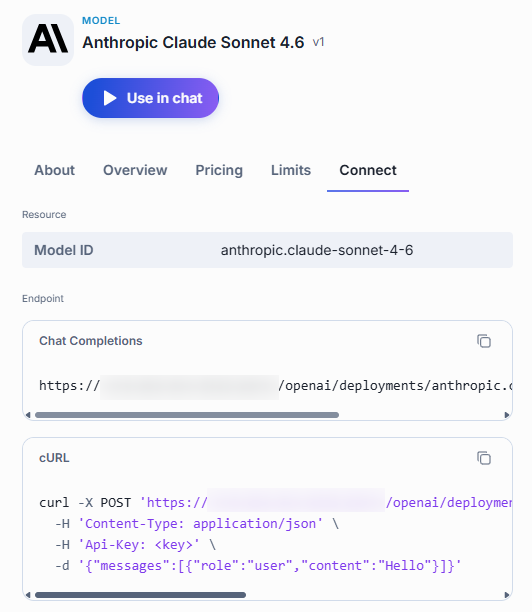
| Connect | What you need to call the model from your own code. |
About
The description explains what the model is designed for. Below the description, topic labels such as Text Generation, Reasoning, or Development indicate the model's strengths. You can filter by these topics in the Catalog's Browse section.
Overview
Capabilities tells you whether the model supports tools, parallel tool calls, and skills — useful to know before you pick an orchestrator for a Quick App or before you apply a skill directly to a message.
Specification lists the model's technical details:
| Field | Meaning |
|---|---|
| Hosted by | The organization that runs this model instance. |
| Release date | When the model version was released. |
| Context window | The maximum number of tokens — input plus output — the model can work with in a single conversation turn. |
| Max output tokens | The longest response the model can produce in one turn. |
| Input modalities | The kinds of input the model accepts — text only, images, or all file types. |
Pricing
Token pricing is listed per million tokens:
| Field | Meaning |
|---|---|
| Input tokens | Tokens you send to the model in your prompts. |
| Output tokens | Tokens the model generates in its responses. |
| Cached input | Input tokens reused from a previous request, charged at a lower rate. |
| Cached write | The one-time cost of storing input tokens in the cache so later requests can reuse them. |
Limits
Limits shows your personal token consumption for today, this week, and this month. Each period displays the number of tokens used, when the counter resets, and whether a cost limit applies. This is a per-user view: other people's usage does not appear here.
You can also check your usage limits across all models in Settings.
For how these limits are set and enforced, see Usage limits and cost control.
Connect
Use the Connect tab when you want to call the model from your own code rather than from the chat interface. It gives you the model's ID, the chat completions endpoint to post to, and a cURL command you can copy, paste your API key into, and run as-is. Both the endpoint and the command have a copy button.
Further reading
- Agents — agents built on top of models, including ones you can build yourself
- Chat User Guide: Toolsets — connect an MCP server and sign in to it
- Chat User Guide: Skills — write reusable instructions agents can pick up on demand
- Chat User Guide: Prompts — save and reuse prompt templates
- Supported providers — which providers and models each DIAL adapter supports
- Usage limits and cost control — token, request, and cost limits and how DIAL enforces them