Theming and design
This guide covers how to customize the DIAL Chat appearance—hide panels, apply custom color themes, embed Chat as an overlay, or replace the logo. You should be familiar with deploying and configuring DIAL Chat via environment variables (see DIAL Chat configuration for the full reference).
How Chat layout is configured
DIAL Chat layout is controlled by the ENABLED_FEATURES environment variable. This variable accepts a comma-separated list of feature names. Each feature toggles a specific UI element. To hide a panel or control, remove its feature name from the list. To show it, include it.
The features relevant to layout customization:
| Feature flag | Controls |
|---|---|
conversations-section | Conversation list sidebar |
prompts-section | Prompt list sidebar |
top-settings | Settings in the top bar |
top-clear-conversation | "Clear conversation" button in the top bar |
top-chat-info | Chat info in the top bar |
top-chat-model-settings | Model settings in the top bar |
empty-chat-settings | Settings on the empty chat screen |
header | Application header |
footer | Application footer |
custom-logo | Custom logo support |
marketplace | Marketplace section |
Set ENABLED_FEATURES in your Docker Compose file or deployment configuration:
chat:
  image: epam/ai-dial-chat:0.41.7
  platform: linux/amd64
  environment:
    ENABLED_FEATURES: "conversations-section,prompts-section,top-settings,header,footer,custom-logo,marketplace"
Layout overview
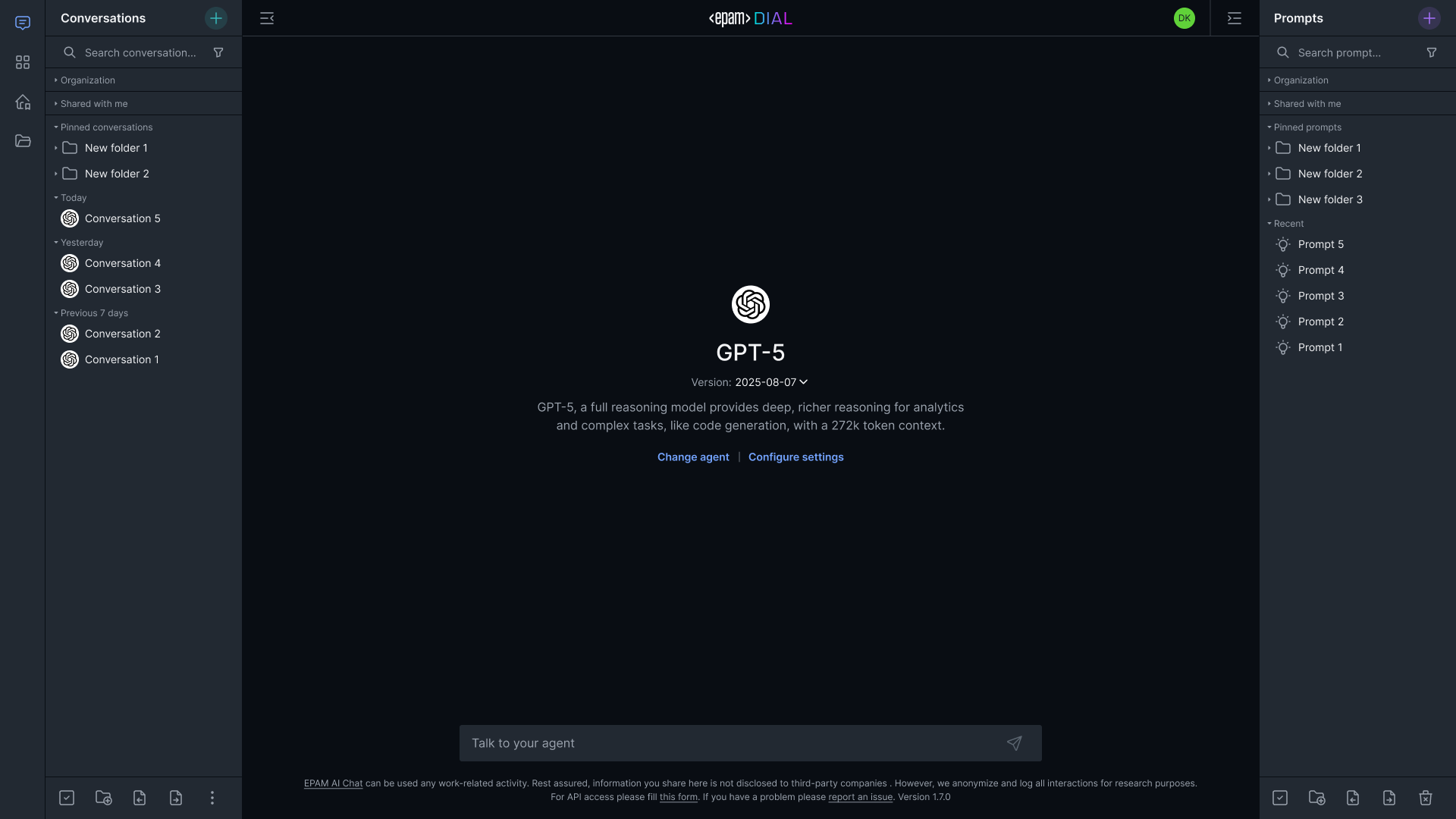
The default DIAL Chat layout consists of five components:
- Header (
header) — logo, conversation list button, prompt list button, and user settings - Conversation list (
conversations-section) — all active conversations and a button to start a new one - Prompt list (
prompts-section) — saved prompts and an action to add a new one - Chat area — user questions and model responses (always visible)
- Chat box — text input for messages and commands (always visible)

Desktop layout modifications
Each modification below shows which feature flags to remove from ENABLED_FEATURES to achieve the desired layout.
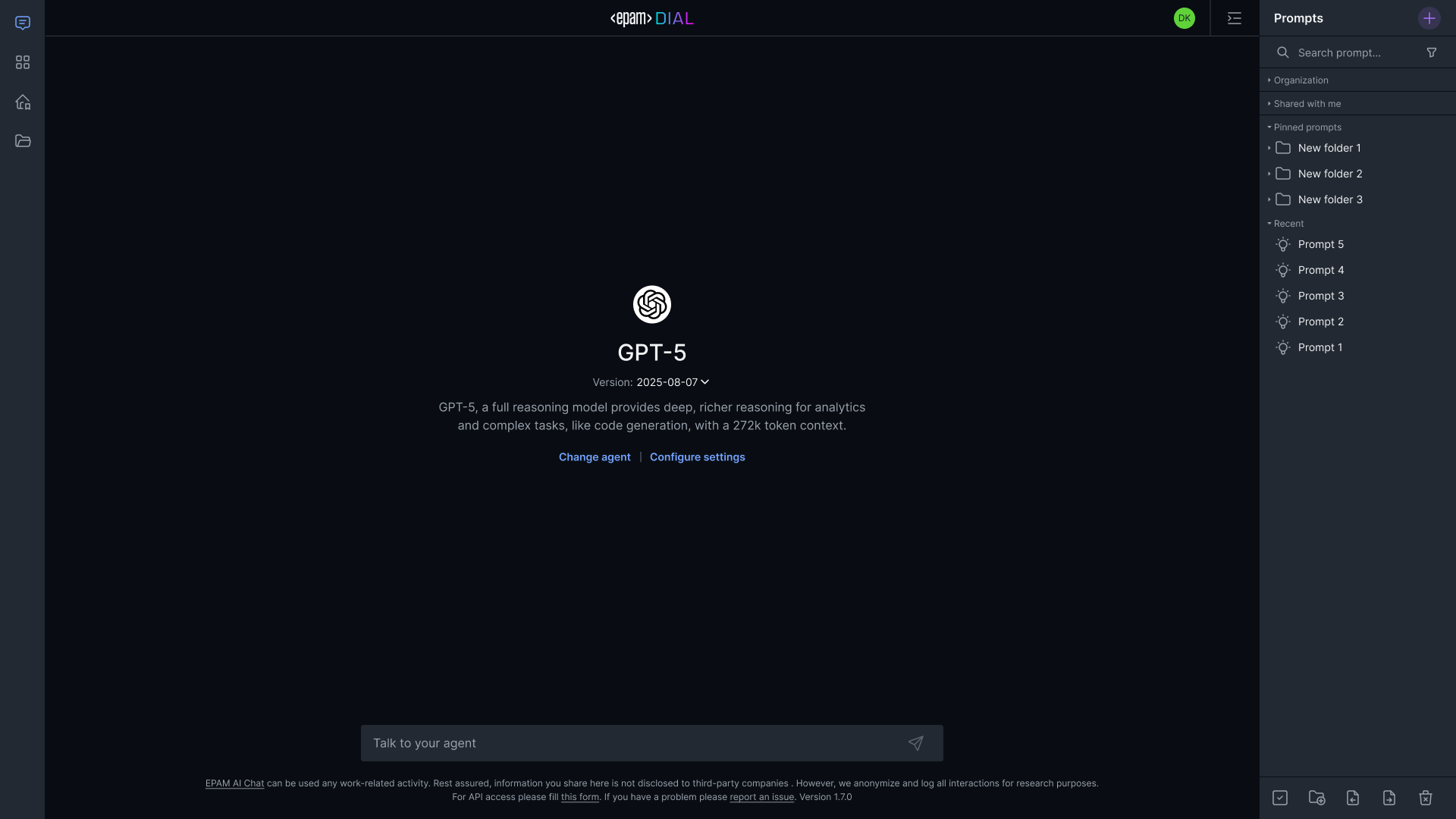
Hide conversation list
Remove conversations-section from ENABLED_FEATURES. The user has a single chat session with no conversation history.
ENABLED_FEATURES: "prompts-section,top-settings,header,footer,..."
# conversations-section removed

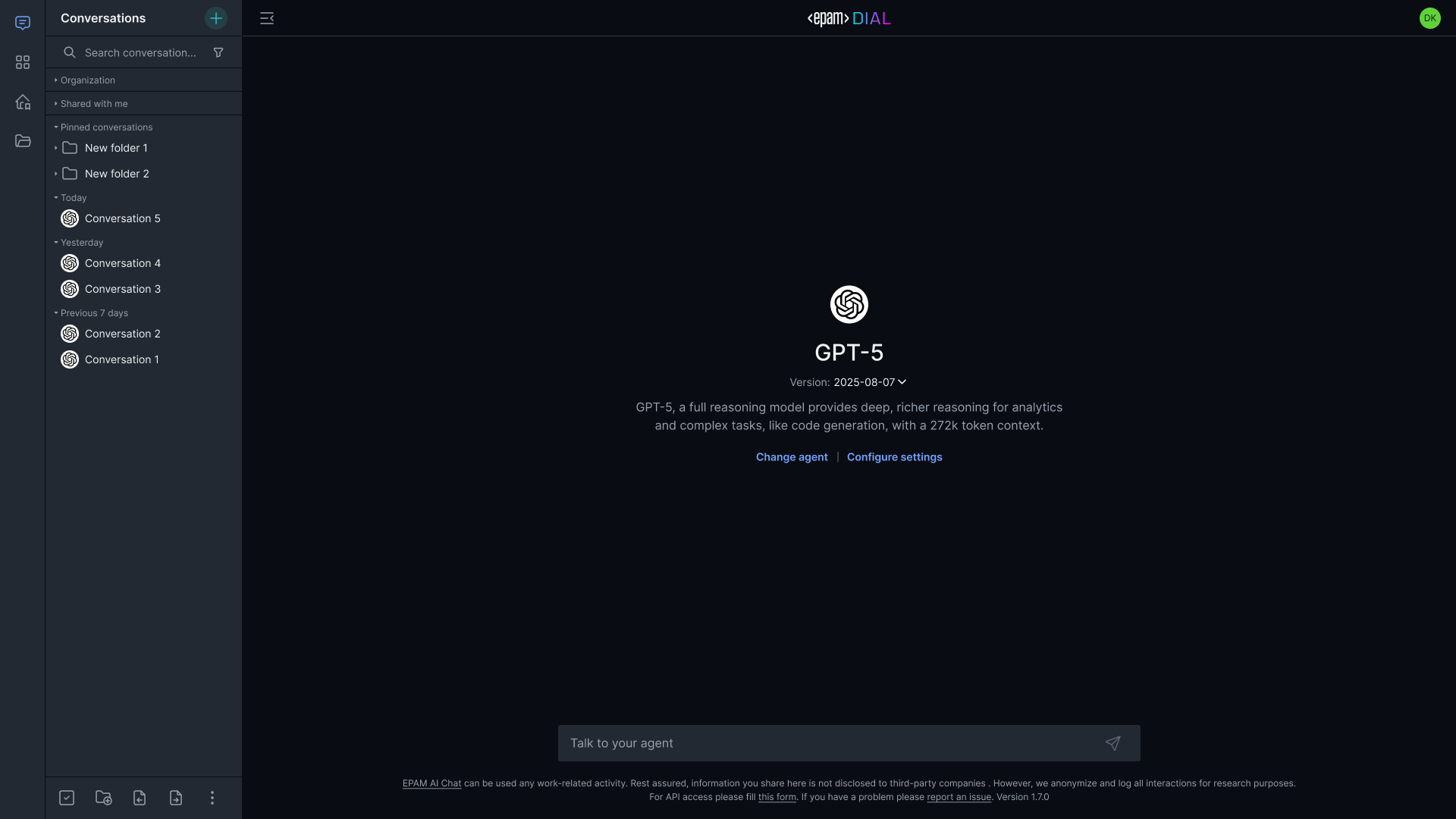
Hide prompt list
Remove prompts-section from ENABLED_FEATURES. The saved-prompts panel is removed.
ENABLED_FEATURES: "conversations-section,top-settings,header,footer,..."
# prompts-section removed

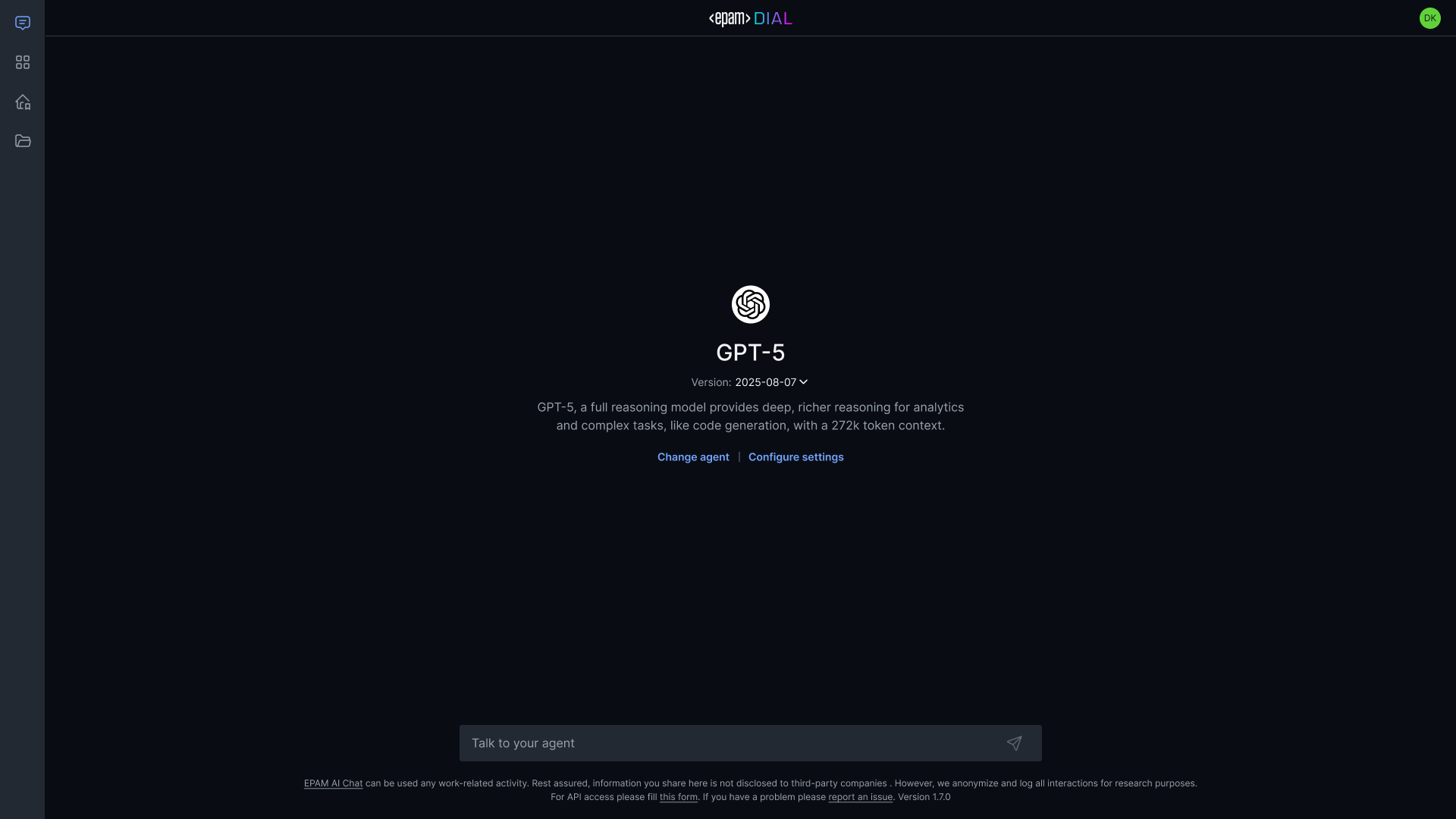
Hide both conversation and prompt lists
Remove both conversations-section and prompts-section. Minimal layout with only the chat area and input box.
ENABLED_FEATURES: "top-settings,header,footer,..."
# conversations-section and prompts-section removed

Hide agent selector and settings
Remove top-settings, top-chat-model-settings, and empty-chat-settings. The new-chat settings panel is hidden across the entire UI.
ENABLED_FEATURES: "conversations-section,prompts-section,header,footer,..."
# top-settings, top-chat-model-settings, empty-chat-settings removed

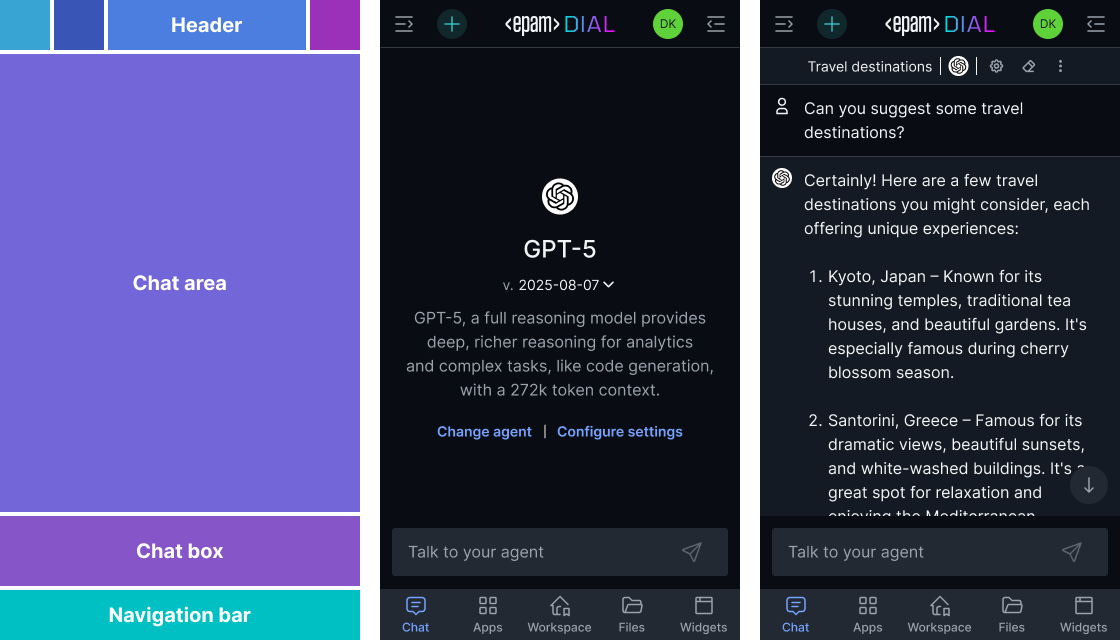
Mobile layout
DIAL Chat automatically switches to the mobile layout when users open it on mobile devices or resize their browser window below the responsive breakpoint. No additional configuration is required.
Default mobile

Header controls:
- Conversation list
- Start new chat button
- Prompt list
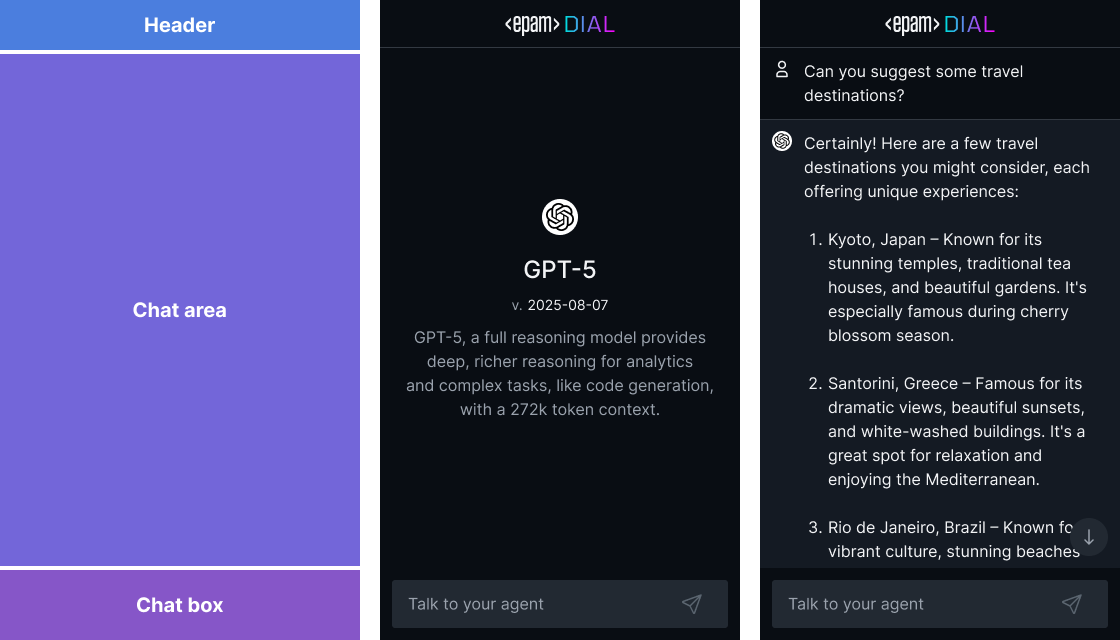
Simplified mobile
To achieve the simplified mobile layout (single chat, no prompts), remove conversations-section and prompts-section from ENABLED_FEATURES—the same configuration as the desktop "hide both" modification above. The mobile layout adapts automatically.
Overlay layout
To embed DIAL Chat inside another application via an iframe, see DIAL Overlay. The Overlay section covers iframe configuration, layout variants, the programmatic API, and a step-by-step integration tutorial.
Color schemes
DIAL Chat loads its color theme from a themes server. Point Chat to your themes server using the THEMES_CONFIG_HOST environment variable:
chat:
  environment:
    THEMES_CONFIG_HOST: "http://themes:8080"
The themes server (epam/ai-dial-chat-themes) serves CSS variable definitions that Chat applies at runtime. The color system uses two token layers:
- Foundation tokens — map palette colors to semantic roles (background, text, border)
- Component tokens — map foundation tokens to specific UI components
Warning
Variable names must remain the same when you create a new color scheme. Renaming variables breaks the mapping between design tokens and the application CSS.
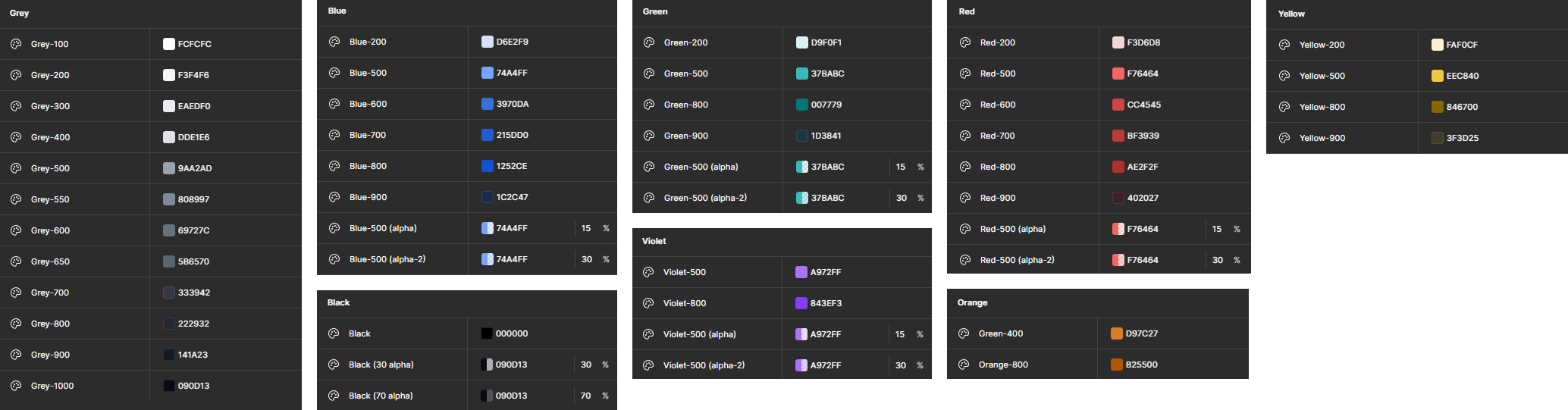
Basic palette
The basic palette contains all colors used in the system. Each item has a name and a hex value.
Mapping schema
The mapping schema defines how interface components reference colors from the basic palette.
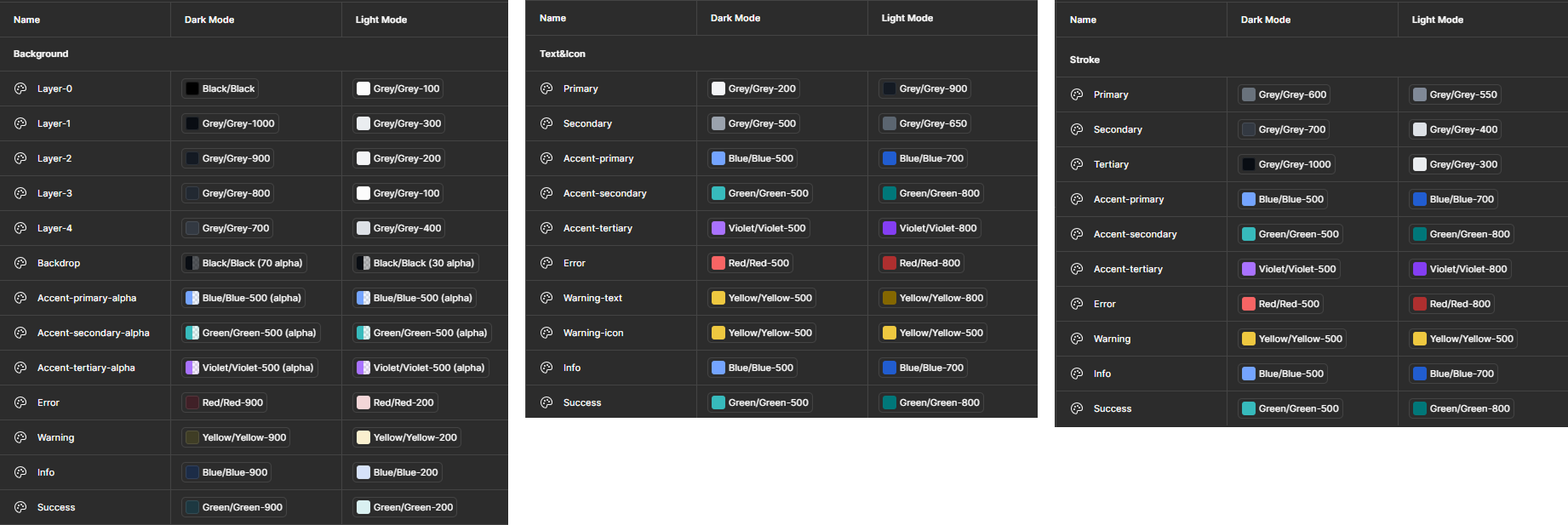
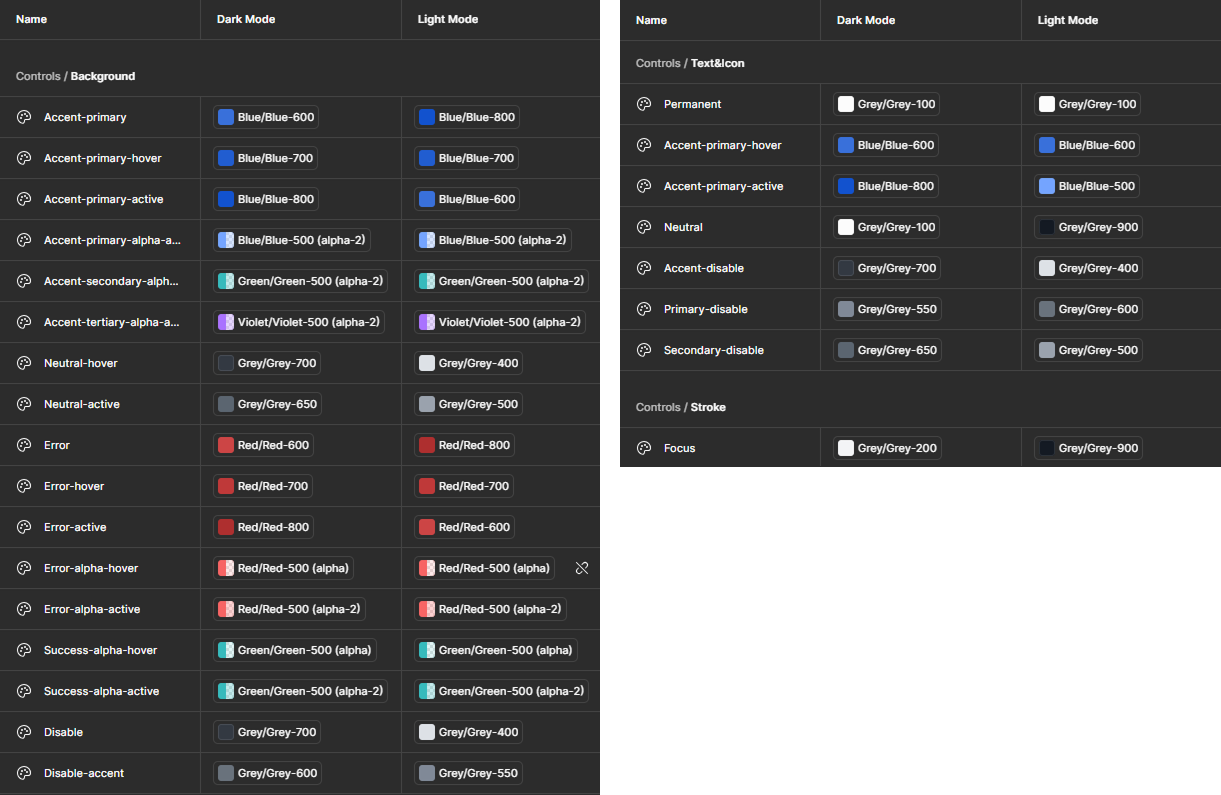
To create a new theme, add a new mode in the mapping schema. The mode defines how interface components are colored using the basic palette. See the DIAL Chat Themes repository for the full schema and examples. For a hands-on walkthrough, see the Create a custom theme tutorial.
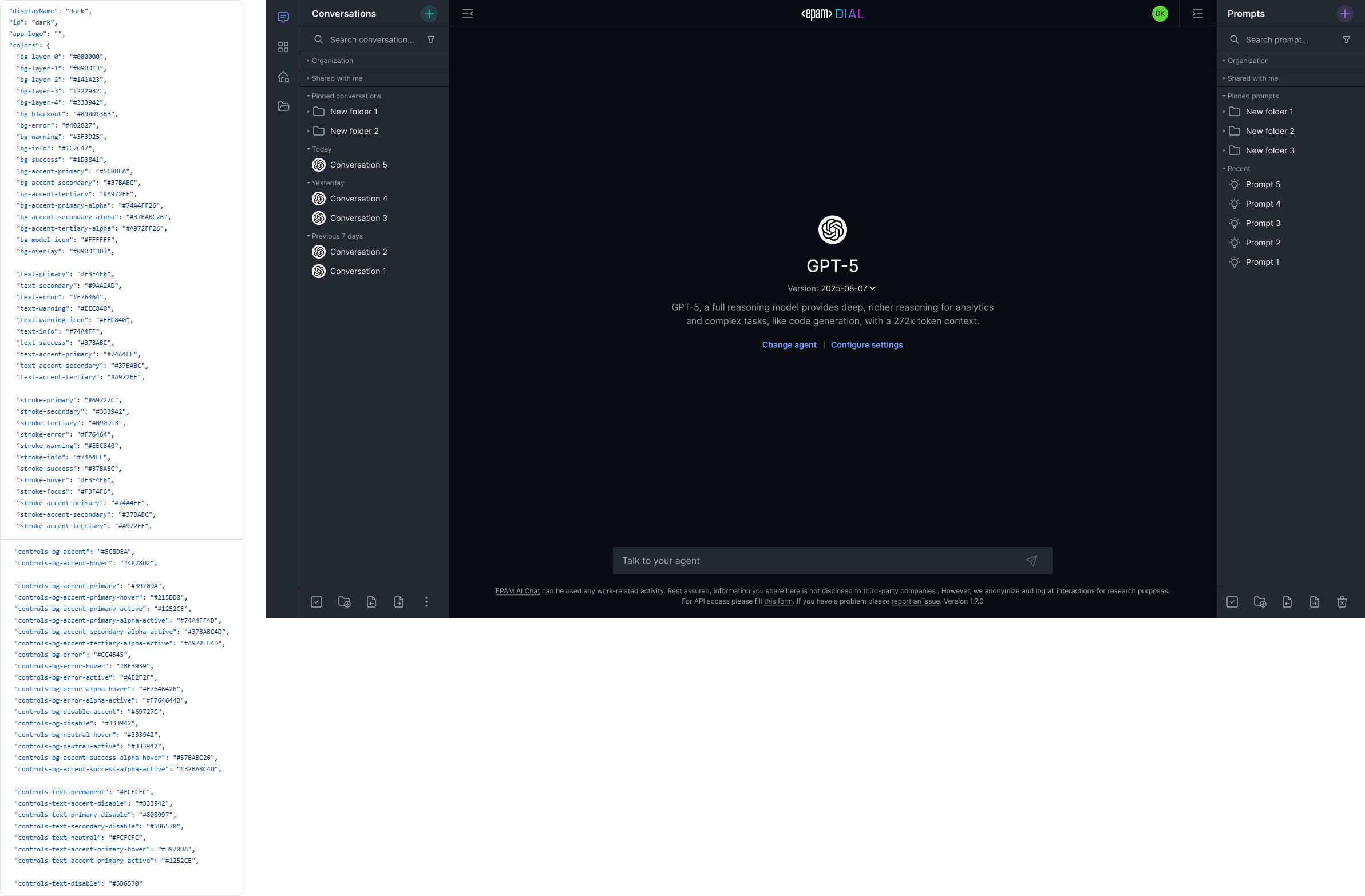
Example: dark theme
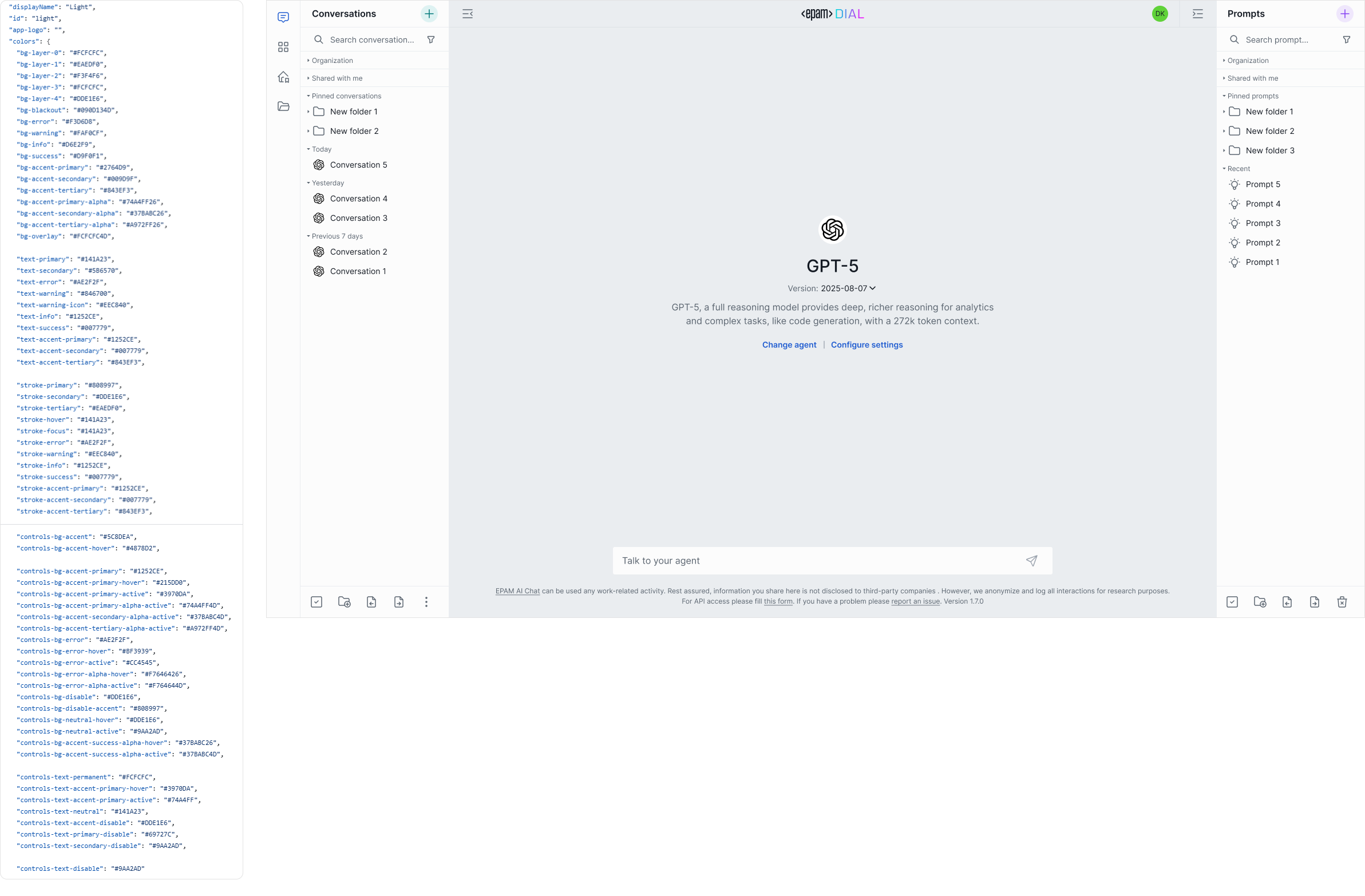
Example: light theme
Example: custom theme
Logo customization
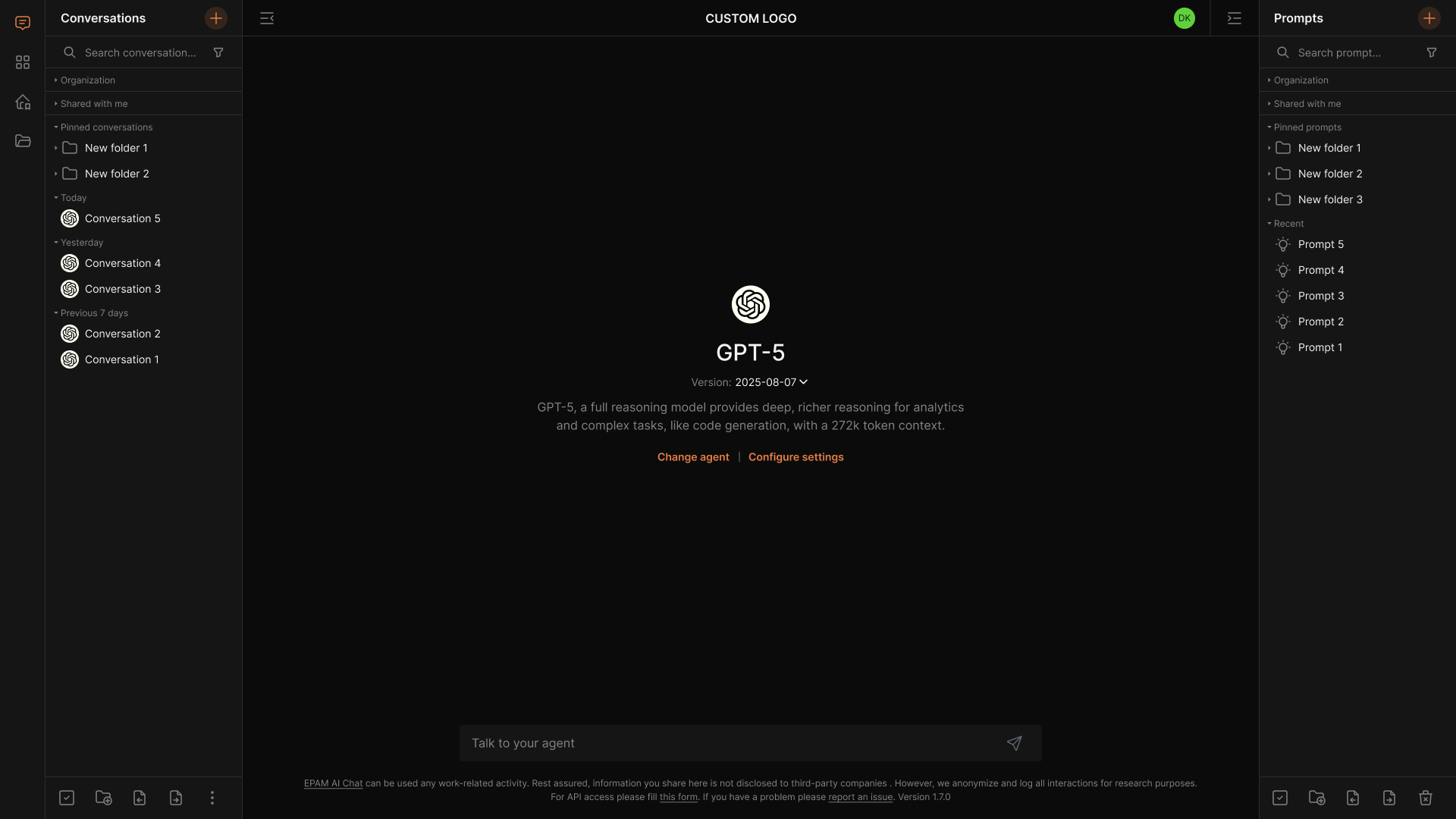
To use a custom logo, include custom-logo in the ENABLED_FEATURES list, then upload your logo image through the themes server configuration.
Requirements:
- File type: any image format
- Max file size: 512 MB
- Max width: 100 px

Further reading
- Tutorial: create a custom theme — tutorial: set up the themes server and build a custom color scheme from scratch
- Chat localization — customize and translate UI text
- DIAL Chat configuration — complete environment variable reference for Chat
- DIAL Overlay — embed DIAL Chat in a web application through an iframe library
- DIAL Chat Themes — the static service that holds Chat's branding