Custom content in Chat
This reference describes the custom_content extension to the DIAL Unified API chat completion endpoint. Applications use custom_content to send rich content—attachments, progress stages, Markdown, visualizers, and Plotly charts—that DIAL Chat renders in the conversation UI.
Where custom_content appears
custom_content is a DIAL-specific field in the HTTP response body of a chat completion call. When your application responds to a user message, it can include custom_content alongside the standard content field. DIAL Chat reads custom_content and renders the appropriate UI elements.
If you build your application with the DIAL SDK, the SDK produces this JSON for you—you call Python methods like choice.add_attachment() or choice.create_stage(), and the SDK serializes them into the wire format shown below. See the Chat completion SDK reference for the Python API.
If you build without the SDK (for example, in another language), your application must return this JSON structure directly in the HTTP response body.
Attachments
An attachment is a file, image, URL, or folder that an application includes in its response. Attachments render in the Chat UI where users can view, download, or share them. Attached files are stored in the blob storage configured in DIAL Core.
Each attachment declares a type following the MIME standard and can be either a URL reference (pointing to a file in DIAL storage) or a base64-encoded string (inline data).
Attachment fields
| Field | Type | Description |
|---|---|---|
type | string | MIME type of the attachment (for example, application/pdf, image/png). |
title | string | Display name shown in the Chat UI. |
url | string | Path to a file in DIAL storage (for example, files/bucket/folder/file.pdf). |
data | string | Inline content—either plain text or a base64-encoded string. Use instead of url for small payloads. |
reference_url | string | An external URL associated with the attachment (rendered as a clickable link). |
index | integer | Position of the attachment when returning multiple attachments. |
For the complete field list, see the Unified API specification.
Document
Applications can return documents (PDF, DOC/DOCX, PPT/PPTX, TXT, and other plain text formats) as attachments. The following JSON shows the structure inside the HTTP response body:
"custom_content": {
  "attachments": [
    {
      "type": "application/pdf",
      "title": "test.pdf",
      "url": "files/bucket/my_test_folder/test.pdf"
    }
  ]
}
With the DIAL SDK, the equivalent Python code is:
with response.create_single_choice() as choice:
    choice.add_attachment(
        type="application/pdf",
        title="test.pdf",
        url="files/bucket/my_test_folder/test.pdf",
    )
DIAL Chat renders the attachment as a downloadable file card:

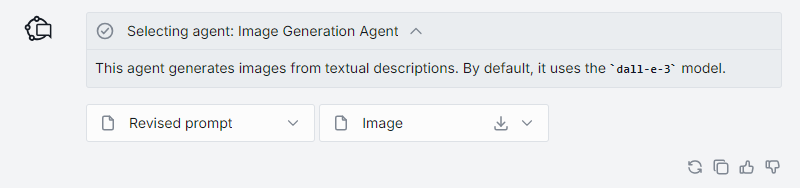
Image
DIAL Chat natively renders image attachments. Supported MIME types:
image/jpeg    image/png     image/gif     image/apng    image/webp
image/avif    image/svg+xml image/bmp     image/vnd.microsoft.icon
image/x-icon
Response body structure:
"custom_content": {
  "attachments": [
    {
      "index": 1,
      "type": "image/png",
      "title": "Generated chart",
      "url": "files/file_bucket/appdata/app_name/images/chart.png"
    }
  ]
}
With the DIAL SDK:
with response.create_single_choice() as choice:
    choice.add_attachment(
        type="image/png",
        title="Generated chart",
        url="files/file_bucket/appdata/app_name/images/chart.png",
    )
URL
Applications can return a URL with optional Markdown-formatted context. The reference_url field renders as a clickable link, and data provides the text body.
Response body structure:
"custom_content": {
  "attachments": [
    {
      "index": 0,
      "type": "text/markdown",
      "title": "Search result",
      "data": "Summary of the linked page in Markdown format.",
      "reference_url": "https://example.com/article"
    }
  ]
}
With the DIAL SDK:
with response.create_single_choice() as choice:
    choice.add_attachment(
        type="text/markdown",
        title="Search result",
        data="Summary of the linked page in Markdown format.",
        reference_url="https://example.com/article",
    )

Folder
Applications can return a reference to an entire folder in DIAL file storage. The folder renders as a navigable container in the Chat UI.
Response body structure:
"custom_content": {
  "attachments": [
    {
      "index": 1,
      "type": "application/vnd.dial.metadata+json",
      "title": "Output files",
      "url": "files/file_bucket/appdata/app_name/output/"
    }
  ]
}
Stages
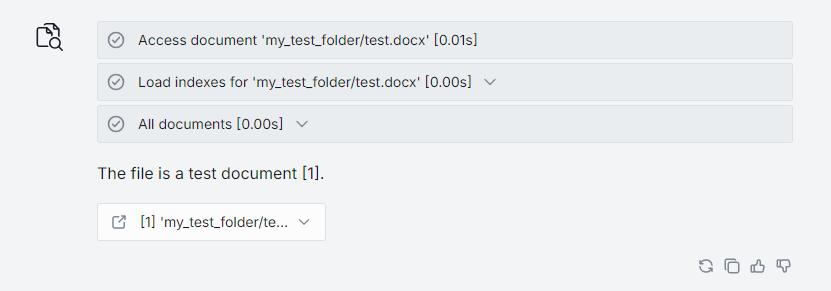
Stages represent intermediate processing steps that your application reports while generating a response—for example, "Searching knowledge base," "Loading document indexes," or "Generating answer." They appear as expandable progress indicators in the Chat UI.
Each stage has a name, a status (completed or failed), optional content (text displayed when the stage is expanded), and optional nested attachments.
Stage fields
| Field | Type | Description |
|---|---|---|
index | integer | Position of the stage in the sequence. |
name | string | Label shown in the Chat UI (for example, "Load indexes [0.01s]"). |
status | string | Either "completed" or "failed". |
content | string | Text displayed when the user expands the stage. |
attachments | array | Optional attachments nested inside the stage (same structure as top-level attachments). |
Response body structure:
"custom_content": {
  "stages": [
    {
      "index": 0,
      "name": "Access document 'report.docx' [0.01s]",
      "status": "completed"
    },
    {
      "index": 1,
      "name": "Load indexes [0.00s]",
      "status": "completed",
      "content": "Number of chunks: 1\nTotal text size: 23 bytes"
    },
    {
      "index": 2,
      "name": "Retrieved documents [0.00s]",
      "status": "completed",
      "attachments": [
        {
          "index": 0,
          "type": "text/markdown",
          "title": "[0] 'report.docx'",
          "data": "This is the document content.",
          "reference_url": "files/<BUCKET_ID>/report.docx"
        }
      ]
    }
  ]
}
With the DIAL SDK, you create stages using choice.create_stage(). The SDK serializes them into the JSON above:
with response.create_single_choice() as choice:
    with choice.create_stage("Access document 'report.docx'") as stage:
        stage.append_content("Document loaded successfully.")

    with choice.create_stage("Retrieved documents") as stage:
        stage.add_attachment(
            type="text/markdown",
            title="[0] 'report.docx'",
            data="This is the document content.",
            reference_url="files/<BUCKET_ID>/report.docx",
        )

    choice.append_content("Here is the answer based on the document.")
For the full Stage Python API, see Stage in the SDK reference.
Markdown
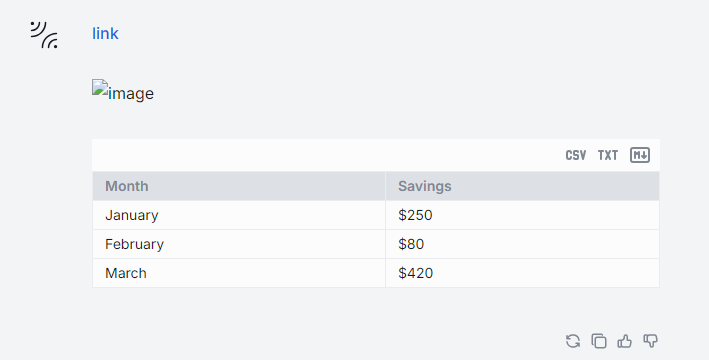
DIAL Chat automatically renders Markdown in the content field of any message—no custom_content wrapper needed. Tables, links, inline images, and code blocks all render natively.
{
  "role": "assistant",
  "content": "| Month    | Savings |\n| -------- | ------- |\n| January  | $250    |\n| February | $80     |"
}
With the DIAL SDK, write Markdown directly via choice.append_content():
with response.create_single_choice() as choice:
    choice.append_content("| Month | Savings |\n| --- | --- |\n| January | $250 |")
LaTeX formulas
DIAL Chat supports the Markdown LaTeX format for rendering mathematical formulas. Models that produce LaTeX output (such as GPT-4) have their formulas rendered automatically—no special configuration required.

Visualizers
Visualizers are standalone web applications that render specific content types inside an iframe in DIAL Chat. DIAL Chat includes a built-in visualizer for Plotly. For other content types, you can build a custom visualizer using the ChatVisualizerConnector library—see Create a custom visualizer for a step-by-step tutorial.
Custom visualizers require two DIAL Chat environment variables: ALLOWED_IFRAME_SOURCES and CUSTOM_VISUALIZERS. See DIAL Chat configuration for details.
Plotly
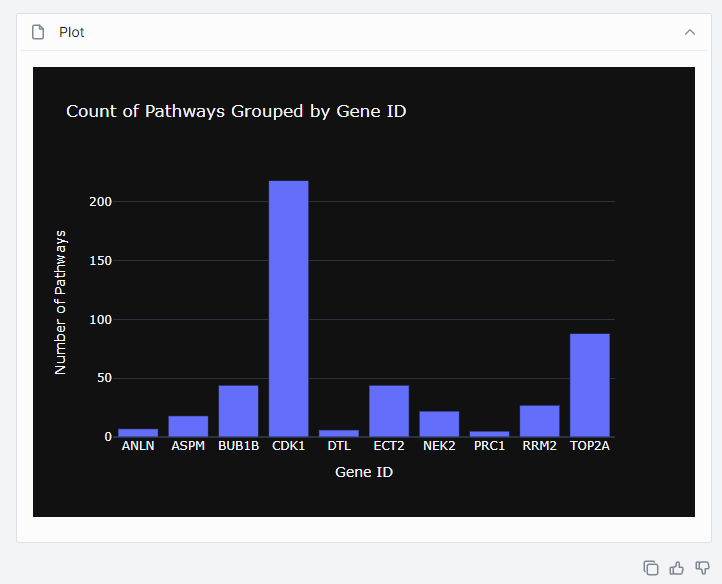
DIAL Chat has built-in support for the Plotly data visualization library. To include a Plotly chart in your application response, add an attachment with the MIME type application/vnd.plotly.v1+json. The attachment points to a JSON file in DIAL storage containing a standard Plotly JSON schema (data, layout, and optional frames).
Response body structure:
"custom_content": {
  "attachments": [
    {
      "index": 1,
      "type": "application/vnd.plotly.v1+json",
      "title": "Sales by quarter",
      "url": "files/bucket/appdata/app_name/chart.json"
    }
  ]
}
With the DIAL SDK:
with response.create_single_choice() as choice:
    choice.add_attachment(
        type="application/vnd.plotly.v1+json",
        title="Sales by quarter",
        url="files/bucket/appdata/app_name/chart.json",
    )
For more on rendering visual content in Chat, see Data visualization.
Further reading
- Data visualization — how to render Plotly charts and Markdown content in Chat
- Create a custom visualizer — build a visualizer for custom content types
- Stage — show intermediate processing steps as expandable sections in Chat
- Chat completion SDK reference — Python SDK classes for producing
custom_content - How DIAL Chat is configured — how Chat reads environment variables and where each group is documented