Manage translators
A translator is a service that converts a request from one LLM API to another, so that a deployment can serve an API it does not speak itself. DIAL Core forwards the request to the translator; the translator converts it and calls DIAL Core back on an API the deployment does serve, then converts the answer back on the way out. For example, making an Anthropic Messages model available through the OpenAI Chat Completions interface.
Refer to DIAL Core documentation to learn more about translators and how they work.
Supported interfaces
A translator converts between two of these interface types. Both In and Out use the same list:
| Interface | Declared by |
|---|---|
| OpenAI Chat Completions | Models and applications |
| OpenAI Responses | Models |
| Anthropic Messages | Models |
| OpenAI Embeddings | Models |
Applications can declare only OpenAI Chat Completions, so a translator referenced from an application can only accept that interface. For example, a model that serves the OpenAI APIs itself can serve /anthropic/v1/messages through a translator from Anthropic Messages to OpenAI Chat Completions or OpenAI Responses.
DIAL Core accepts any pair of these types that meets the rules below. Whether a given translator service implements a conversion depends on that service.
- In and Out must differ. DIAL Core rejects a translator whose Out equals its In.
- The deployment that references the translator must serve Out itself, as a passthrough interface. A translator can't convert to another translated interface.
How to use translators
Translators are configured in the Interfaces section of a model or application. Each interface operates in Passthrough or Translator mode. An interface is served either by a base URL or by a translator, never both.
- In the model's Interfaces, add the interface that clients call, for example Anthropic Messages. The translator's In is this interface.
- Set Mode to Translator.
- In Translator, select a translator by name, or select Custom to define one inline. An inline translator has only a Base URL and an Out type.
- Make sure the model itself serves the translator's Out interface. Add that interface to the model's Interfaces in Passthrough mode, with a base URL of its own or the model-level Base URL. The translator calls DIAL Core back on this interface, and DIAL Core forwards the call to the model. For example, a translator from Anthropic Messages to OpenAI Chat Completions needs the model to serve OpenAI Chat Completions in Passthrough mode.
If the selected name is not registered, that interface answers 503 until a translator with that name exists. The rest of the deployment keeps working. Editing a translator affects every deployment that references it, as soon as the change is loaded.
Limits and translated requests
A client call through a translator reaches DIAL Core twice: once from the client, and once from the translator calling back on the Out interface. Role limits, cost limits and request counts apply only to the callback, so a call is counted once. A caller who has exhausted a quota is rejected on the callback, not on the first call. The request log records both calls, so summing usage across log entries double counts a translated request.
Main screen
Navigate to Translators to see all platform translator definitions.

Folders
The left panel shows where each translator definition is stored. It has two root folders:
- file: translator defined in the DIAL Core configuration file. This folder is read-only; it lists only the translator names. To change these translators, edit the DIAL Core config file.
- platform: translators stored in DIAL Core platform blob storage. This is where you create, edit and delete translators in DIAL Admin.
Grid columns
Columns differ by bucket. There is no ID column—the row identity is the Name cell. Every column (except in the file bucket) has an inline search/filter box.
File bucket: a single Name column (the config-entity name). No other columns, and no actions.
Platform bucket
| Column | Description |
|---|---|
| Name | Name of the translator. Click to open. |
| Author | Who created or last updated the translator. |
| Created time | Creation timestamp. |
| Updated time | Timestamp of the last modification. |
Row actions
Open a row's actions menu (⋮). The actions depend on whether the row is a translator or a folder, and on the bucket.
Translator actions in the platform bucket:
| Action | What it does |
|---|---|
| Open in a new tab | Opens the translator's configuration screen in a new browser tab. |
| Duplicate | Copies the translator. The modal requires a new ID. |
| Delete | Permanently removes the translator. |
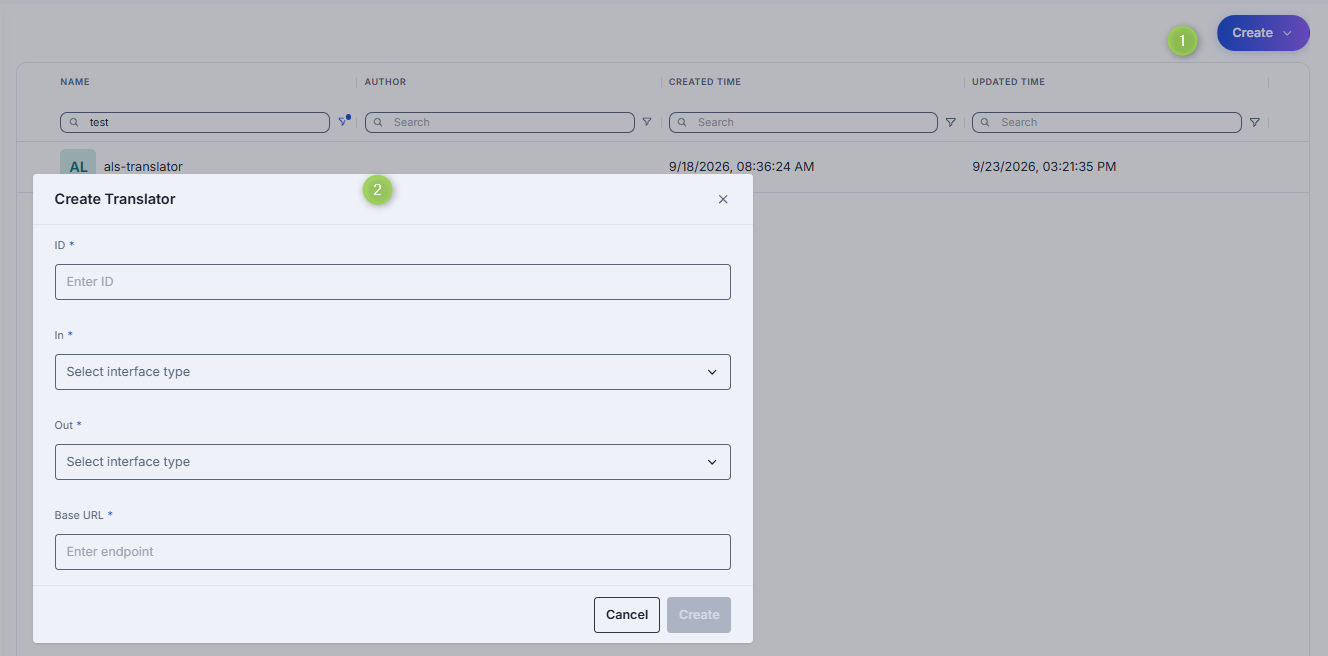
Create
- Click Create to invoke the Create Translator form.
- Fill in the required fields: ID, In, Out and Base URL.
- Click Create.
Properties
Click any translator row to open its properties screen.
Refer to DIAL Core documentation to learn more about Translators.
A translator has only the Properties tab. It has no Roles or Audit tab, so access is not set per translator.
Tip
Use the JSON Editor toggle (top-right) to view the raw JSON configuration. For a translator in the file folder, the editor is read-only.
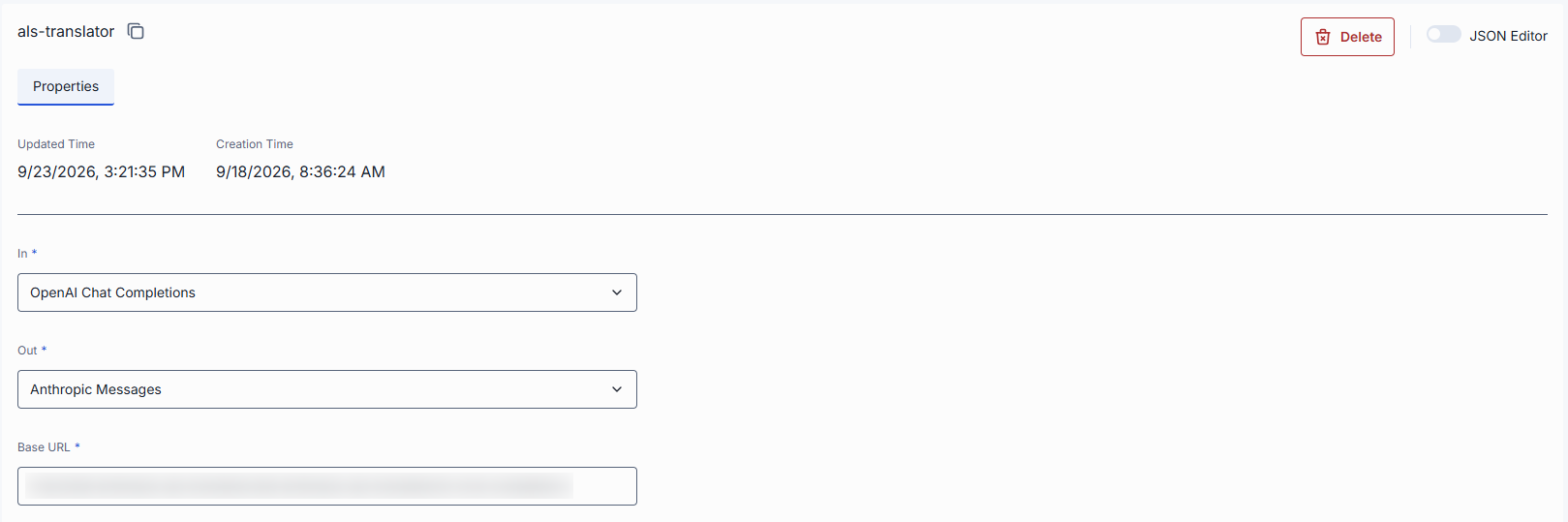
| Property | Description |
|---|---|
| In | The interface type the translator accepts — the API a client calls DIAL Core on. It has to differ from out. |
| Out | The interface type it converts to. The deployment referencing the translator has to serve out itself, and serve it pass-through: that is the API the translator calls DIAL Core back on. |
| Base URL | The root URL of the translator service. Each request is forwarded to baseUrl + the exact ingress path it was received on, exactly as a deployment's own base URL is. A trailing slash is normalized. |
Delete
You can permanently delete a translator by clicking Delete in the configuration screen of in the action on the main screen.
Further reading
- Platform Models — configure translator mode on model interfaces
- DIAL Admin: Applications — add and configure applications
- DIAL Core configuration: Translators — convert requests between AI APIs for a deployment