Catalog Schemas
A catalog schema is a structured set of fields defined centrally. It describes the extra metadata that entities of one type carry, such as a provider, a license, a pricing table or an icon. It is a JSON Schema document: each property is a metadata field. Layout hints on each field (a tab, a section and a widget) tell a catalog client where and how to show the value.
Administrators define a schema once. Authors then select it for a model, an application, a toolset or an interceptor and fill in its fields in the Catalog metadata section of that entity. DIAL Core validates the values against the schema when you save, stores them with the entity, and returns them in its API responses, so any client can read them.
What DIAL Chat shows
The DIAL Chat catalog shows five metadata fields in the Overview of an entity:
provider,vendor,license,knowledgeCutoffDateandparameters. To show a value there, add a string field with one of these names to the schema. Other fields are stored and returned by the DIAL Core API, but DIAL Chat does not show them. DIAL Chat does not use the Tab, Section, Widget and Localized layout hints.
How to use Catalog Schemas
- Create a catalog schema for an entity type and define its parameters.
- Open a model, an application, a toolset or an interceptor of that type, and select the schema in its Catalog schema property. The selector lists only the schemas created for the entity type.
- Fill in the fields in the Catalog metadata section of the entity. The values are validated against the schema when you save.
- Clients read the values from the DIAL Core API. DIAL Chat shows the recognized fields in the entity's catalog Overview.
Entity types are model, agent, toolset and interceptor. Applications use the agent type.
Main screen
Navigate to Catalog Schemas to see all Catalog Schemas definitions.
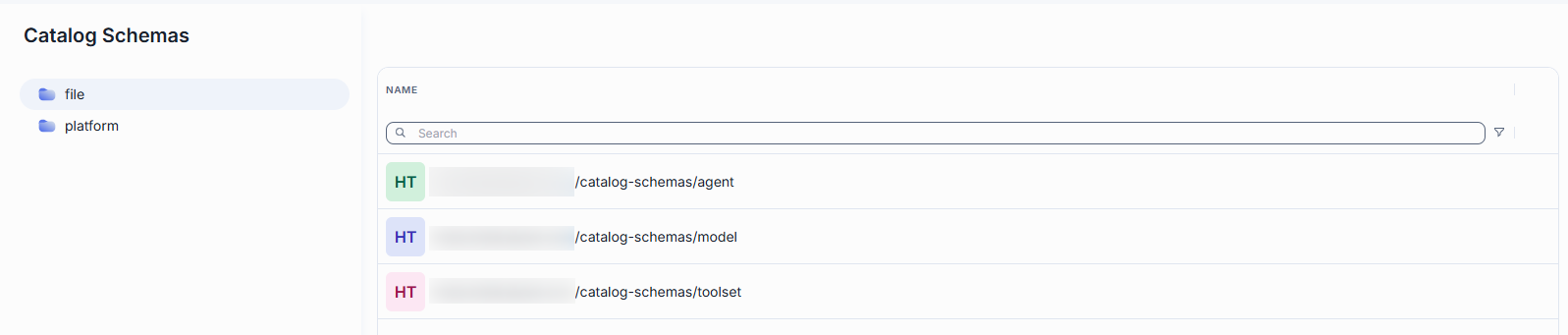
Folders
The left panel shows where each catalog schema definition is stored. It has two root folders:
- file: catalog schemas defined in the DIAL Core configuration file. This folder is read-only; it lists only the catalog schema names. To change these catalog schemas, edit the DIAL Core config file.
- platform: catalog schemas stored in DIAL Core platform blob storage. This is where you create, edit and delete catalog schemas in DIAL Admin.
The file folder has no Create button and no row actions. The columns differ by folder, as described below.
Grid columns
Columns differ by bucket.
File bucket: a single Name column. No other columns, and no actions.
Platform bucket
| Column | Description |
|---|---|
| Name | Name of the catalog schema. Click to open. |
| Author | Who created or last updated the catalog schema. |
| Created time | Creation timestamp. |
| Updated time | Timestamp of the last modification. |
Row actions
Open a row's actions menu (⋮).
| Action | What it does |
|---|---|
| Open in a new tab | Opens the catalog schema's configuration screen in a new browser tab. |
| Duplicate | Copies the schema. See Duplicate. Available in the platform folder. |
| Delete | Permanently removes the catalog schema. |
Create
Catalog schemas are created in the platform folder.
-
Select the platform folder and click Create.
-
Fill in the form:
Field Required Description Name Yes Name of the schema. It cannot be changed after the schema is created. ID Yes Unique identifier of the schema. Entities refer to the schema by this ID. It cannot be changed after the schema is created. Entity type Yes The type of entity the schema describes: model, agent (for applications), toolset or interceptor. Display Name Yes Human-readable name of the entity type. Default locale No The fallback locale for localized fields. Defaults to en. -
Confirm. The new schema opens in its configuration screen, where you add its parameters or define the whole schema in the JSON editor.
Duplicate
To create a schema from an existing one, use Duplicate in the row's actions menu. It is available for schemas in the platform folder.
-
Open the row's actions menu (⋮) and select Duplicate.
-
In the dialog, set the identity of the copy:
Field Required Description Name Yes Name of the copy. Pre-filled with the source name and a -copysuffix.ID Yes Unique identifier of the copy. Pre-filled with the source ID and a -copysuffix.Display Name Yes Human-readable name of the entity type. Copied from the source. -
Confirm. DIAL Admin checks the ID with DIAL Core first. If a schema with this ID already exists, an error is shown under ID and Duplicate stays disabled until you change it. The copy keeps the source's entity type and parameters and opens in its configuration screen.
You can also copy a schema in the JSON editor.
Configuration
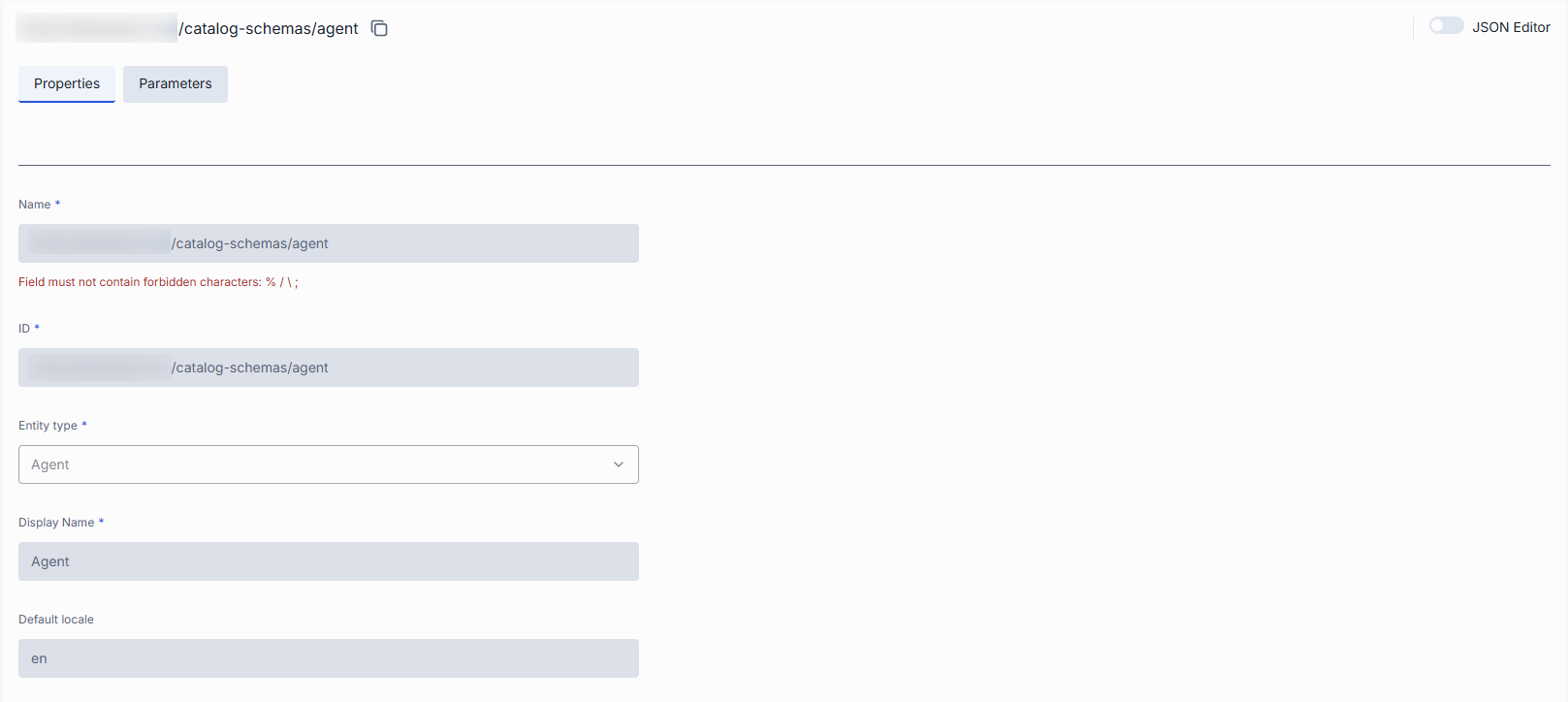
Click any Catalog Schema row to open its detail view showing properties and parameters. You can switch to the JSON editor with the toggle in the top right.
Properties
In this section, you can define basic properties of a schema.
Tip
Name and ID are set when you create a schema in the platform folder and cannot be changed afterward.
| Property | Description |
|---|---|
| Name | Name of the catalog schema in DIAL Admin and in platform storage. |
| ID | Unique identifier of the schema, a URI reference (the $id of the JSON Schema). Entities refer to the schema by this ID in their Catalog schema property. |
| Entity type | The type of entity the schema describes: model, agent (applications), toolset or interceptor. Only entities of this type can select the schema. |
| Display Name | Human-readable name of the catalog entity type, shown when you select a schema. |
| Default locale | BCP-47 locale (for example en or de-DE) used as the fallback for every localized field. Optional; defaults to en when omitted. |
Parameters
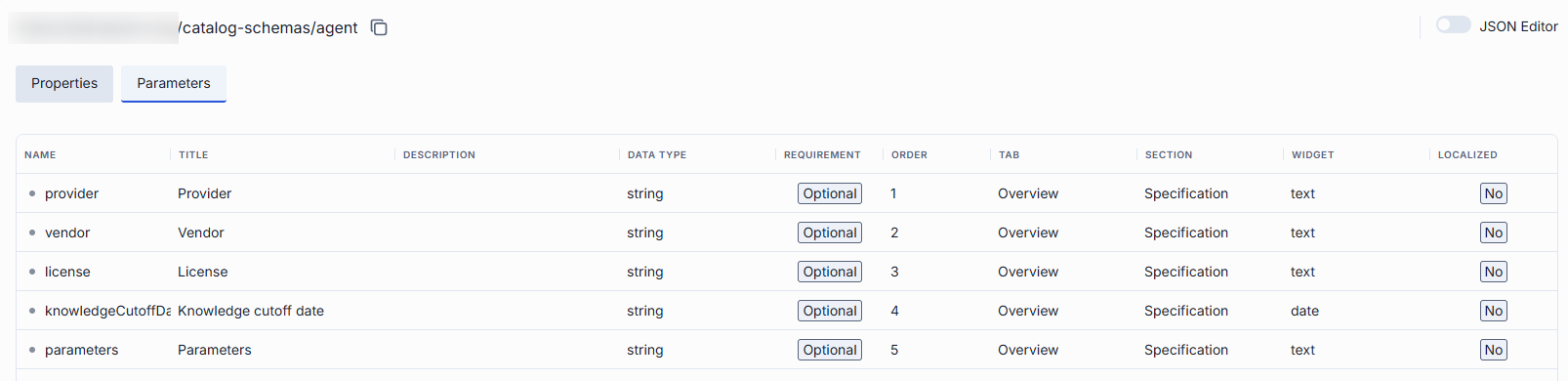
In this section you define the metadata fields of the schema. Each field becomes an input in the Catalog metadata section of every entity that selects the schema. Its value is stored with the entity and returned by the DIAL Core API. DIAL Chat shows only the fields it recognizes (provider, vendor, license, knowledgeCutoffDate and parameters.).
| Field | Description |
|---|---|
| Name | Key of the field in the entity's catalog metadata. |
| Title | Label of the field shown to the author in the Catalog metadata section. |
| Description | Help text that explains what to enter in the field. |
| Data Type | Type of the value: a JSON Schema type (string, number, integer, boolean, array or object). |
| Requirement | Whether the author must fill in the field. A required field must have a value for the metadata to be valid. |
| Order | Position of the field within its section. Fields with a lower number come first. |
| Tab | Layout hint: the tab of a catalog page where a catalog client can show the field, for example Summary, About, Overview, Pricing or API. DIAL Chat does not use it. |
| Section | Layout hint: the section within the tab that groups related fields, for example Capabilities or Specification. DIAL Chat does not use it. |
| Widget | Layout hint: how a catalog client can display the value: text, richText (formatted text), badge, chips (a list of short values), url, boolean, image or date. DIAL Chat does not use it. |
| Localized | Marks the value as a map from a BCP-47 locale to a text, so the field can be translated. The value must include the schema's Default locale. |
Note
A field can also be marked as a DIAL file, for a value that is a reference to a file in DIAL storage (the type is a string with the
dial-file-encodedformat). Such files are copied when the entity is published or shared.
JSON editor
A catalog schema is a JSON Schema document. Instead of the form, you can define it directly in the JSON editor. This is useful for a schema with many fields, for a bulk change, and for copying a schema.
Tip
You can switch between the form and JSON only if there are no unsaved changes.
- Open the schema and click the JSON Editor toggle (top-right). The raw JSON of the schema is shown.
- Write the schema, or paste JSON copied from another schema.
- Click Save.
To copy a schema with the JSON editor:
- Open the schema you want to copy, switch to the JSON editor and copy the JSON.
- Create a new schema, open it and switch to the JSON editor.
- Paste the copied JSON, restore the
$idof the new schema, and click Save.
To copy a whole schema in one step, use Duplicate instead.
Note
- The Name and ID (
$id) of an existing schema can't be changed. If the JSON contains a different$id, the save is blocked and your edits stay in the editor so you can correct them.- The JSON is checked by the same rules as the form. Saving is blocked if the display name is blank, the entity type is not one of
model,agent,toolset,skillorinterceptor, the default locale is not a valid language tag (for exampleenorde-DE), or a property marked as a DIAL file doesn't have the string type and thedial-file-encodedformat.
Delete
You can delete schemas in the platform folder. Schemas in the file folder are read-only.
- Open the row's actions menu (⋮) and select Delete.
- Select several schemas in the grid and use Delete in the bulk-actions toolbar.
Deleting a schema is permanent.
Warning
Entities refer to a schema by its ID. The delete dialog does not list the entities that use the schema. If a model, application, toolset or interceptor still refers to a deleted schema and has catalog metadata, DIAL Core can't validate it and reports "Catalog schema not found". Before you delete a schema, clear the Catalog schema property on the entities that use it.
Further reading
- DIAL Admin: Models — select a catalog schema for a model and fill in its catalog metadata
- DIAL Admin: Applications — select a catalog schema for an application
- DIAL Admin: Toolsets — select a catalog schema for a toolset and fill in its catalog metadata
- DIAL Core configuration: Catalog schemas — JSON schemas for extra Catalog metadata