Manage application runners
An Application Runner in DIAL is an application factory that allows end users to create individual logical instances of applications, each with its own configuration. An Application Runner definition includes a JSON configuration schema that enforces the data structure persisted for each instance. The JSON schema of Application Runners conforms to the main meta schema.
Quick Apps and Code Apps are Application Runners available in DIAL out of the box. You can use DIAL SDK to create custom Application Runners.
For example, a custom RAG Application Runner may allow an end user to configure a personalized RAG agent by connecting it to chosen data sources—such as internal knowledge bases, document repositories, or external APIs—and then share it with other users and groups.
Note
- You can also define routes for specific application deployments and Application Runners. Refer to Applications to learn how to do this.
- Refer to Schema-rich Applications to learn more.
Main screen
In Application Runners, you can add and manage all Application Runners registered in your DIAL instance.

The grid lists every registered runner. Each column has an inline search box and a filter menu, and you can sort by clicking a column header.
Grid columns
Columns differ by bucket. There is no ID column—the row identity is the Name cell. Every column (except in the file bucket) has an inline search/filter box.
File bucket: a single Name column (the config-entity name). No other columns, and no actions.
Platform bucket
| Column | Description |
|---|---|
| Name | Name of the runner. Click to open. |
| Author | Who created or last updated the runner. |
| Created time | Creation timestamp. |
| Updated time | Timestamp of the last modification. |
Actions
The actions menu (⋮) at the end of each row lets you work with an individual runner.
| Action | What it does |
|---|---|
| Open in a new tab | Opens the runner's configuration screen in a new browser tab. |
| Duplicate | Copies the runner. The modal asks for a Name (pre-filled with the source name and a -copy suffix), an ID (copied from the source) and a Display Name. Duplicate stays disabled while the Name is empty or already used. |
| Delete | Permanently removes the runner. |
Folders
The left panel shows where each app runner definition is stored. It has two root folders:
- file: runners defined in the DIAL Core configuration file. This folder is read-only; it lists only the runner names. To change these runners, edit the DIAL Core config file.
- platform: runners stored in DIAL Core platform blob storage. This is where you create, edit and delete runners in DIAL Admin. The folder is flat, so it has no sub-folders, and the grid shows each runner's name, author, and creation and update times.
Create
-
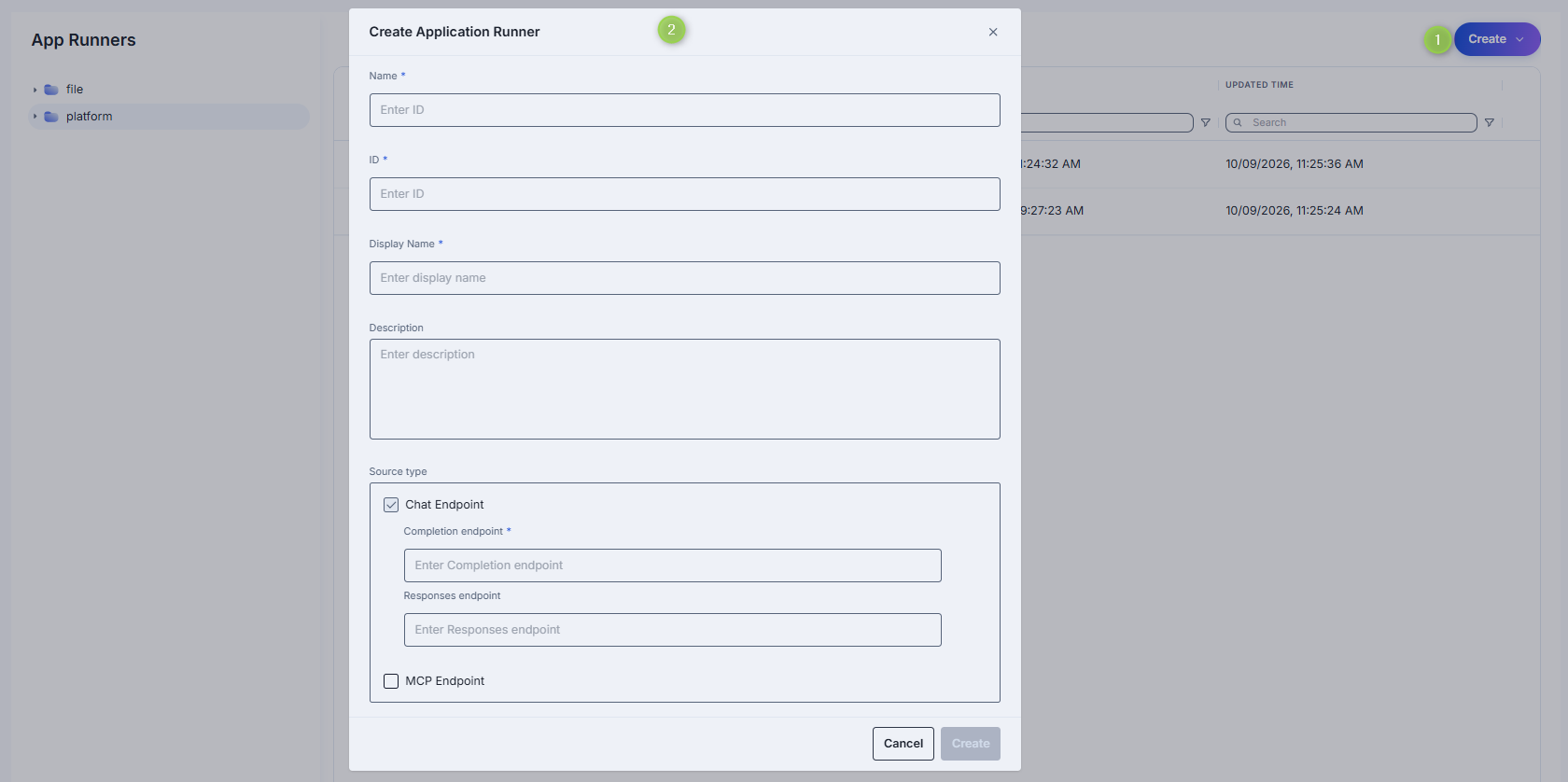
Click + Create to open the Create Application Runner modal.
-
Define key parameters for the new Application Runner:
Field Required Description Name Yes Name under which DIAL Core stores the runner. It identifies the runner in the grid. ID Yes The application type schema ID, a URI such as https://dial.example.com/custom_application_schemas/my-runner. DIAL Core uses it to read the runner's schema, and applications refer to the runner by it. It is separate from Name. The endpoints that receive requests are set in Source type.Display Name Yes Name rendered on the UI. Description No Description of capabilities, cluster location, version, or SLA. Source type Yes Where DIAL Core sends orchestration payloads for applications built on this runner. Chat Endpoint and MCP Endpoint are independent checkboxes—you can enable either or both, but at least one must stay enabled. Chat Endpoint is selected by default. See the sub-fields each one reveals below. Chat Endpoint reveals:
- Completion endpoint (required) — endpoint that processes chat completion requests (e.g.
https://my-runner.example.com/v1/execute). - Responses endpoint — endpoint that processes OpenAI Responses API calls.
MCP Endpoint reveals:
- Endpoint (required) — the MCP endpoint of the Application Runner.
- Allowed tools — restricts which tools of the MCP server applications may use. Click + Add tools to add tool names; leave empty to allow all tools.
- Transport — transport used by the MCP server. Fixed to HTTP (the only available option).
- Forward per request key — toggle. When on, DIAL forwards a per-request key to the MCP server so it can access files in DIAL storage. Enabling MCP Endpoint turns this on automatically.
- Configuration delivery — how application properties are sent to the MCP server: Header delivers them in an HTTP header; Meta includes them in the
_metafield of the MCP message payload.
- Completion endpoint (required) — endpoint that processes chat completion requests (e.g.
Note
- Name and ID can be set only when you create the runner. Neither can be changed afterwards, including in the JSON editor.
- ID can't contain the characters
!,~,*,',(or). DIAL Admin also checks the ID with DIAL Core before it creates the runner. If a runner with this ID already exists, an error is shown under ID.
-
Click Create. The dialog closes and the new runner's configuration screen opens. The new runner appears immediately in the listing, though changes may take some time to propagate to DIAL Core.
Configure
Click any Application Runner on the main screen to open its configuration page. At the top, you can find the runner's read-only ID (click the copy icon to copy it).
Top bar controls
| Control | Description |
|---|---|
| Create | Opens a menu. Application creates an application from this runner. See Create an application from a runner. |
| Delete | Permanently removes the selected runner. A confirmation is required. The confirmation does not list the applications created from the runner. |
| JSON Editor (toggle) | Switch between the form UI and the raw JSON view. |
| Save | Commits unsaved changes. Appears only when there are changes. Changes may take time to propagate to DIAL Core. |
| Discard | Reverts unsaved changes. Appears only when there are changes, and asks for confirmation before discarding. |

Create an application from a runner
You can create an application from the runner you are viewing. The runner is the application's source, so the form has no source step.
-
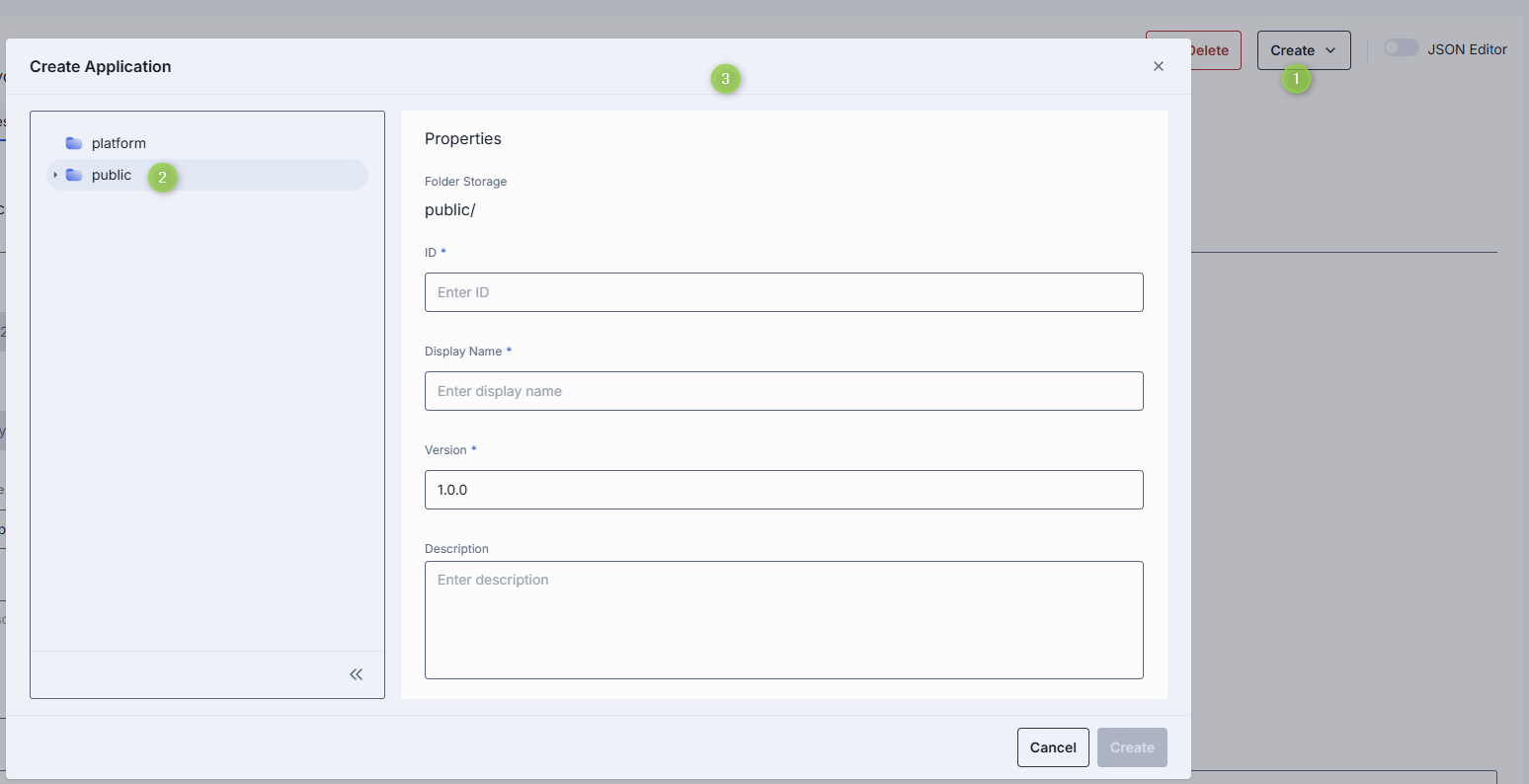
Click Create in the top bar and select Application.
-
Select the folder for the application:
platformorpublic. Theplatformfolder is available only when the Catalog menu group is enabled. -
Fill in the Properties form:
Field Required Description ID Yes Unique identifier of the application. Display Name Yes Name shown on the UI. Version Yes Semantic version (for example 1.0.0, pre-filled). Shown only for thepublicfolder.Description No Free-text description of the application. -
Click Create. The new application opens, with its parameters set to the defaults from the runner's schema.
The Create menu is not available for read-only admins, while the runner has unsaved changes, or while the JSON editor is open. See Applications to configure the new application.
The configuration page has five tabs: Properties, Features, Parameters, App Routes, and Interceptors. Runners from the file folder are read-only.
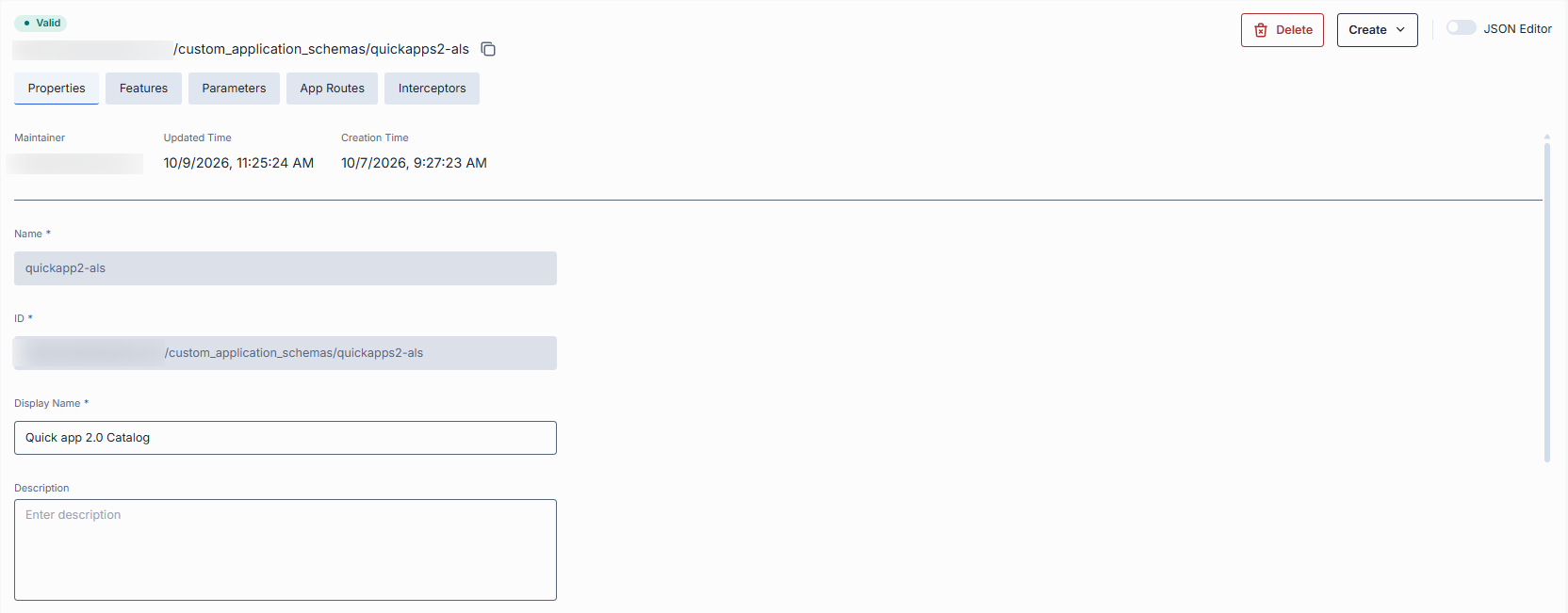
Properties
In Properties, configure the core identity, metadata, and integration endpoints for your Application Runner.
| Field | Required | Editable | Description |
|---|---|---|---|
| Updated Time | — | No | Timestamp of the last configuration update. Shown in the header band at the top of the tab. |
| Creation Time | — | No | Timestamp of when the configuration was created. Shown in the header band at the top of the tab. |
| Name | Yes | No | Name under which DIAL Core stores the runner. |
| ID | Yes | No | The application type schema ID (a URI). Applications refer to the runner by it. |
| Display Name | Yes | Yes | Name displayed on the UI (e.g. "Python Lambda Runner" or "NodeJS Service Worker"). |
| Description | No | Yes | Description of the runner, including its environment (staging vs. prod), resource profile (2 vCPU, 8 GB RAM), or special instructions. |
| Source type | Yes | Yes | Where DIAL Core sends orchestration payloads for applications built on this runner. Chat Endpoint and MCP Endpoint are independent checkboxes; enable either or both (at least one is required). See Source type fields. |
| Viewer URL | No | Yes | URL of an alternative end-user UI. If set, overrides the standard DIAL Chat UI for applications built on this runner. |
| Editor URL | No | Yes | URL of a UI screen for configuring application settings when creating or updating an application instance. |
| Schema endpoint | No | Yes | Endpoint that returns the JSON schema defining parameters of the application type. When set, the Parameters section is populated from this endpoint and is read-only. |
| Icon | No | Yes | Icon representing the runner visually in the UI. Choose one with the icon picker. |
| Topics | No | Yes | Semantic tags for grouping and filtering. Select one or more from the list. |
| Title | No | Yes | Title of the Application Runner. |
| Bucket copy | No | Yes | Dropdown (Enabled / Disabled, default Disabled). Determines whether files stored in the application's file storage bucket are copied when the application is copied, moved, or published. |
Source type fields
Chat Endpoint reveals:
| Field | Required | Description |
|---|---|---|
| Completion endpoint | Yes | Processes chat completion requests. |
| Responses endpoint | No | Processes OpenAI Responses API calls. |
MCP Endpoint reveals:
| Field | Required | Description |
|---|---|---|
| Endpoint | Yes | The MCP endpoint of the Application Runner. |
| Allowed tools | No | Restricts which MCP tools applications may use. Click + Add tools to add tool names; leave empty to allow all. |
| Transport | — | Transport used by the MCP server. Fixed to HTTP (the only available option). |
| Forward per request key | — | Toggle. When on, DIAL forwards a per-request key to the MCP server so it can access files in DIAL storage. Turned on automatically when MCP Endpoint is enabled. |
| Configuration delivery | No | How application properties are sent to the MCP server: Header (HTTP header) or Meta (the _meta field of the MCP message payload). |
Features
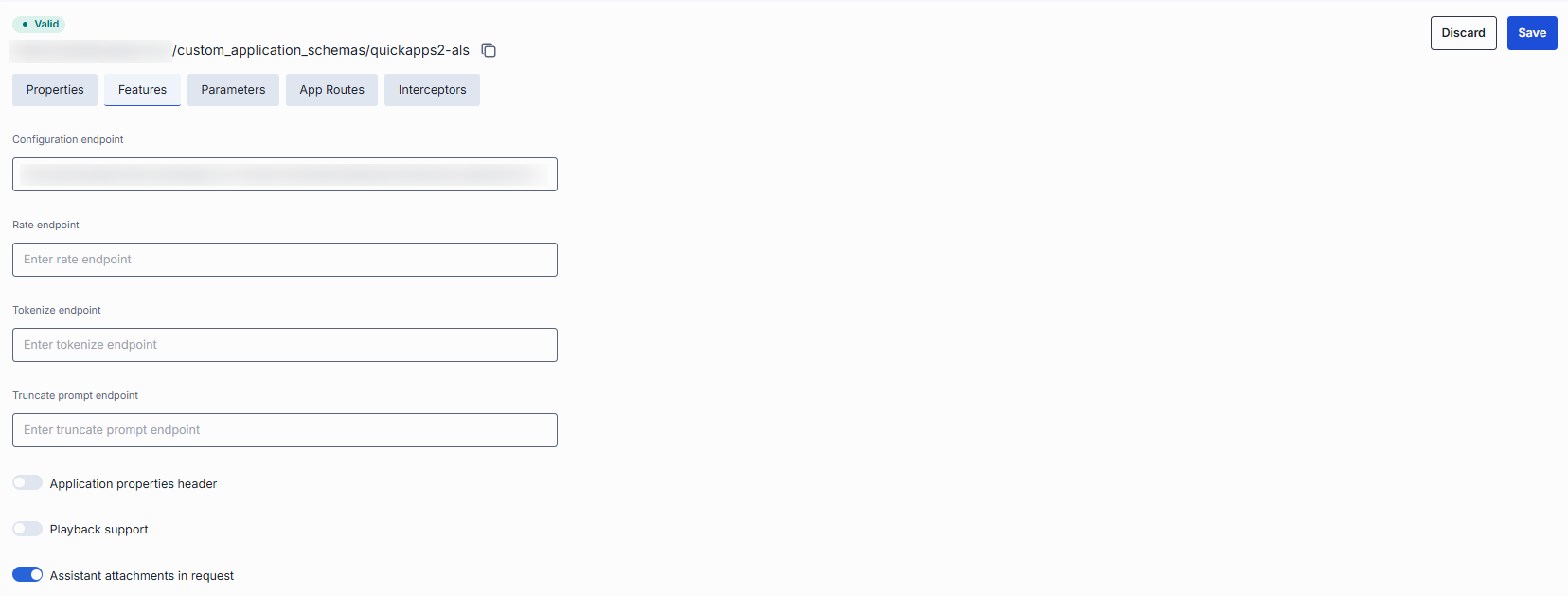
In Features, define additional capabilities of applications created with this Application Runner. Features defined here are propagated to all applications created from this runner. Features left undefined at the runner level can be set per-application in Applications.
| Field | Control | Description |
|---|---|---|
| Configuration endpoint | Text | URL to fetch a JSON Schema describing the application's settings. DIAL Core exposes this as GET v1/deployments/<deployment name>/configuration. Clients must provide a JSON value matching this schema in custom_fields.configuration on chat completion requests. |
| Rate endpoint | Text | URL of a custom rate-estimation API to compute cost or quota usage (e.g. grouping by tenant, complex billing rules). |
| Tokenize endpoint | Text | URL of a custom tokenization service for precise, app-wide token counting (for mixed-model or multi-step prompts). |
| Truncate prompt endpoint | Text | URL of your own prompt-truncation API for advanced context-window management (e.g. dynamic summarization). |
| Application properties header | Toggle | When on, DIAL appends the app's configuration to chat completion request headers. |
| Playback support | Toggle | Enables Playback, which lets users simulate a conversation without invoking model responses, for review and analysis. |
| Assistant attachments in request | Toggle | When on, DIAL Chat preserves attachments in messages from role=assistant in chat completion requests. Useful for apps that generate and consume attachments. |
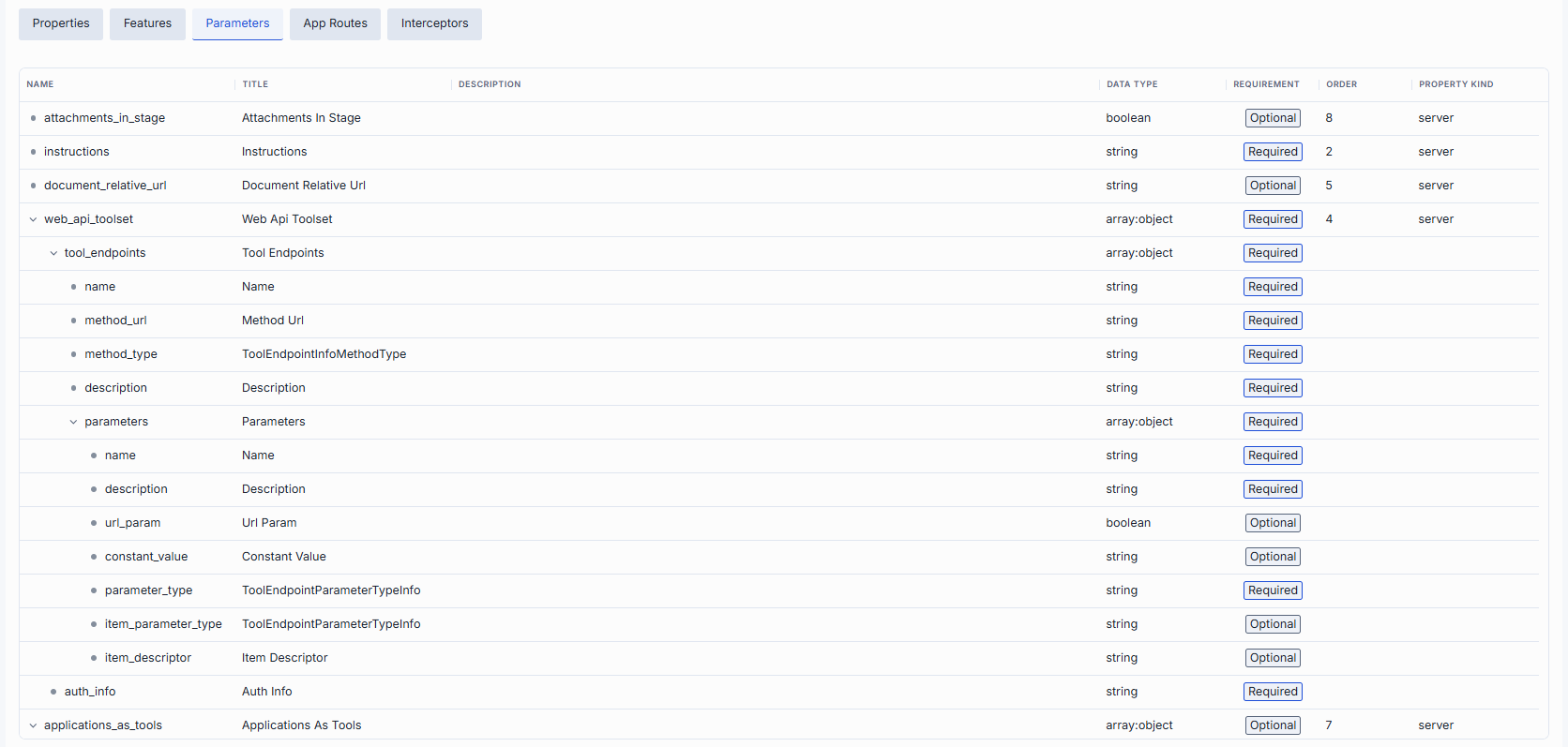
Parameters
Parameters shows a table that defines the parameters configured when creating an application instance based on this runner. Parameters are rendered as a nested, expandable grid—expand a row to see its child properties.
| Column | Description |
|---|---|
| Name | The property key (the leaf name in the schema). Nested properties are shown as expandable rows. |
| Title | Human-readable title of the property. |
| Description | Description of the property's purpose. |
| Data type | The property type (e.g. string, boolean, object, array:object). |
| Requirement | Whether the property is Required or Optional. |
| Order | The display order of the property within its group. |
| Property kind | How the property is sourced (e.g. server). |
The table shows the schema as DIAL Core resolves it. If the runner has a Schema endpoint in Properties, the properties from that external schema are shown alongside the runner's own. If DIAL Core can't download the external schema, the tab shows an error. When no schema is defined, the section shows a "No configuration schema" message.
Declarations that the table doesn't show, such as file-valued properties and nested property metadata, are kept when you edit and save the schema.
Important
Every top-level parameter needs an Order and a Property kind. A runner with a parameter that lacks either can't be saved, and the empty Order cell is marked as invalid.
Note
JSON schema of Application Runners conforms to the main meta schema. Refer to Schema-rich Applications to learn more.
App Routes
In App Routes, define and manage routes that DIAL Core uses when interacting with applications created from this runner. Applications created from this runner inherit these routes automatically—their App Routes section is pre-populated and read-only.
Route configuration mirrors Routes. Refer to this section for details. Route roles are chosen from the roles defined in DIAL Core.
A runner can't be saved if:
- a route name contains characters other than letters, digits and
_; - a route has no paths, no methods, or neither upstreams nor a response;
- a route uses a method other than the supported HTTP methods.
Note
Refer to DIAL Core documentation to learn more about routes.
Interceptors
In Interceptors, review and manage the interceptors that process requests and responses for all applications built on this runner. The interceptors you can attach include both those created in DIAL Admin or through the DIAL Core API and those defined in the DIAL Core configuration file. The section is split into collapsible groups, each showing its count:
- Global Interceptors — read-only. Interceptors defined in System Properties that apply to all deployments in DIAL. You cannot add or remove them here.
- Runner Interceptors — read-only. Interceptors inherited from the source runner. This group appears only when the runner has a schema source to inherit from.
- Local Interceptors — editable. The runner's own interceptors. Use + Add to attach them, drag rows to reorder, and remove them from the row actions menu. These appear as runner interceptors in the configuration of each application built on this runner.
Request interceptors run in the listed order; response interceptors run in reverse order.

Each interceptor group's grid shows:
| Column | Description |
|---|---|
| Display Name | The interceptor's display name from its definition. |
| Description | Free-text summary from the interceptor's definition. |
To add local interceptors:
- Click + Add in the Local Interceptors group.
- In the Add Interceptors modal, select one or more interceptors from the list of available interceptors.
- Click Apply to insert them into the group.
To remove a local interceptor, open the ⋮ actions menu in its row and choose Remove.
JSON editor
Advanced users with technical expertise can work with the application runner properties in a JSON editor view mode. It is useful for advanced scenarios of bulk updates, copy/paste between environments, or tweaking settings not exposed on UI.
Tip
You can switch between UI and JSON only if there are no unsaved changes.
- Navigate to App Runners, then select the runner you want to edit.
- Click the JSON Editor toggle (top-right). The UI reveals the raw JSON.
- Make changes and click Save to apply them.
Delete
Permanently removes the selected runner. A confirmation is required. The confirmation does not list the applications created from the runner.
Further reading
- DIAL Admin: Applications — add and configure applications
- DIAL Admin: Routes — configure global routes
- DIAL Admin: Toolsets — connect MCP servers
- DIAL Admin: Models — add and configure AI models
- DIAL Apps overview — what DIAL apps are and how they are discovered and governed