Deploy Vertex AI models
Enable the Vertex AI API in your Google Cloud project and connect Vertex AI models to DIAL through the Vertex AI adapter of DIAL Model Provider. This guide covers both JSON key authentication and Workload Identity Federation for GKE clusters.
Prerequisites
- Active Google Cloud project with billing enabled
Step 1: Enable the Vertex AI API
-
Sign in to Google Cloud Console.
-
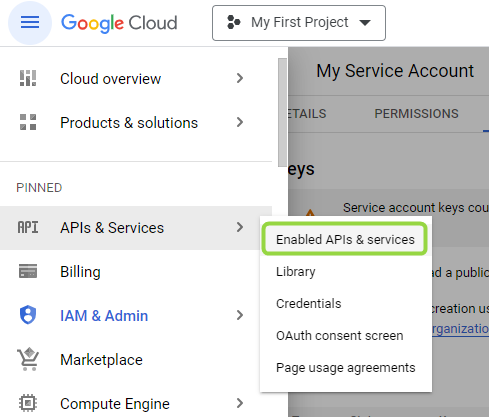
In the navigation menu, go to APIs & Services and select Enable APIs and Services.
-
Click + Enable APIs and Services to open the API library.
-
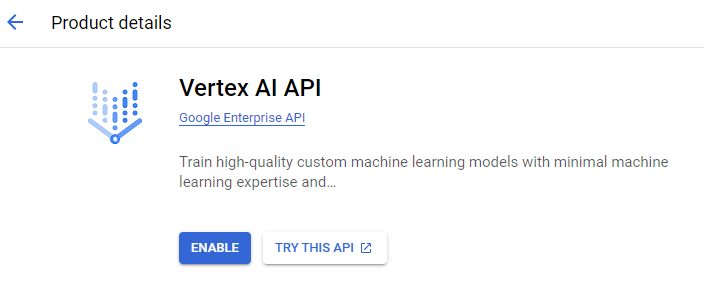
Search for Vertex AI API and select it from the results.
-
Click Enable.
Step 2: Set up authentication
Option A: GCP service account with JSON key
-
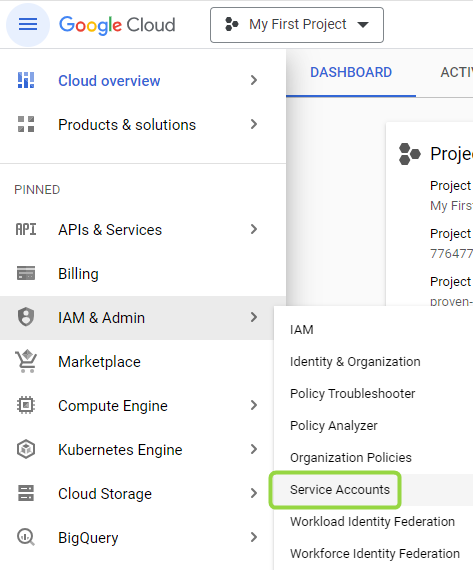
Navigate to IAM & Admin > Service Accounts.
-
Click + Create Service Account and fill in the service account name and description.

-
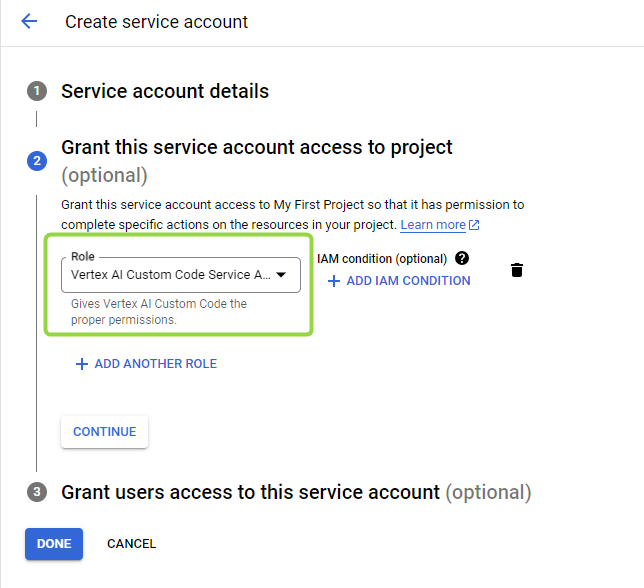
On the Grant this service account access to project step, add the Vertex AI Custom Code Service Agent role. Refer to GCP Documentation for details.
-
Click Done.
-
Open the new service account and go to the Keys tab. Click Add Key > Create new key, select JSON, and download the file.
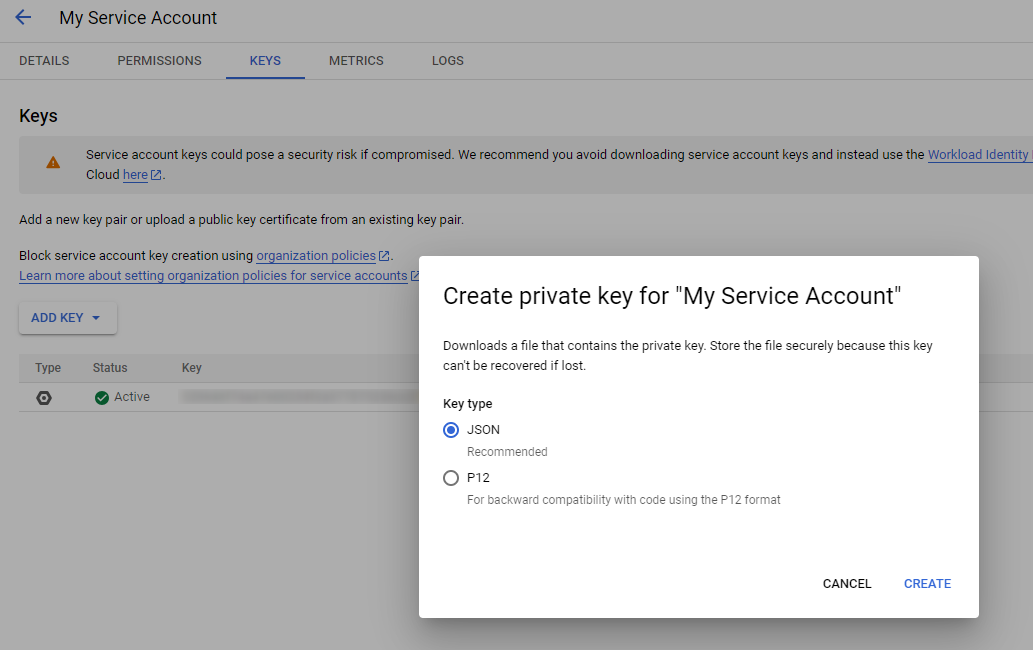
Option B: Workload Identity Federation for GKE
If your cluster runs on GKE, link a Kubernetes service account to a GCP IAM service account to authenticate without JSON key files. Refer to GCP Documentation — Workload Identity Federation for GKE for setup instructions.
Step 3: Add the model to DIAL
Add model to DIAL Core config
Add an entry for your model in the models section of config.json. Its baseUrl points at the Vertex AI adapter of DIAL Model Provider, and the model name is the Vertex AI deployment ID the adapter receives in the request path. Refer to Models configuration for the full field reference.
{
  "models": {
    "gemini-2.5-pro": {
      "type": "chat",
      "displayName": "Gemini 2.5 Pro",
      "baseUrl": "http://<MODEL_PROVIDER_HOST>:5000/compat/vertexai",
      "interfaces": { "openaiChatCompletions": {} }
    }
  }
}
Configure DIAL Model Provider
DIAL Model Provider serves the Vertex AI adapter under /compat/vertexai and reads its environment variables. Refer to Vertex AI adapter configuration for the complete list. The examples below are DIAL Extension chart values for a DIAL Model Provider release.
Using JSON key
Mount the downloaded JSON key file as a Kubernetes secret:
image:
  repository: epam/ai-dial-model-provider
  tag: 0.1.0-rc.0
containerPorts:
  http: 5000
env:
  GCP_DEFAULT_REGION: "<GCP_REGION>"
  GOOGLE_APPLICATION_CREDENTIALS: "/mnt/secrets-store/gcp-ai-key"
  GCP_PROJECT_ID: "<GCP_PROJECT_ID>"
secrets:
  gcp-ai-key: |
    {
      "type": "service_account",
      ...
      "universe_domain": "googleapis.com"
    }
extraVolumes:
  - name: key-file
    secret:
      secretName: '{{ template "dialExtension.names.fullname" . }}'
      items:
        - key: gcp-ai-key
          path: gcp-ai-key
extraVolumeMounts:
  - name: key-file
    mountPath: "/mnt/secrets-store"
    readOnly: true
Using Workload Identity Federation for GKE
The Vertex AI adapter authenticates using the GCP IAM service account linked to the Kubernetes service account annotation. No JSON key file is needed.
serviceAccount:
  create: true
  annotations:
    iam.gke.io/gcp-service-account: <GCP_SERVICE_ACCOUNT>@<GCP_PROJECT_ID>.iam.gserviceaccount.com
env:
  DIAL_URL: "http://dial-core"
  GCP_PROJECT_ID: "<GCP_PROJECT_ID>"
  GCP_DEFAULT_REGION: "<GCP_REGION>"
Further reading
- GCP deployment — deploy the full DIAL stack to GKE with Vertex AI
- DIAL Model Provider — the service that runs the Vertex AI adapter
- Vertex AI adapter configuration — full Vertex AI adapter environment variable reference
- Models configuration — register additional models in config.json
- Supported models and providers — full list of models available through the Vertex AI adapter