Deploy Azure OpenAI models
Create an Azure OpenAI model deployment and connect it to DIAL through the OpenAI adapter of DIAL Model Provider. This guide covers both API key authentication and passwordless access via Microsoft Entra Workload ID for AKS clusters.
Prerequisites
- Active Azure account with an Azure OpenAI resource in your subscription
Step 1: Deploy a model in Azure AI Foundry
Create an Azure OpenAI resource
-
Sign in to the Azure portal.
-
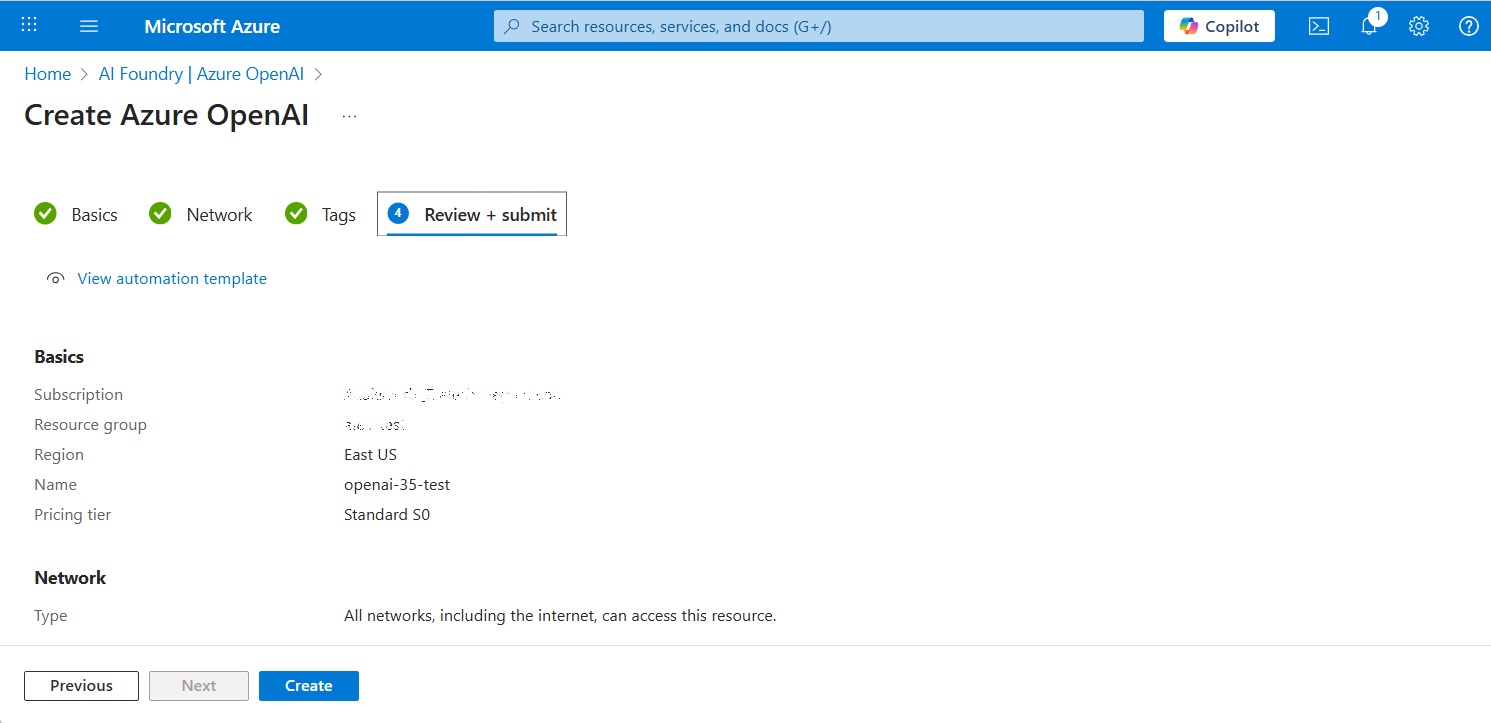
Navigate to Azure OpenAI and click Create.
-
Fill in the subscription, resource group, region, and name, then click Create.
Create a model deployment
-
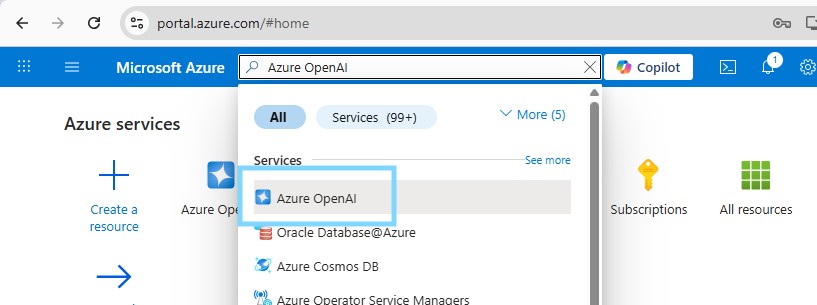
Search for Azure OpenAI in the portal search bar and click the result to navigate to the AI Foundry | Azure OpenAI page.
-
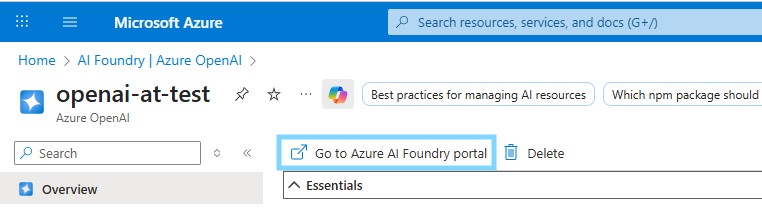
Find your Azure OpenAI resource in the list. Click it to open, then click Go to Azure AI Foundry portal in the top bar.
-
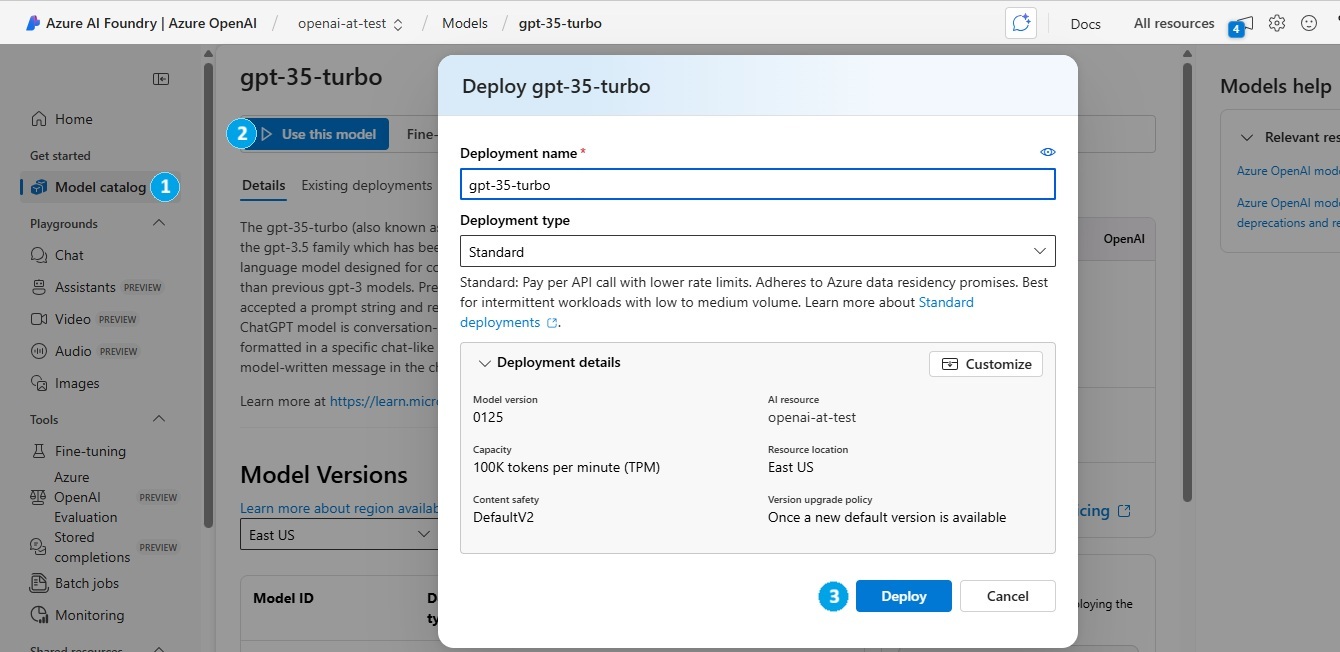
In Azure AI Foundry, click Model catalog in the navigation menu. Find your model, open it, and click Use this model. Fill in the deployment name and capacity, then click Deploy.
Some models are not available in all Azure regions. If a model is unavailable, submit an access request or create the Azure OpenAI resource in a different region.
Step 2: Get your credentials
API key and endpoint
-
In Azure AI Foundry, click Deployments and open the model you deployed. In the Endpoint section, copy the Target URI and Key — you will supply these in the DIAL Core
config.jsonupstreams.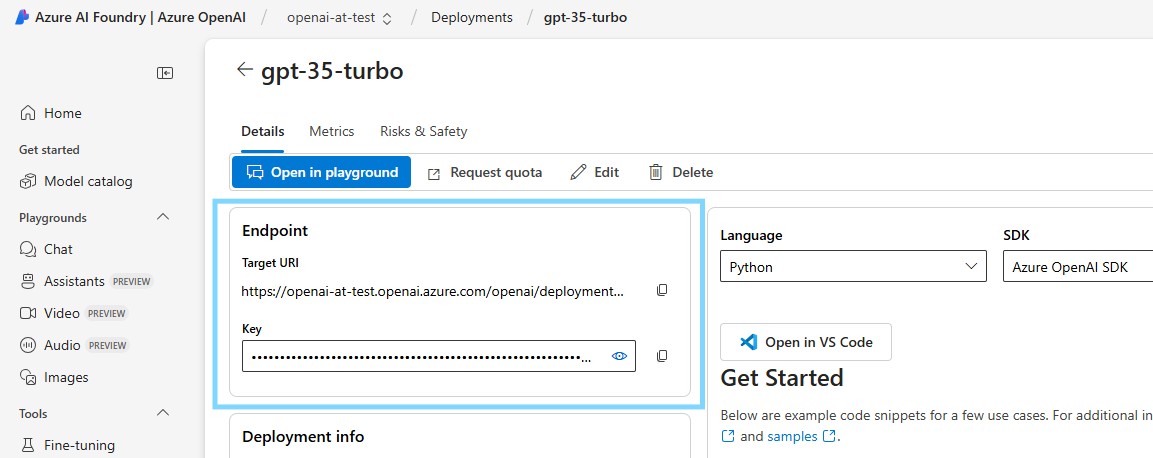
Restrict network access (optional)
Manage default network access rules for your Azure OpenAI resource under Resource Management > Networking in the Azure portal.
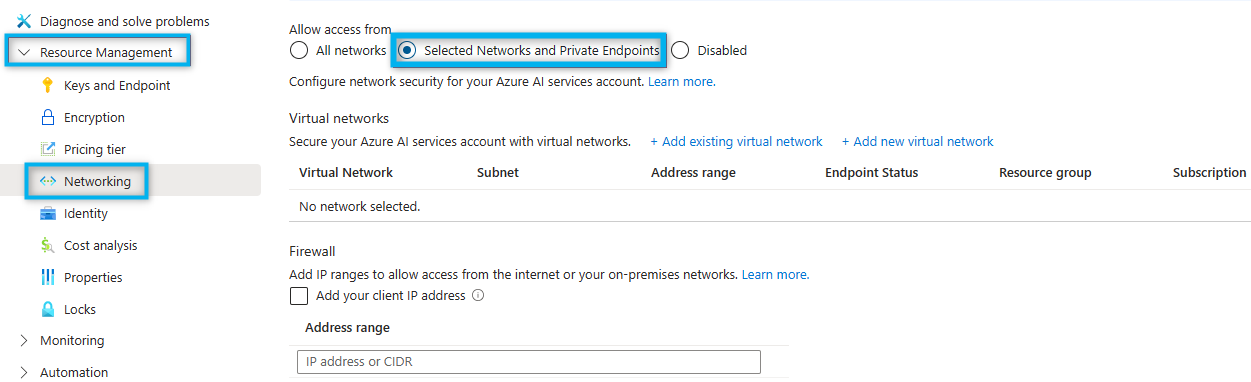
Refer to Microsoft Documentation for details.
Configure Workload Identity (AKS, optional)
For AKS clusters, use Microsoft Entra Workload ID to authenticate DIAL Model Provider without API keys. Refer to Azure Documentation — Workload Identity with AKS for setup instructions.
Step 3: Add the model to DIAL
Add model to DIAL Core config
Add an entry for your model in the models section of config.json, using the Target URI from Step 2 as the upstream endpoint. The model's baseUrl points at the OpenAI adapter of DIAL Model Provider. Refer to Models configuration for the full field reference.
{
  "models": {
    "gpt-4o": {
      "type": "chat",
      "displayName": "GPT-4o",
      "overrideName": "gpt-4o",
      "baseUrl": "http://<MODEL_PROVIDER_HOST>:5000/compat/openai",
      "interfaces": { "openaiChatCompletions": {} },
      "upstreams": [
        {
          "id": "azure-gpt-4o",
          "key": "<AZURE_OPENAI_API_KEY>",
          "interfaces": {
            "openaiChatCompletions": {
              "endpoint": "https://<AZURE_OPENAI_RESOURCE>.openai.azure.com/openai/deployments/<DEPLOYMENT_NAME>/chat/completions"
            }
          }
        }
      ]
    }
  }
}
Configure DIAL Model Provider
DIAL Model Provider serves the OpenAI adapter under /compat/openai and reads its environment variables. Refer to OpenAI adapter configuration for the complete list. The examples below are DIAL Extension chart values for a DIAL Model Provider release.
Using Azure OpenAI API key
API keys are stored in DIAL Core's config.json upstreams. No additional configuration is required beyond deploying DIAL Model Provider.
image:
  repository: epam/ai-dial-model-provider
  tag: 0.1.0-rc.0
containerPorts:
  http: 5000
Using Managed Identity (Entra Workload ID)
Authentication happens in DIAL Model Provider. Do not set the Azure OpenAI API key in DIAL Core config.json when using this method.
podLabels:
  azure.workload.identity/use: "true"
serviceAccount:
  create: true
  annotations:
    azure.workload.identity/client-id: "<AZURE_CLIENT_ID>"
Further reading
- Azure deployment — deploy the full DIAL stack to Azure AKS
- Local setup with Azure OpenAI — run DIAL locally with an Azure OpenAI model
- DIAL Model Provider — the service that runs the OpenAI adapter
- OpenAI adapter configuration — full OpenAI adapter environment variable reference
- Models configuration — register additional models in config.json
- Supported models and providers — full list of models available through the OpenAI adapter