Tutorial: build a RAG Code App
In this tutorial, you will build a Code App that answers questions about an uploaded text document. The app reads the file content, sends it along with the user's question to a language model through DIAL Core, and returns the model's answer. Everything happens in the DIAL Chat browser interface — no local tools or terminal required. You should have completed the Getting started with Code Apps tutorial first.
Prerequisites
- Completed the Getting started with Code Apps tutorial
- At least one language model available in your DIAL instance (e.g., GPT-4, Claude, or a locally-hosted model)
- A short text file to use as a test document (any
.txtfile with a few paragraphs)
What you will build
A Code App that:
- Accepts a text file attachment from the user.
- Reads the file content from DIAL file storage.
- Constructs a prompt combining the document content and the user's question.
- Calls a language model through DIAL Core to generate an answer.
- Returns the model's response.
User (with attached .txt file)
  → DIAL Chat
    → DIAL Core
      → Your RAG Code App
        → DIAL Core (model call)
          → Language Model
        ← Model response
      ← Answer based on document
    ← Displayed in chat
Code Apps cannot access the internet, but they can call DIAL Core APIs. This includes calling language models, reading files from DIAL file storage, and using other DIAL services.
Step 1: Create a new Code App
- In DIAL Chat, navigate to My workspace.
- Click Add app and select Code App.
Application Builder opens with the configuration form and the code editor.
Before using the code editor, please fill out required fields.
Step 2: Write the RAG application code
In the code editor, create a file named app.py with the following content:
import os
import json

import httpx
import uvicorn

from aidial_sdk import DIALApp
from aidial_sdk.chat_completion import ChatCompletion, Request, Response

DIAL_URL = os.environ.get("DIAL_URL", "http://0.0.0.0:8080")
MODEL_DEPLOYMENT = os.environ.get("MODEL_DEPLOYMENT", "gpt-4o-mini")


class RAGApplication(ChatCompletion):
    async def chat_completion(
        self, request: Request, response: Response
    ) -> None:
        # Get user question from the last message (the newest) from the history
        last_message = request.messages[-1]
        user_question = last_message.content or ""

        # Read the attached file content
        document_text = await self._read_attachment(request)
        if not document_text:
            # If no file, generate response with a single choice
            with response.create_single_choice() as choice:
                choice.append_content(
                    "No text file attached. Please attach a .txt file "
                    "and ask a question about it."
                )
            return

        # Call the language model with the document as context
        answer = await self._ask_model(request, user_question, document_text)

        with response.create_single_choice() as choice:
            choice.append_content(answer)

    async def _read_attachment(self, request: Request) -> str | None:
        """Read the first text attachment from the most recent message."""
        last_message = request.messages[-1]

        if not last_message.custom_content or not last_message.custom_content.attachments:
            return None

        attachment = last_message.custom_content.attachments[0]

        if attachment.data:
            return attachment.data

        if attachment.url:
            abs_url = f"{DIAL_URL}/v1/{attachment.url}"
            headers = request.headers or {}
            async with httpx.AsyncClient() as client:
                resp = await client.get(abs_url, headers=headers)
                resp.raise_for_status()
                return resp.text

        return None

    async def _ask_model(
        self, request: Request, question: str, context: str
    ) -> str:
        """Call a language model through DIAL Core."""
        url = (
            f"{DIAL_URL}/openai/deployments/"
            f"{MODEL_DEPLOYMENT}/chat/completions"
        )
        headers = {
            "Content-Type": "application/json",
            **(request.headers or {}),
        }
        payload = {
            "messages": [
                {
                    "role": "system",
                    "content": (
                        "You are a helpful assistant. Answer the user's "
                        "question based on the provided document. If the "
                        "document does not contain relevant information, "
                        "say so.\n\n"
                        f"Document:\n{context}"
                    ),
                },
                {"role": "user", "content": question},
            ],
        }

        async with httpx.AsyncClient() as client:
            resp = await client.post(
                url, headers=headers, json=payload, timeout=60.0
            )
            resp.raise_for_status()
            data = resp.json()
            return data["choices"][0]["message"]["content"]

# DIALApp extends FastAPI to provide a user-friendly interface for routing requests to your applications
app = DIALApp(dial_url=DIAL_URL, propagate_auth_headers=True)
app.add_chat_completion("rag", RAGApplication())

# Run built app
if __name__ == "__main__":
    uvicorn.run(app, port=5000)
Key elements in this code:
_read_attachment— extracts text from the first file attachment. Attachments may include inlinedataor aurlpointing to DIAL file storage. The method handles both cases._ask_model— calls a language model through DIAL Core usinghttpx. The request headers (including the per-request API key) are forwarded to authenticate with DIAL Core.DIALApp(dial_url=DIAL_URL, propagate_auth_headers=True)— enables automatic per-request key propagation. DIAL Core sends a per-request API key with each request to your app. The SDK captures this key and injects it into outgoing calls toDIAL_URL.httpxis used for HTTP calls because it is available in Code App runtimes. The OpenAI Python SDK also works if your runtime includes it.
Step 3: Configure the app
Fill in the configuration form with these values:
| Field | Value |
|---|---|
| Name | My RAG App |
| Version | 0.0.1 |
| Description | Answers questions about uploaded text documents |
| Attachment types | text/plain |
| Max. attachments number | 1 |
| Runtime version | Select the latest available runtime |
| Endpoints | Chat completion endpoint (from example: /openai/deployments/rag/chat/completions) |
Add one environment variable:
| Variable | Value | Purpose |
|---|---|---|
MODEL_DEPLOYMENT | The deployment name of a model available in your DIAL instance (e.g., gpt-4o-mini) | Specifies which model to call for generating answers |
Tip
Ask your DIAL administrator for the deployment name of an available model. You can also find it in the Catalog — the deployment name is shown in the model's details.
Click Save and exit to register the app.
Verify: The app appears in My workspace with a yellow status icon.
Step 4: Deploy and test
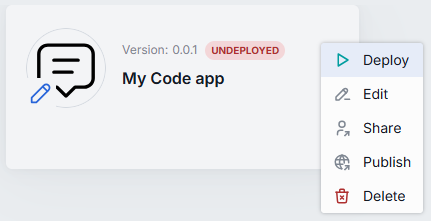
- Open the context menu for your RAG Code App and click Deploy.
- Wait for the status icon to change from yellow to green.
- Select the deployed app and click Use application.
- Attach a
.txtfile using the attachment button. Use any text document — for example, a company FAQ, a product description, or a few paragraphs copied into a text file. - Type a question about the document content and send it.
Verify: The app responds with an answer that references information from your uploaded document. If you ask a question not covered by the document, the app should indicate that.
Step 5: Iterate with redeploy
Improve the system prompt to make answers more specific. In the code editor, change the system message in _ask_model:
                {
                    "role": "system",
                    "content": (
                        "You are a document analyst. Answer the user's "
                        "question based solely on the provided document. "
                        "Quote relevant passages when possible. If the "
                        "document does not contain the answer, respond "
                        "with: 'The document does not contain information "
                        "about this topic.'\n\n"
                        f"Document:\n{context}"
                    ),
                },
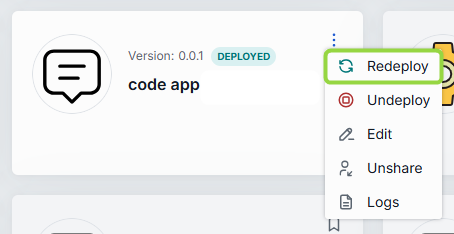
Click Redeploy from the context menu or directly in Application Builder. The platform applies your changes without downtime.
Verify: Send the same question again. The response should now quote passages from the document and clearly state when information is missing.
Step 6: Share the app
To let others use your RAG Code App:
- Open the context menu for the app in My workspace.
- Click Share.
- Choose the access level:
- READ — the recipient can use the app but cannot edit or redeploy it.
- WRITE — the recipient can edit the code and redeploy.
To make the app available to a wider audience, use Publish to submit it to the Catalog through the standard approval workflow.
Verify: The shared user can see and use the app in their workspace.
What you learned
- How to read file attachments from user messages in a Code App.
- How to call a language model through DIAL Core using
httpxand per-request key propagation. - How to configure environment variables for deployment-specific settings.
- How to use Redeploy for iterative development without downtime.
- How to share a Code App with other users or publish it to the Catalog.
Demo video
A video walkthrough of building a RAG Code App is available:
Further reading
- Getting started with Code Apps — build, deploy, and test a first Code App in DIAL Chat
- Tutorial: build a RAG app — build a Custom App that answers questions about uploaded files
- Build a document Q&A app with Generic RAG — build a no-code document Q&A app from a configured pipeline
- When to use which app type — a decision matrix for Quick Apps, Code Apps, and Custom Apps