Application Containers
Introduction
DIAL enables the use of self-hosted applications by deploying container images within DIAL infrastructure. Once containers are running, you can register applications in DIAL based on the endpoints exposed by these containers.
Refer to Applications to learn how to create applications based on Application Containers.
Main Screen
In Application Containers, you can manage containers for applications deployed within the DIAL system. You can create new containers based on existing images, start and stop running containers as needed, edit configuration settings, and view logs and events for troubleshooting.
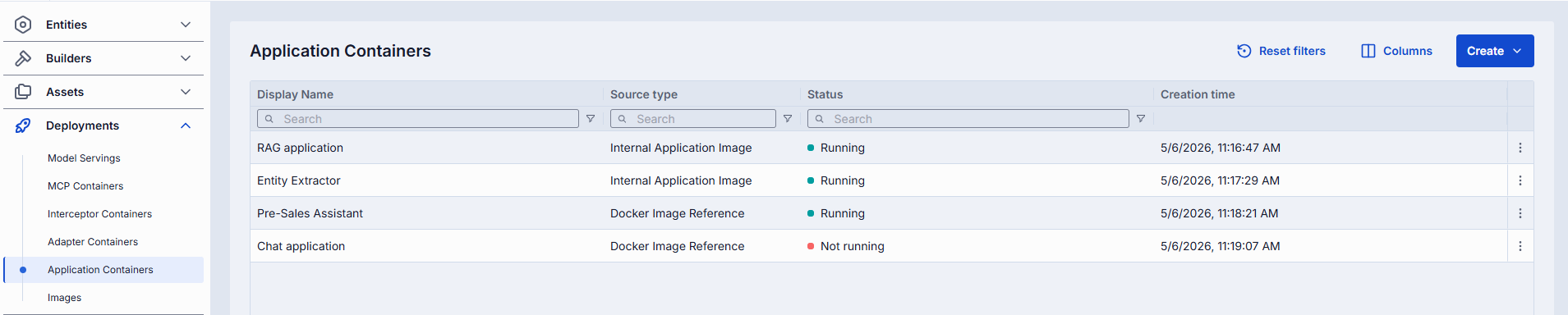
Application containers grid
| Column | Description |
|---|---|
| Display Name | Name of the application container rendered on UI. |
| Description | Brief description of the application container. |
| Status | Current status of the application container (e.g., Running, Stopped). |
| ID | Unique identifier of the application container. |
| Source type | Type of the container source: Docker Image Reference (for containers created based on external Docker images) or Internal Application Image (for containers created based on DIAL self-hosted images). |
| Source Name | The name of the container source: either Docker image name or ID of the internal image. |
| Container URL | URL to access the running application container. |
| Author | Email address of the creator of the container. |
| Creation Time | Container creation timestamp. |
| Updated Time | Timestamp of the last update. |
| Topics | Tags that associate application container with one or more topics or categories. |
| Actions | Buttons to manage the selected container: - Open in a new tab: Use to open the container configuration screen in a new tab in your browser. - Duplicate: Use to duplicate the container. - Stop/Run: Use to start and stop a container. - Delete: Use to remove the container. |
Create
On the main screen, you can add new containers based on Internal application Images or using the External Docker Image Reference. When a new container is created and running, you can use it as a source type to create applications.
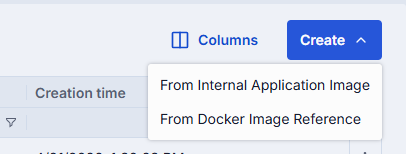
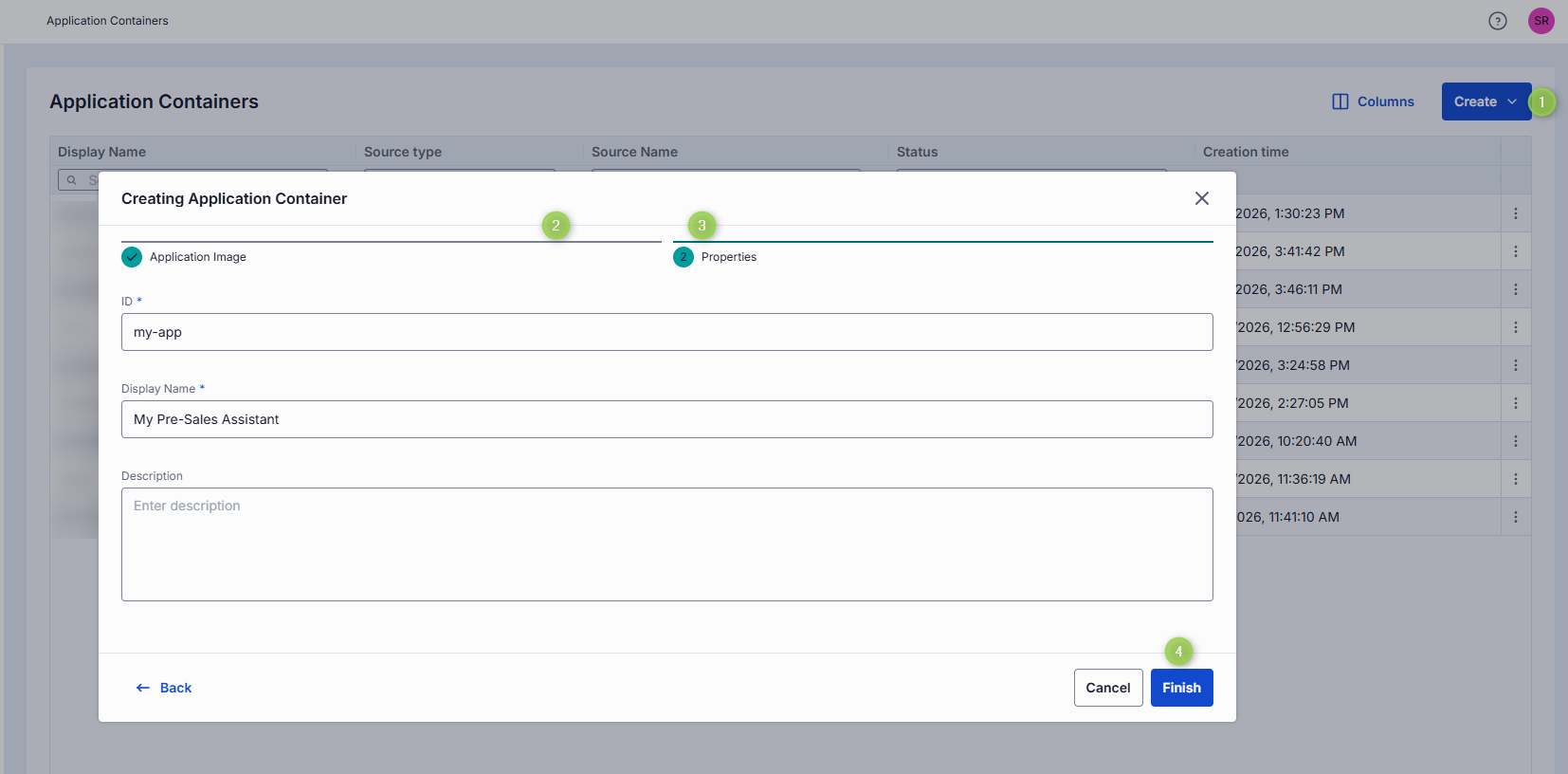
To create a new application container
- Click Create on the main screen and select to create a container from the Internal Application Image or Docker Image Reference.
- From Internal Application Image: Select the desired image from the list and pick its installed version from the list (labeled with green indicator).
- From Docker Image Reference: Provide the URI of the external Docker image you want to use.
- Specify ID, Display Name and Description properties and click Finish to create the container.
- The screen with the container configuration is displayed. You can modify the configuration as needed, run, stop or delete the container.
Configuration
Click any container on the main screen to open its configuration screen.
On the configuration screen, you can view and edit the selected container settings, start and stop the container, view logs and events, or delete the container.
Note: Configuration fields are disabled for editing when the container is in a transition state (pending or stopping).
Actions
In the header of the Configuration screen, you can find the following action buttons:
| Action | Description |
|---|---|
| Create Application | Available for running containers. Click to create new applications using the selected container. |
| Run/Stop | Click to start or stop the container. |
| Delete | Click to delete the container. Note: This will effect applications created based on the deleted container. |

To Create Application
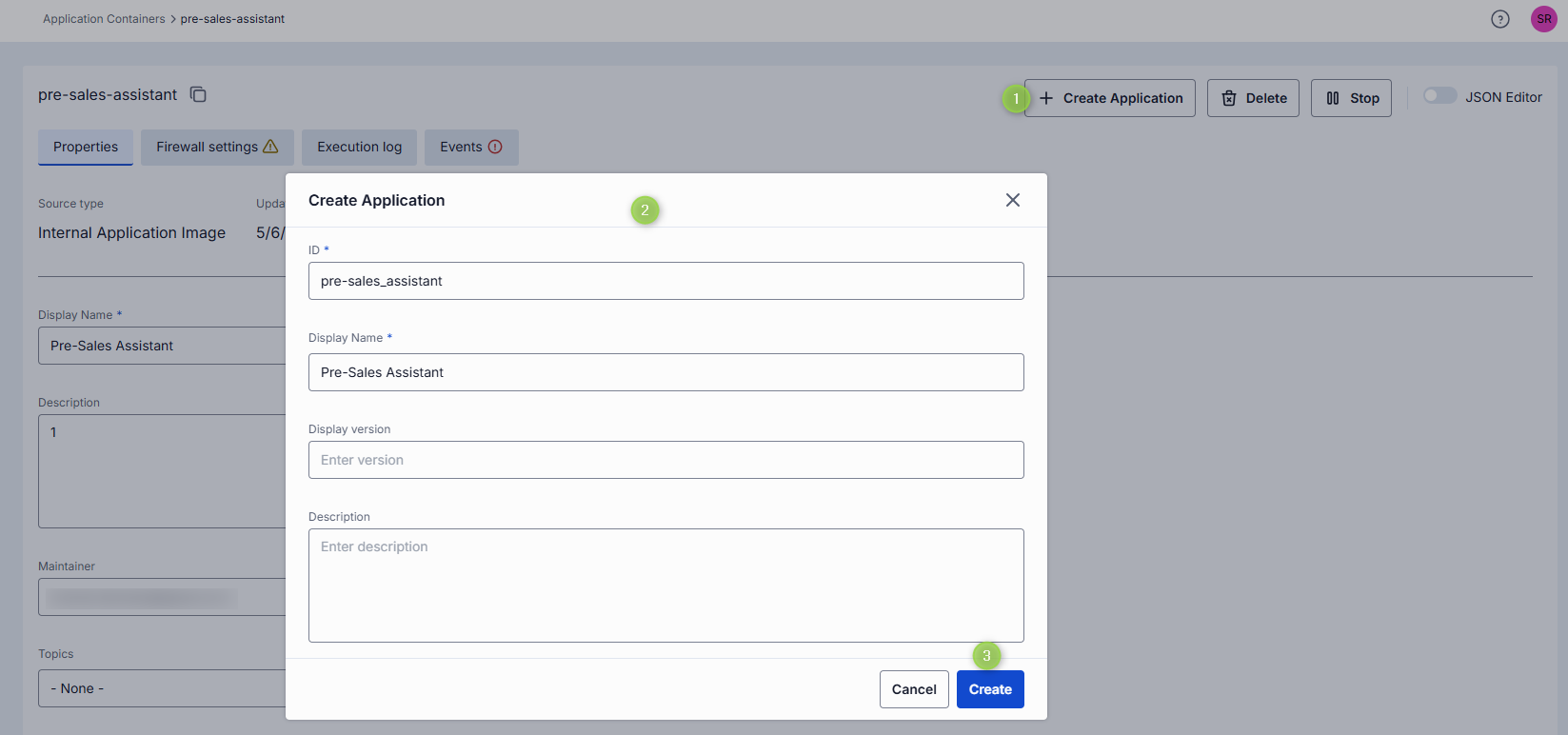
You can use a running container to create a new AI application. Once created, the application appears in Applications.
- In the Configuration screen of the running container, click the Create Application button in the header.
- In the Create Application dialog, fill in the form fields:
- ID: Unique identifier for the application. Auto-populated according to the selected container.
- Display Name: Name of the application displayed on UI. Auto-populated according to the selected container.
- Description: Brief description of the application.
- Click Create to submit the form and create the application. Repeat these steps to create more applications if needed.
Properties
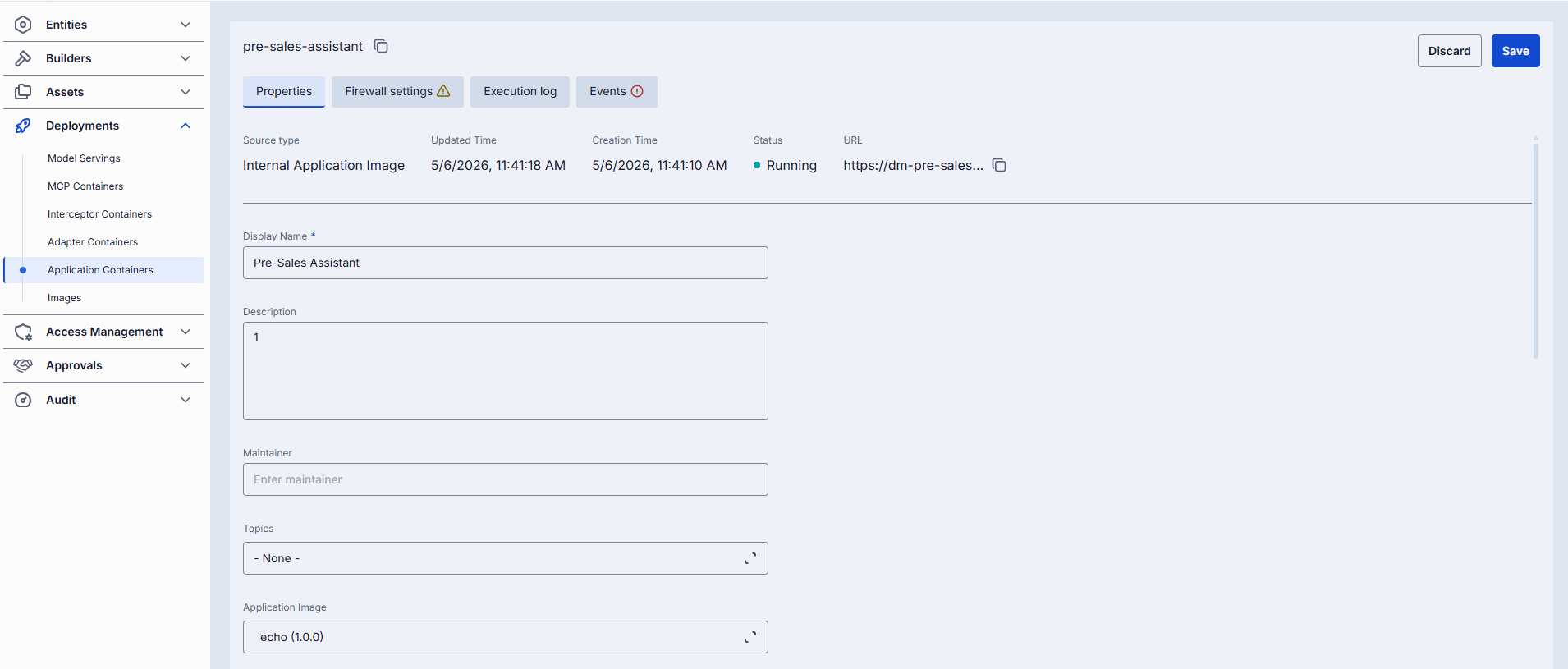
In the Properties tab, you can view and edit the selected container settings.
Fields description
| Property | Required | Editable | Description |
|---|---|---|---|
| ID | - | - | Unique read-only identifier for the container. Must be between 2 and 36 characters long. Can contain only lowercase Latin letters, numbers, and hyphens. |
| Source Type | - | - | Unique read-only source type for the container: Docker Image Reference (for containers created based on external Docker images) or Internal Application Image (for containers created based on DIAL self-hosted images). |
| Creation Time | - | - | Container creation timestamp. |
| Updated Time | - | - | Timestamp of the last update. |
| Status | - | - | Current status of the container (e.g., Running, Stopped). |
| URL | - | - | URL to access the running container. |
| Restarts | - | - | Restart counter for launching containers. Use to identify crash loops. You can find details in the Execution Log. |
| Display Name | Yes | Yes | Name of the container rendered in UI. Must be between 2 and 255 characters long. |
| Description | No | Yes | Brief description of the container. |
| Maintainer | No | Yes | Email address of the maintainer of the container. |
| Topics | No | Yes | Topics are semantic labels that you can assign to containers (e.g. "finance", "support") for better navigation on UI. Click to display a list of available topics. You can add your own custom topics to the list following these rules: - The topic name must not exceed 255 characters. - The topic name must not contain leading or trailing spaces. |
| Application Image | Conditional | Yes | Name of the internal application image used to create the selected container. Disabled if the external Docker image was used to create the container. |
| Docker Image Reference | Conditional | Yes | Name of the external Docker image used to created the selected container. Disabled if the internal application image was used to create the container. |
| Endpoint Configuration | No | Yes | Configuration details for the endpoints exposed by the container. Note: Changes to these settings can be applied to a running container. Saving changes will trigger a restart in RollingUpdate mode. |
| Autoscaling | No | Yes | Parameters to dynamically adjust application container replicas based on demand. - Automatic scale to zero: Use to define criteria to reduce replicas to zero to save resources. For new application containers, this option is enabled by default with a 5-minute inactivity delay before scaling to zero. - Min and Max Replicas: Sets the minimum and maximum number of instances that can run, ensuring availability and controlling costs. For new application containers, the default range is 0 to 1 replica. - Pending requests to trigger autoscaling: Specifies the number of queued requests required to trigger scaling up, helping maintain performance during traffic spikes. Important: Existing application containers keep their current autoscaling configuration. |
| Environment Variables | No | Yes | Environment variables set for the container. Note: Changes to these settings can be applied to a running container. Saving changes will trigger a restart in RollingUpdate mode. - Name: Must be between 1 and 253 characters long. Can contain only letters, numbers, dots (.), hyphens (-), and underscores (_).- Value: Must be between 1 and 253 characters long. Can contain only letters, numbers, dots (.), hyphens (-), and underscores (_). |
| Resources | No | Yes | Resource limits and requests for the container. Note: Changes to these settings can be applied to a running container. Saving changes will trigger a restart in RollingUpdate mode. Validation rules: - Values must be numeric and greater than 0. - Maximum allowed values for cpu, memory, and nvidia.com/gpu are defined on the backend via environment variables.- For each matching resource key (e.g. cpu), the value in limits must not be less than the value in requests. |
| Configuration | No | Yes | Command that defines the executable and its options to launch the container. Arguments provide extra parameters for customization during startup. |
| Startup probe | No | Yes | Use this configuration to enable and configure the Startup Probe - it is a type of health check specifically designed to signal that the application inside the container is ready to begin serving traffic. - Type: HTTP (Performs an HTTP GET request to a specified path and port on the container. The probe is considered successful if the response has a status code between 200 and 399.); TCP (Attempts to establish a TCP connection to the specified port. The probe is successful if the connection is established.). - Port: The network port on the container to which the probe will connect or send the request. - Path: Path to call inside the container. Available for HTTP type. - Initial delay seconds: The number of seconds to wait after the container starts before performing the first probe. This allows the application time to initialize before health checks begin. - Period seconds: The interval (in seconds) between consecutive probe checks. This determines how frequently Kubernetes will perform the probe. - Timeout seconds: The maximum number of seconds allowed for a single probe check to complete. If the probe does not return within this time, it is considered a failure. - Failure threshold: The number of consecutive failed probe attempts before Kubernetes considers the startup probe to have failed, which may result in the container being restarted or marked as failed. |
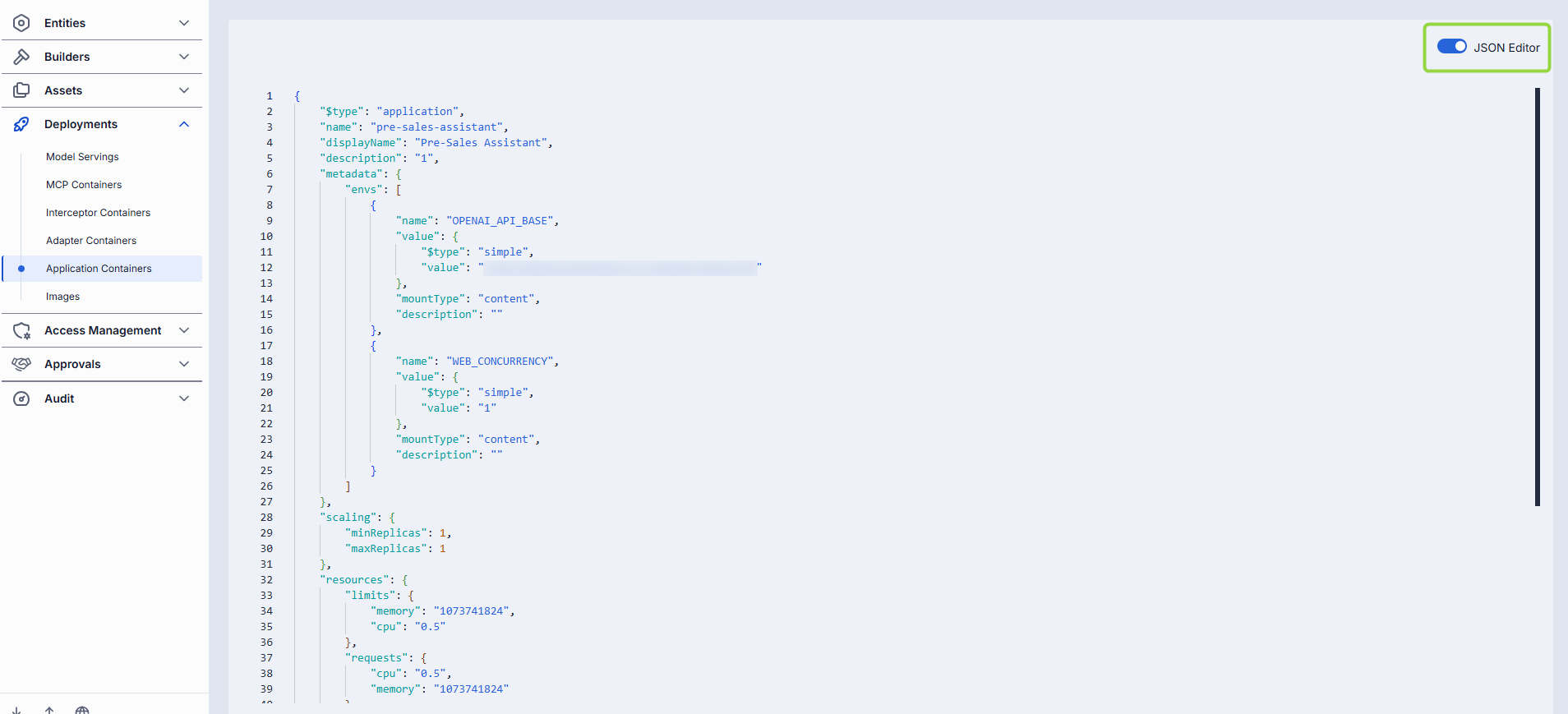
Advanced users with technical expertise can work with the container properties in a JSON editor view mode. It is useful for advanced scenarios of bulk updates, copy/paste between environments, or tweaking settings not exposed on UI.
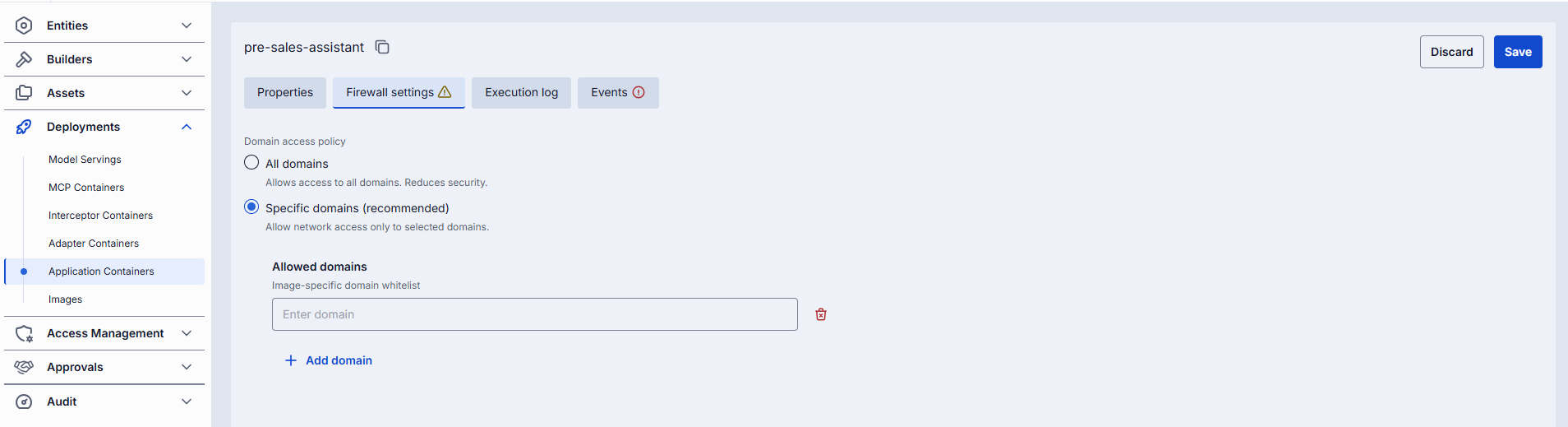
Firewall settings
The whitelist domains settings specify which external domains the container is allowed to connect to. This setting controls outgoing traffic from the container, ensuring that it can only communicate with trusted domains (for example, your company’s website or specific client applications).
Domain name requirements: Enter the domain name without protocol, e.g., github.com. Each domain must have at least one dot, labels can include letters, numbers, and hyphens (1–63 chars, not starting or ending with a hyphen), and the top-level domain must be at least 2 letters. Domain name must not include leading or trailing hyphens in labels.
Execution log
In the Execution Log tab, you can view real-time logs generated by the selected container. This log provides insights into the container's operations, including any errors or important events that occur during its execution.
When container starts with more than one pod, you can see logs for each of them:

In case of issues, health indicators are displayed to help identify problems:
| Indicator | Description |
|---|---|
| Restarts | Restart counter for launching containers. Use to identify crash loops. |
| Last restarted at | Timestamp of the last container restart. |
| Last reason | Restart failure reason. |

Events
In the Events tab, you can view a log of significant events related to the selected container, such as start and stop actions, errors, and other system messages.
Audit
In the Audit tab, you can review activity, usage, and operational metrics for the selected application container, including configuration changes and runtime actions.
Note: This tab mimics the functionality available in the global Activity section, but is scoped specifically to the selected application container.