Using Databricks Models in AI DIAL
From this document you can learn how to use Databricks models in AI DIAL.
Configure Databricks
Step 1 (Optional): Create Serving Endpoint
Create a serving endpoint for a Databricks model unless you already have one:
-
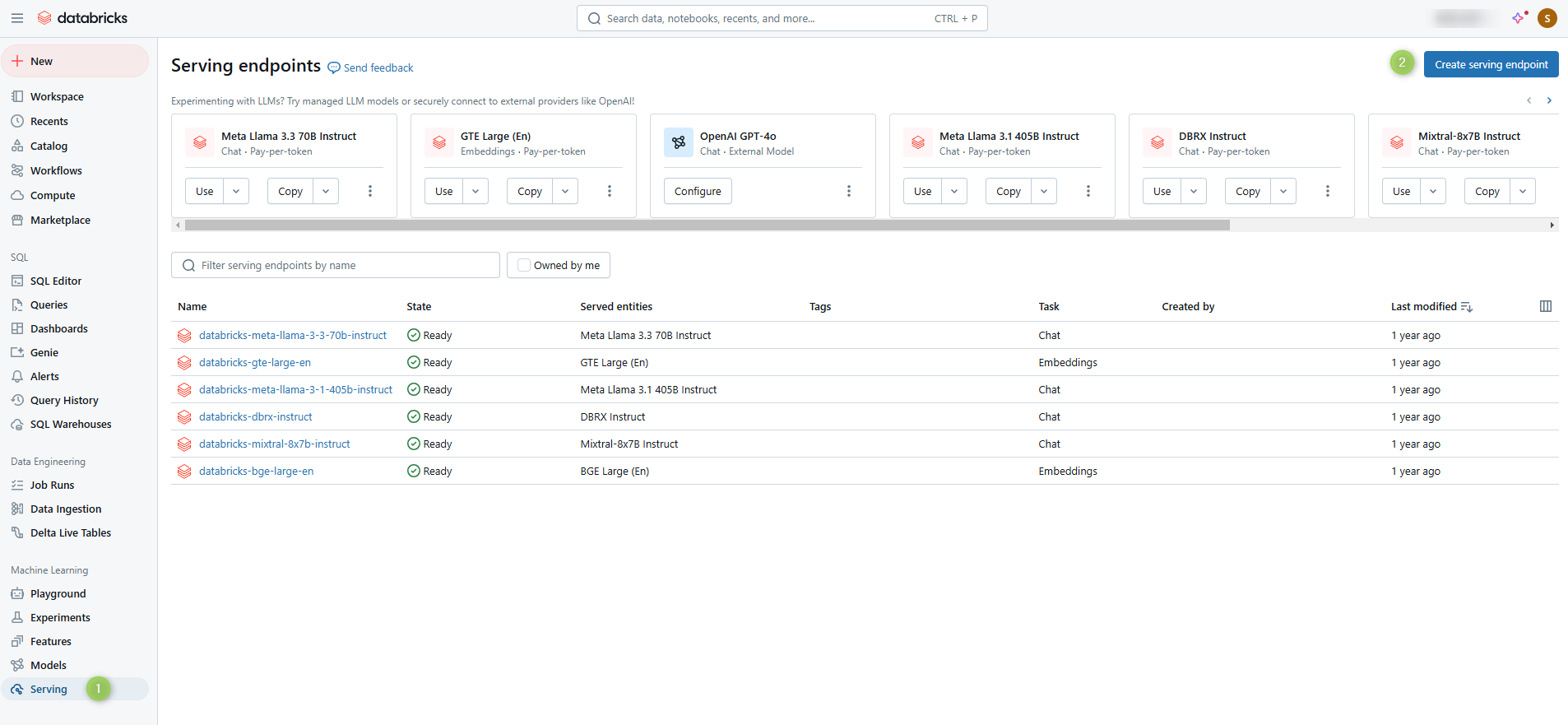
In the Machine Learning section, navigate to the Serving tab and click Create serving endpoint.
-
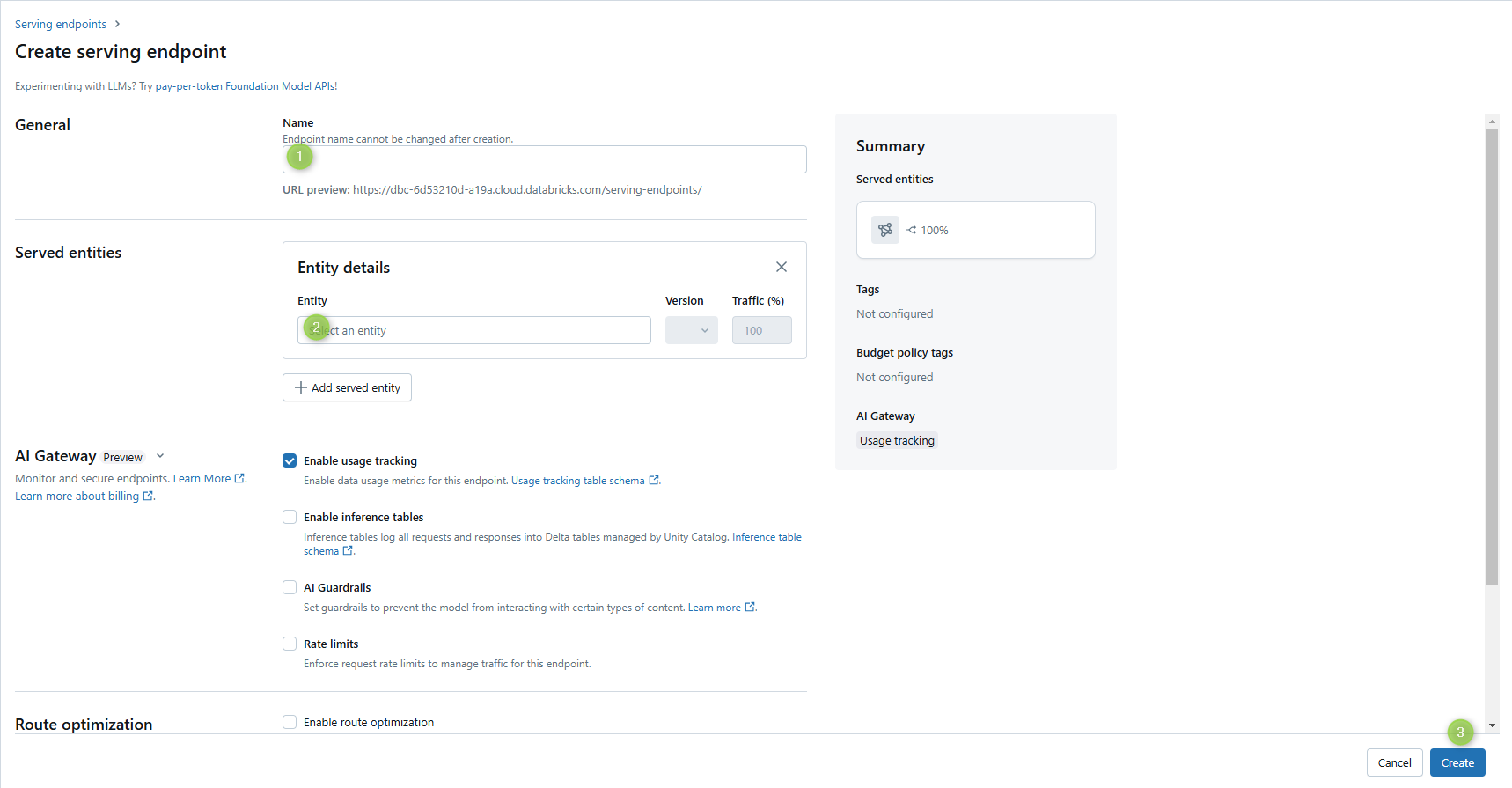
Enter a serving endpoint name (it will be used in the Step 4) and select the served Entity (model).
-
Click Create
Step 2: Create Access Token
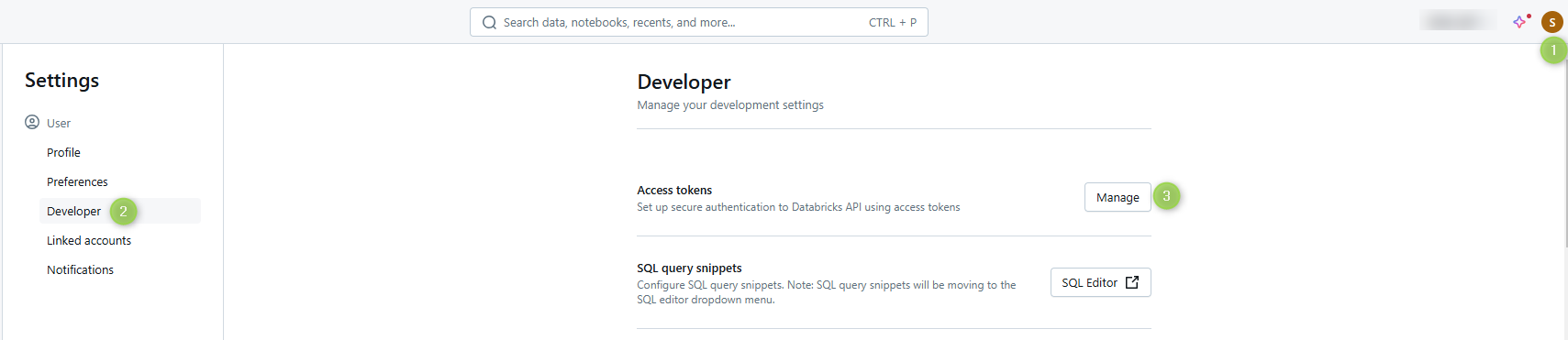
To generate access token, navigate to the Developer section in your User Settings.
Configure AI DIAL
Step 3: Configure AI DIAL Model
Use the serving endpoint and the access token you have created in two previous steps to add the following configuration in the DIAL Core dynamic settings to the model section:
"{dial-deployment-name}":
{
    "type": "chat",
    "displayName": "{Deployment name}",
    "endpoint": "http://{open-ai-adapter-host}/openai/deployments/{databricks-deployment-name}/chat/completions",
    "upstreams": [
        {
            "endpoint": "{databricks-account-address}/serving-endpoints/chat/completions",
            "key": "access token"
        }
    ]
}
Step 4: Configure OpenAI Adapter
- Since Databricks serving endpoints utilize an authorization flow that differs from OpenAI's, it's necessary to specify the Databricks deployments in the OpenAI Adapter environment variable:
DATABRICKS_DEPLOYMENTS=databricks-deployment-name. Refer to AI DIAL OpenAI adapter documentation for details. - Restart AI DIAL OpenAI Adapter for changes to apply.